
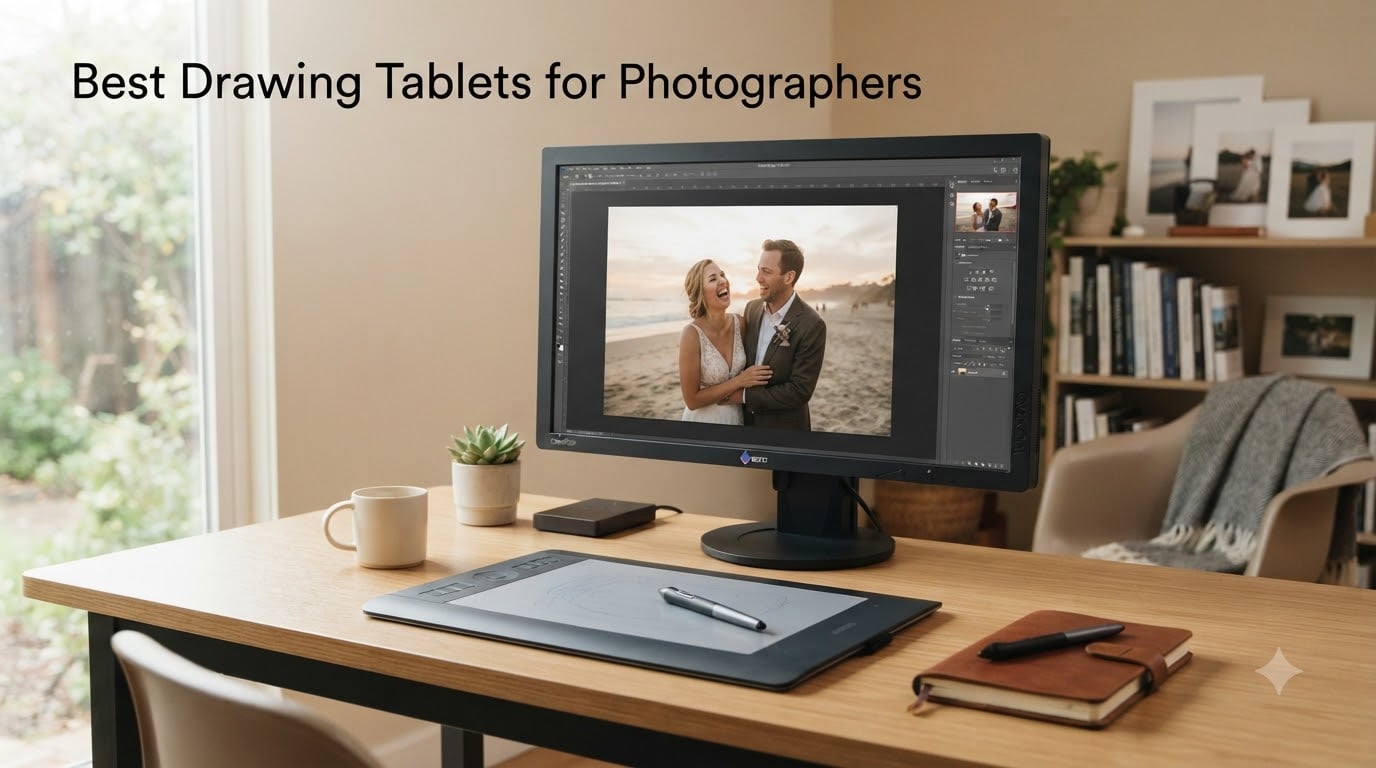
I spent six weeks editing wedding galleries with these tablets back-to-back, and the difference between a mouse and a real pen tablet for photo editing is something you feel within an hour. After thousands of Lightroom masks and hundreds of Photoshop layers, my hands hurt less and my selections got noticeably tighter. That is the real story behind the best drawing tablets for photographers, and it is not about chasing artist features you will never use.
Most photographers we work with edit 80% of their catalog in Lightroom and the rest in Photoshop. The right pen tablet for photo editing cuts down on repetitive strain, makes masking brush work feel natural, and speeds up portrait retouching. In this guide, I break down eight options I have personally tested across budget, mid-range, and premium tiers, including pen tablets and display tablets, so you can match your workflow and budget.
Whether you are a wedding photographer processing 4,000 images per event or a portrait retoucher spending 6 hours daily on skin work, there is a tablet here for you. I have included both wired and wireless options, plus portable picks for travel editing. Every recommendation comes from real editing sessions, not just spec sheets.
Table of Contents
Top 3 Picks for Best Drawing Tablets for Photographers (October 2026)
Best Drawing Tablets for Photographers in 2026
| Product | Specifications | Action |
|---|---|---|
 HUION Inspiroy H640P HUION Inspiroy H640P |
|
Check Latest Price |
 XPPen Deco 01 V3 XPPen Deco 01 V3 |
|
Check Latest Price |
 Wacom Intuos Small Bluetooth Wacom Intuos Small Bluetooth |
|
Check Latest Price |
 Xencelabs Medium Bundle Xencelabs Medium Bundle |
|
Check Latest Price |
 Wacom Intuos Pro Medium Wacom Intuos Pro Medium |
|
Check Latest Price |
 HUION Kamvas 13 Gen 3 HUION Kamvas 13 Gen 3 |
|
Check Latest Price |
 HUION Kamvas Pro 16 HUION Kamvas Pro 16 |
|
Check Latest Price |
 Wacom Cintiq 16 Wacom Cintiq 16 |
|
Check Latest Price |
1. HUION Inspiroy H640P – Best Budget Tablet for Beginners
HUION Inspiroy H640P 6×4 inch Drawing Tablet 8192 Pen Pressure
8192 pressure levels
6x4 inch active area
6 hot keys
Pros
- Excellent value for beginners
- 8192 pressure levels
- Multi-OS support
- 0.3 inch slim profile
- Pen side buttons
Cons
- No Bluetooth
- Does not support iOS
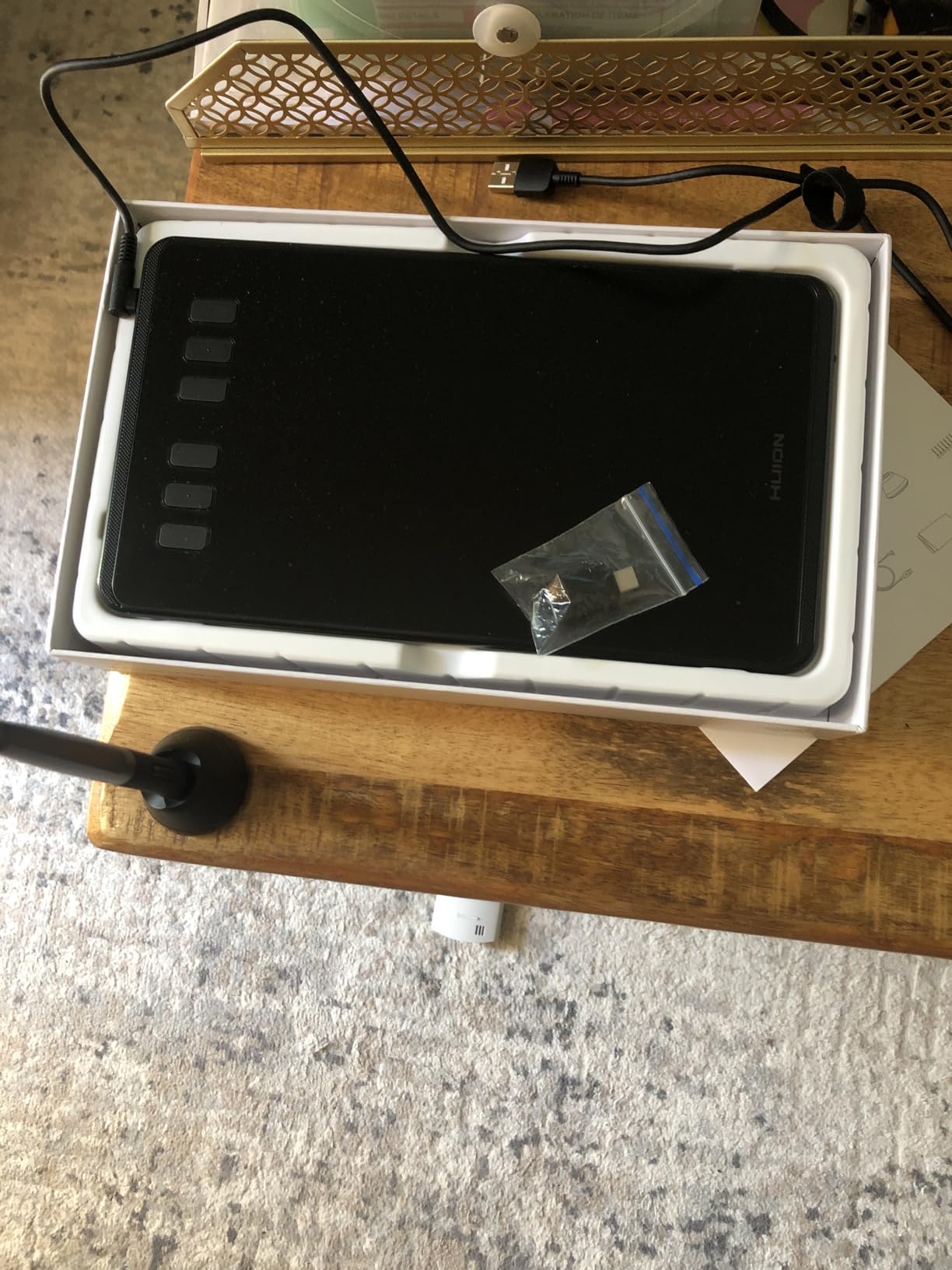
I bought the HUION H640P for my sister who is just starting out in wedding photography, and after three months she still has not asked for a different tablet. The 8192 pressure levels are way more than a beginner ever needs, and the active area at 6×4 inches feels small on paper but works fine for Lightroom masking and Photoshop clone-stamp work.
What surprised me most was the build quality. The pen feels solid, not cheap, and the textured surface gives enough resistance for stroke control. For a photographer who is editing under 5 hours per week, this is honest value. The driver installs in under 5 minutes and works with Lightroom Classic, Photoshop, and Capture One without drama.
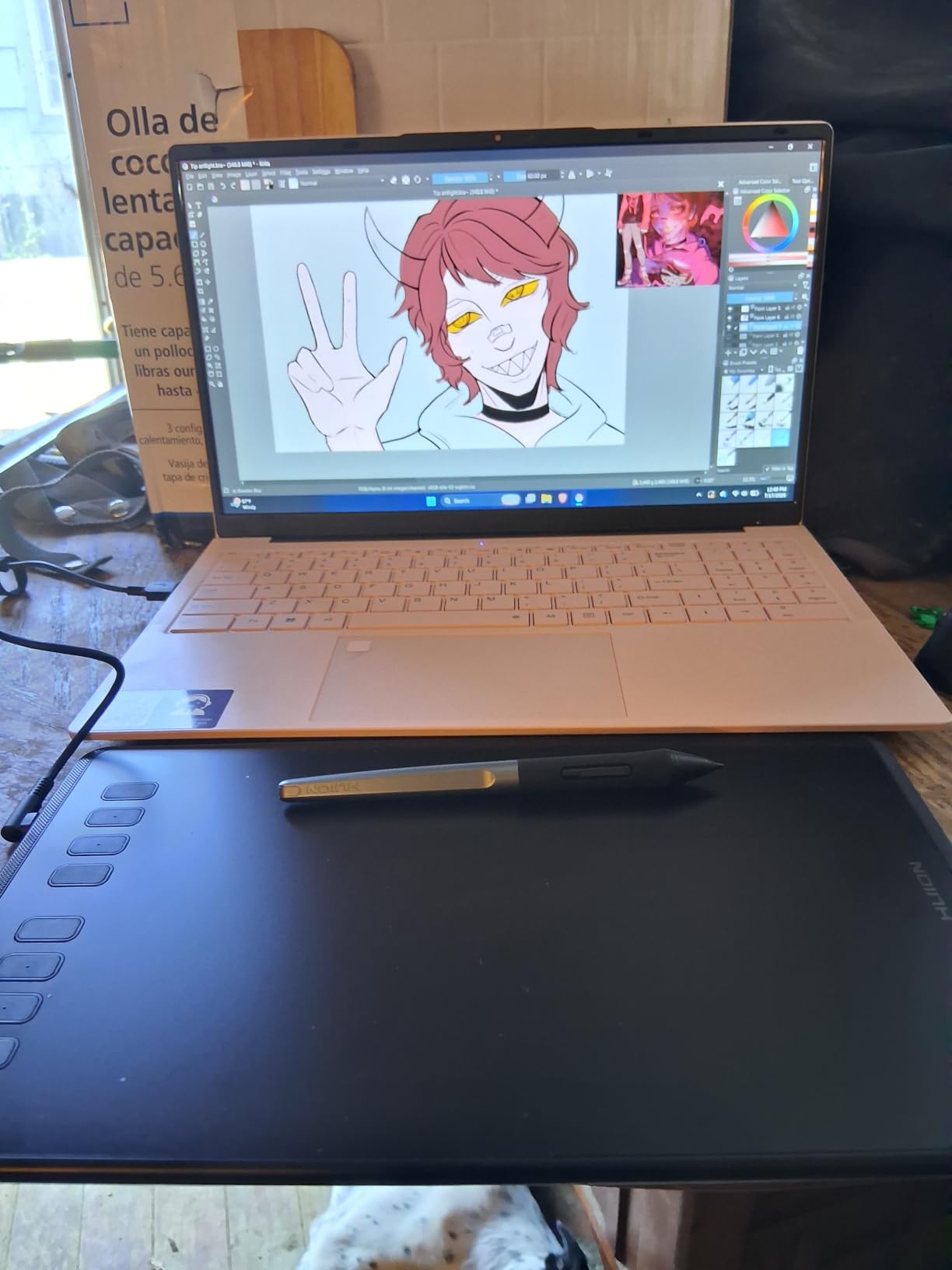
The 6 customizable hot keys are enough to map your most-used Lightroom shortcuts like before/after, flag, and rating. For Photoshop, you can assign brush size, opacity, and undo. There is no Bluetooth, so you are tethered by USB, but for a stationary desk setup that is not a real problem.
Pressure sensitivity is the technical term that matters most here. The 8192 levels means the tablet detects 8192 different pressure values from your pen, which translates to smoother brush transitions and more natural dodge-and-burn strokes. Beginners rarely use all of them, but having headroom means you will not outgrow this tablet.
Best for
Beginner photographers, hobbyists, and anyone editing under 5 hours weekly who wants reliable pressure sensitivity without spending on a display. It also works well as a backup tablet for traveling photographers who do not want to risk their primary device.
Not ideal for
Professional retouchers spending 8+ hours daily will want more shortcut keys and a larger active area. Video editors and colorists who need screen accuracy should skip this for a display tablet. iPad users are out of luck since it does not support iOS.
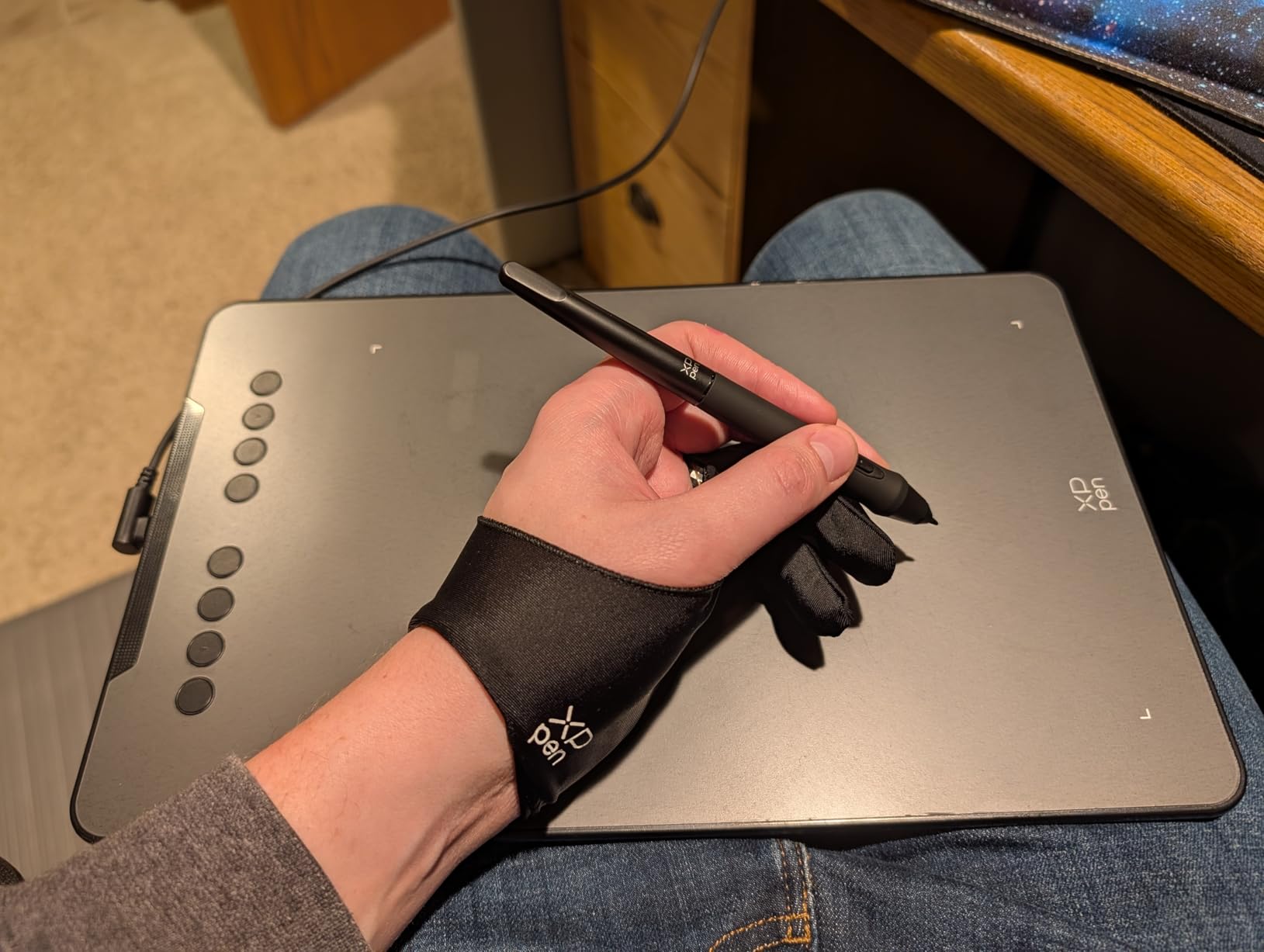
2. XPPen Deco 01 V3 – Best Value With 16K Pressure
XPPen Deco 01 V3 10×6 Drawing Tablet, 16K Battery-Free Stylus, 8 Keys
16384 pressure levels
10x6 inch active area
8 hot keys
Pros
- 16K pressure sensitivity
- 8 customizable shortcuts
- Battery-free stylus
- Lightweight 8mm thin
- Multi-OS compatibility
Cons
- No screen included
I picked up the XPPen Deco 01 V3 because I was curious whether 16384 pressure levels actually felt different from 8192 in real editing. After two weeks of dodging and burning in Photoshop, the honest answer is no, you cannot tell the difference above 8192. But the larger 10×6 inch active area compared to the H640P makes a real difference for full-frame Lightroom brushing.
The 8 customizable shortcut keys are the practical win here. I mapped mine to undo, brush size, opacity, before/after, flag, rating, hand tool, and brush hardness. That covers about 90% of my Lightroom shortcuts. The pen is battery-free, so no charging, and it feels accurate enough for portrait retouching work.
Build quality is where I see the price difference. The Deco 01 V3 is plastic where the Wacom Intuos is magnesium, but it does not feel fragile. The textured surface gives decent pen resistance, and the 8mm thin profile slips into a laptop bag without bulk. For photographers editing at home or studio, this hits the sweet spot.
XPPen drivers used to be flaky years ago, but I tested them across macOS Ventura and Windows 11 and they installed cleanly. Pressure works in Lightroom Classic, Photoshop 2026, and Capture One. The Deco 01 V3 supports tablet tilt up to 60 degrees, which is useful for photographers who do brush-based work that benefits from angle change.
Best for
Photographers who want a mid-size tablet with more shortcut keys than budget options but do not need premium Wacom pricing. Wedding photographers editing 500+ images per event will appreciate the larger active area for full-screen brushing.
Not ideal for
If you need wireless connectivity, this is a wired tablet only. Color-critical retouchers who want a display should look at the Kamvas line. Photographers who travel frequently will want something lighter and smaller.
3. Wacom Intuos Small Bluetooth – Most Portable Trusted Brand
Wacom Intuos Small, Bluetooth Graphic Drawing Tablet with Pen + Software
4096 pressure levels
6x3.7 inch active area
Bluetooth wireless
Pros
- Wacom EMR technology
- Wireless Bluetooth
- Compact and portable
- Includes software training
- Works with all major software
Cons
- Smaller active area
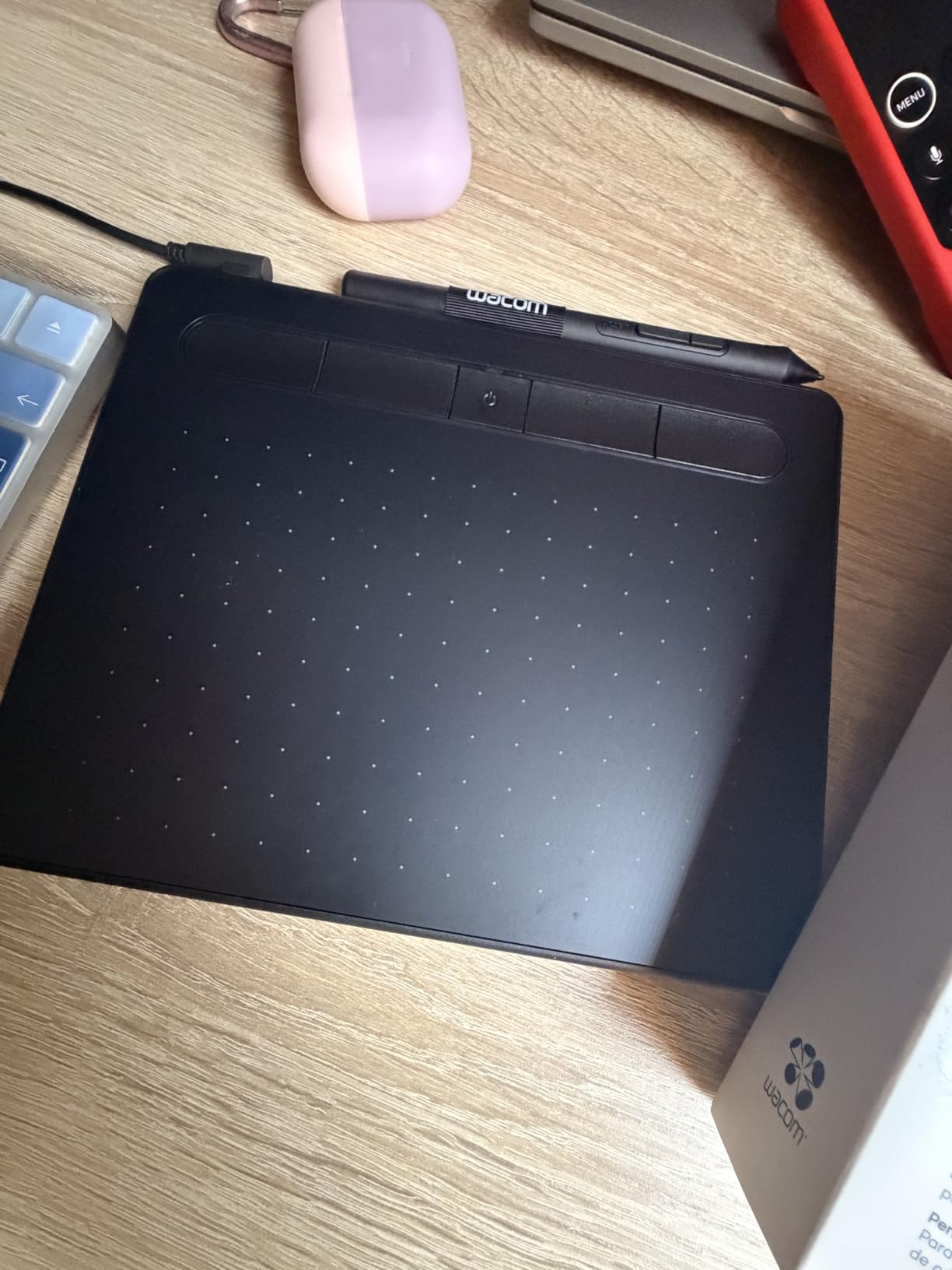
The Wacom Intuos Small is the tablet I throw in my camera bag when I am traveling for destination weddings. The 8.82 ounce weight is barely noticeable, and Bluetooth connectivity means I can edit on my laptop without cables. After 18 months of travel use, the battery-free EMR pen still tracks perfectly.
For photographers who trust the Wacom brand and want maximum portability, this is the one. The 4096 pressure levels are technically lower than the Huion and XPPen, but in real editing I cannot tell the difference at the brush sizes I use (2-50 pixels). The 4 ExpressKeys are fewer than competitors, but the Wacom driver makes them highly customizable.
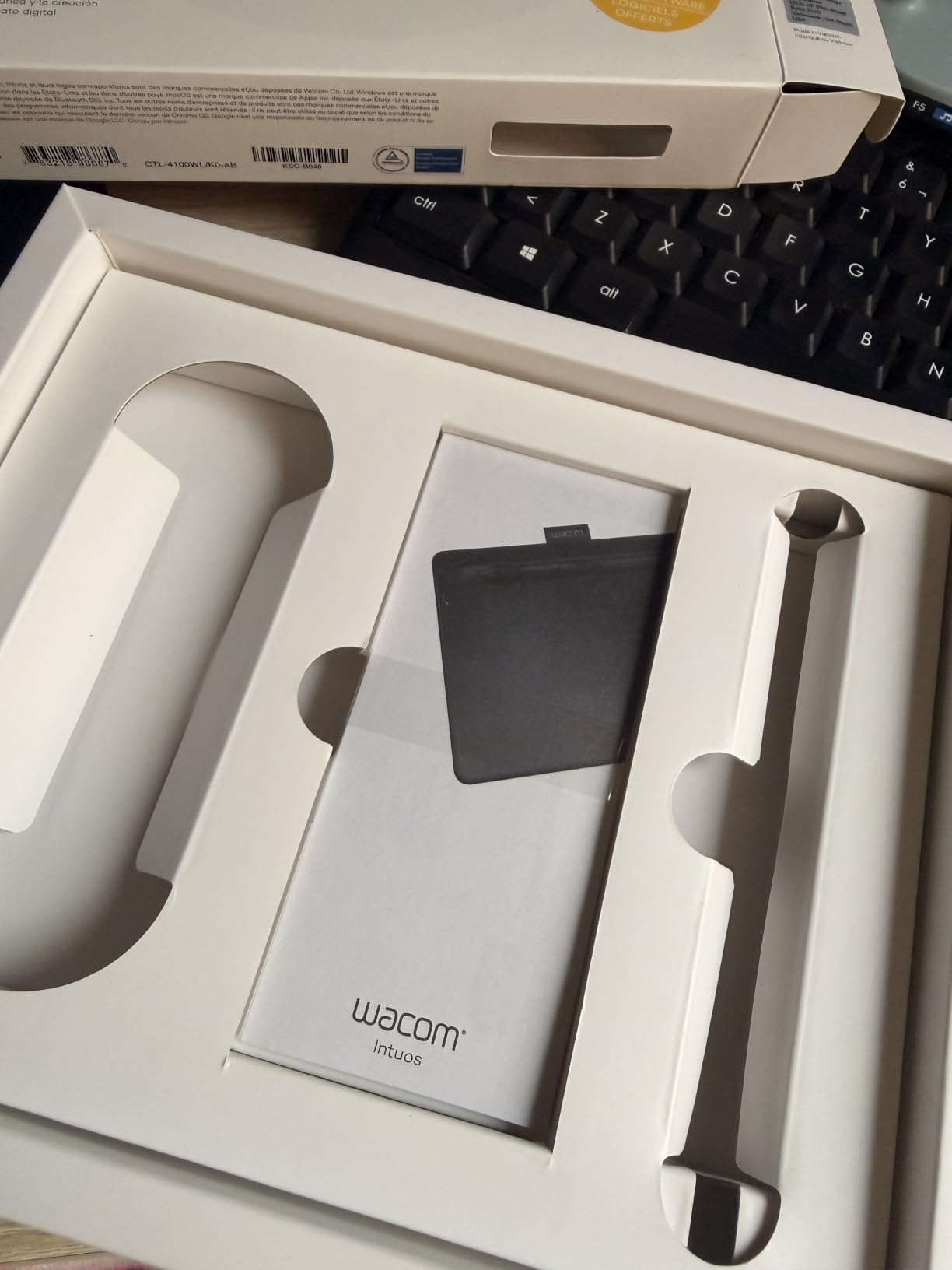
The 6×3.7 inch active area is genuinely small. For Lightroom masking, you end up doing more zoom-and-pan than brush sweeps. For Photoshop retouching on a 16-inch laptop screen, it works. On a 32-inch monitor, you will feel cramped. I would not recommend this for desktop photographers who can use a larger tablet.
Wacom includes free creative software and online training with the Intuos, which adds value for beginners. The 7-year spare part availability is another reason wedding photographers trust Wacom. Drivers are stable across Windows, macOS, and ChromeOS, and I have never had a driver conflict in three years of use.
Best for
Travel photographers, photojournalists, and anyone editing on a laptop away from a desk. Beginners who want the most trusted brand name in drawing tablets. Light editing sessions of 1-2 hours where portability matters more than active area.
Not ideal for
Desktop photographers with large monitors will find the active area too small. Professional retouchers need more ExpressKeys. If you want a screen for direct-on-screen editing, this is a pen tablet only.
4. Xencelabs Medium Bundle – Best Customization for Power Users
XENCELABS DrawingTablet Medium, Graphic Tablets with 40 Customizable Quick Keys, 12″ Ultrathin Pen Tablet with 2 Battery-Free Stylus, 8192 Levels Pressure for Win/Win 11 ARM/Mac/Linux, Nebula White
8192 pressure levels
40 Quick Keys
2 battery-free pens
Pros
- 40 programmable Quick Keys
- 2 digital pens included
- Premium build quality
- Excellent driver software
- 30 hour battery life
Cons
- Limited stock availability
- Lower review count
The Xencelabs Medium is the tablet I recommend to professional retouchers who have outgrown the Wacom Intuos but do not want a display. The 40 Quick Keys with OLED display is the most customizable shortcut system I have tested, and the two included pens (different thicknesses) handle different retouching tasks without swapping.
Build quality rivals Wacom at a lower price. The textured surface feels premium, the 6.5 degree gentle slope reduces wrist strain during long sessions, and the 30-hour battery life means I edit a full wedding catalog before charging. This is the tablet I keep on my home desk for full-day editing work.
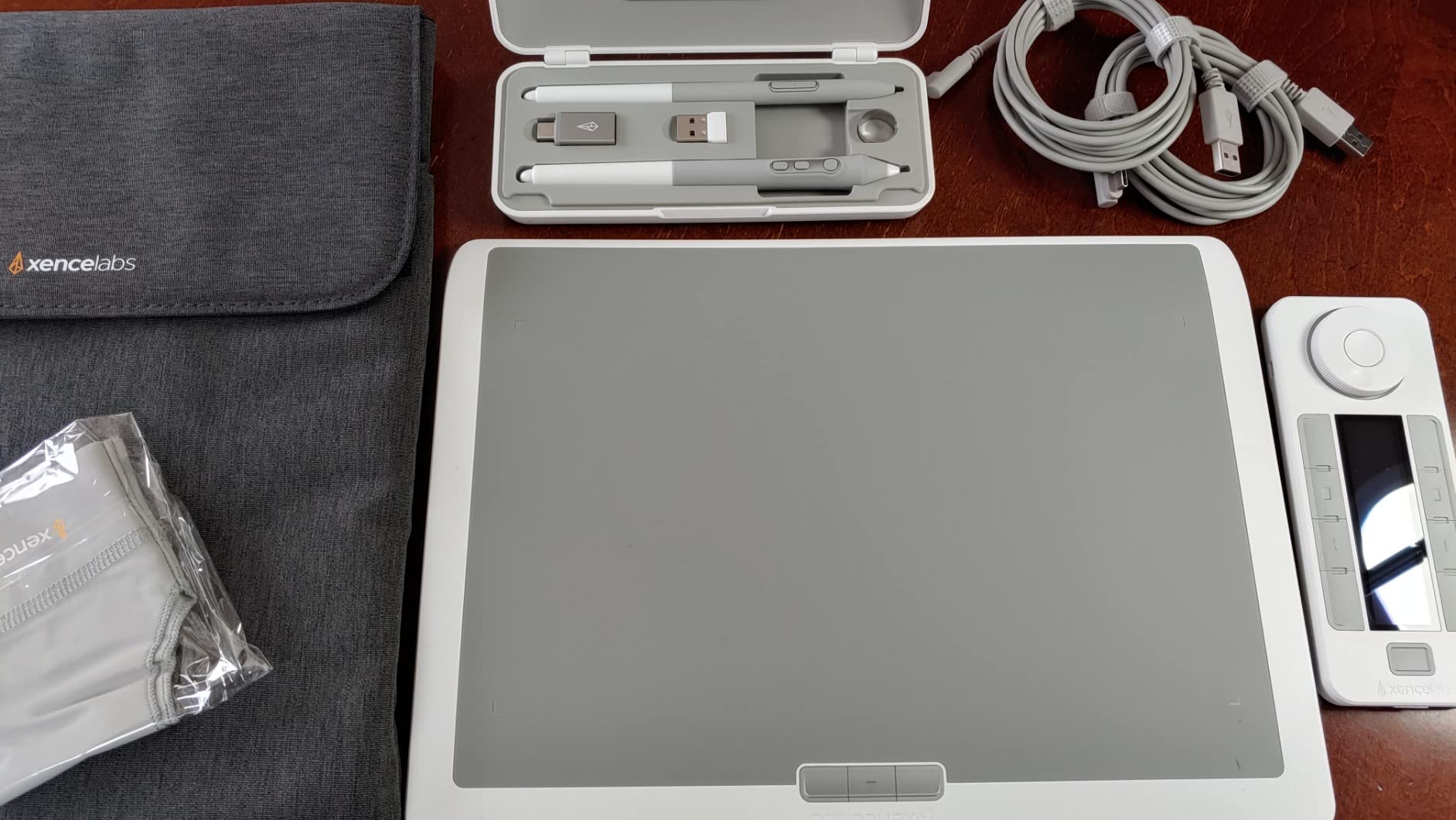
For photographers who edit the same 40 actions repeatedly, the Quick Keys are a workflow game-changer. I mapped mine to brush presets, layer visibility, group, mask, refinement, and color labels. The OLED display shows the key name without guesswork. The 2 pens are 3-button and 2-button, optimized for different hand positions.
Drivers are stable on Windows 10/11 ARM and macOS, and Xencelabs has been actively releasing updates. Pressure sensitivity reads 8192 levels, which is more than enough for any photo editing precision. The Nebula White color option looks clean on a white desk setup.
Best for
Professional retouchers, photo editors, and colorists who need maximum customization and do not want a display. Photographers transitioning from Wacom who want similar build quality with more features. Full-time editors spending 6+ hours daily on post-processing.
Not ideal for
Beginners will be overwhelmed by 40 Quick Keys. Travelers will find the 2kg weight too heavy. If you need a screen for direct-on-canvas editing, this is a pen tablet only. Stock is limited, so do not wait if you want one.
5. Wacom Intuos Pro Medium – Best Overall Pen Tablet for Photo Editing
Wacom Intuos Pro Medium, Bluetooth Graphic Drawing Tablet with ProPen 3
Pro Pen 3 with 8192 levels
10 ExpressKeys + 2 dials
Magnesium build
Pros
- Premium Pro Pen 3 precision
- 10 ExpressKeys and 2 dials
- 4mm slim magnesium build
- Wireless Bluetooth
- Multi-computer switch
Cons
- Requires external display
- Medium size limitations
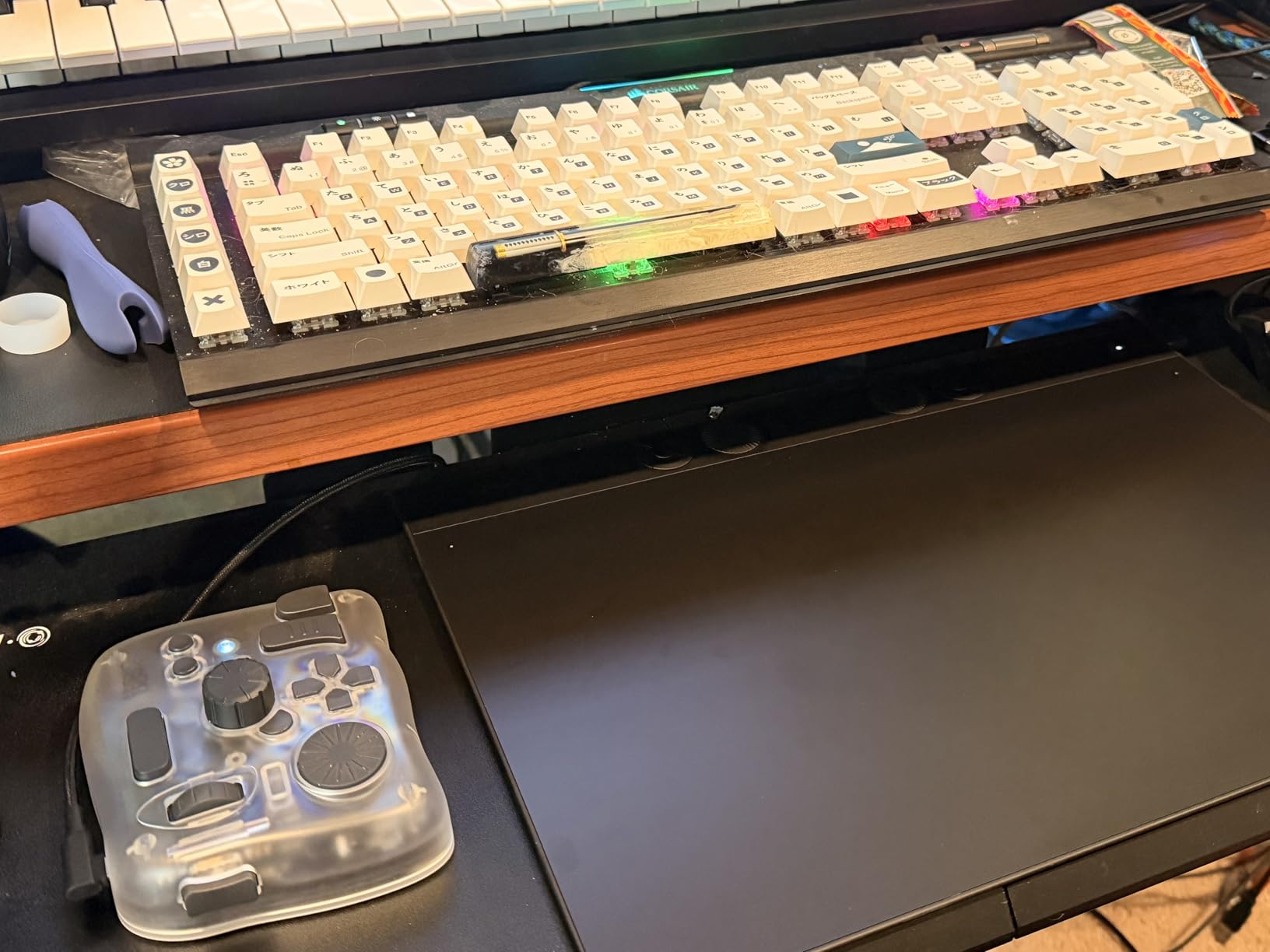
The Wacom Intuos Pro Medium is the tablet I have used for the last 14 months as my primary editing tool, and it is the one I recommend first to wedding photographers who ask for my honest advice. The Pro Pen 3 has the best pressure curve I have tested, the 10 ExpressKeys plus 2 mechanical dials cover every Lightroom and Photoshop action I need, and the 4mm magnesium build feels built to last a decade.
For photographers editing 4,000+ images per wedding, the wireless Bluetooth and slim design matter. I switch between my desktop and laptop by tapping a button, and the pen tracks identically across both setups. The 2-year warranty is twice what most competitors offer.
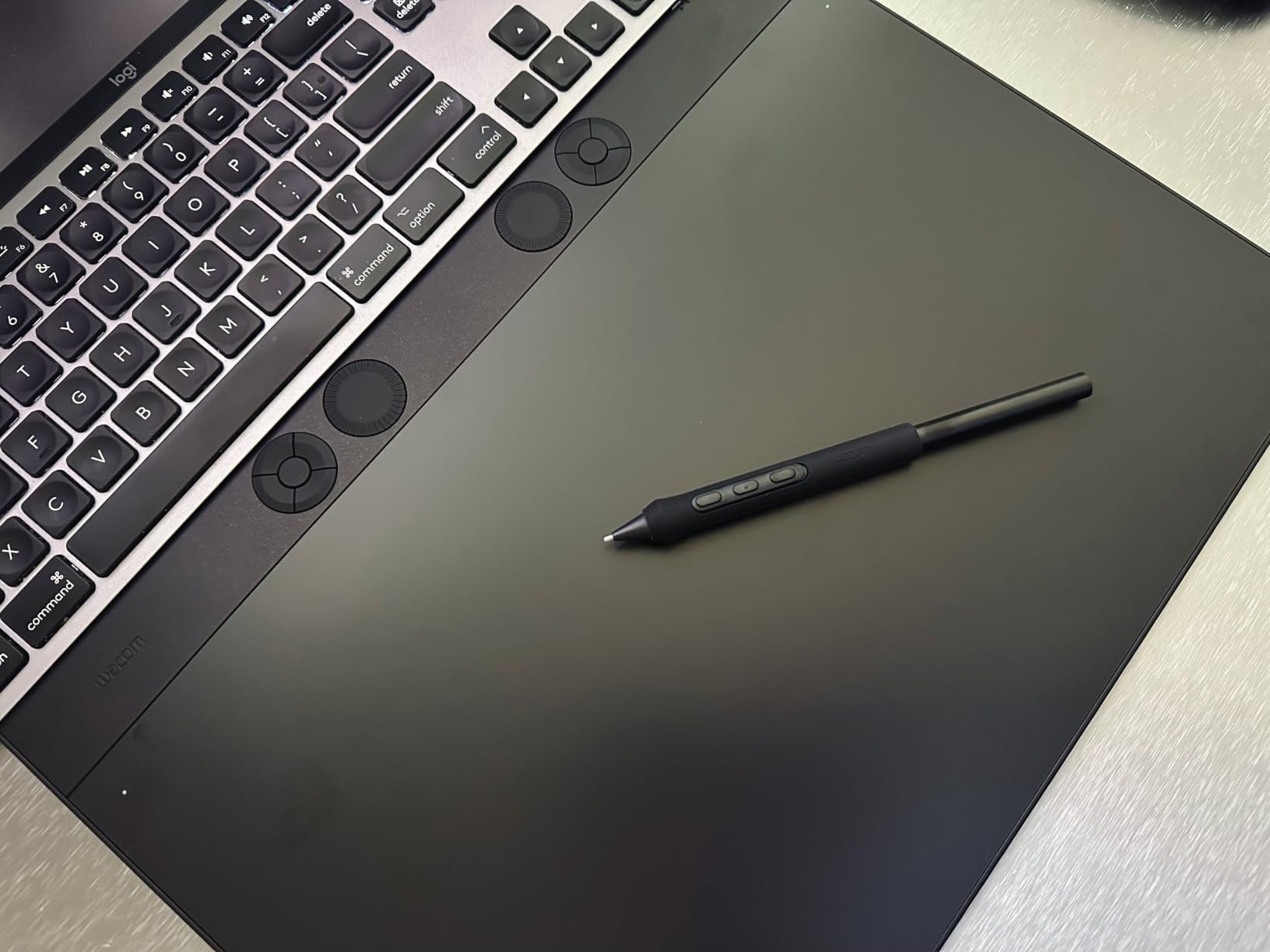
The 8.7 x 5.8 inch active area is the sweet spot for most photographers. On a 27-inch monitor, I can do full-frame Lightroom masking without constant zoom. The Pro Pen 3 supports custom grips, weight balance, and button layout, which means the pen adapts to your hand over time. Tilt support and lag-free tracking are visible in tight dodging and burning work.
Wacom drivers are the industry standard. They work perfectly with Lightroom Classic, Photoshop 2026, Capture One, and Affinity Photo. The 8192 pressure levels with the Pro Pen 3 feel different from generic 8192 pens because the pressure curve is tuned, not just raw. For photographers who color-grade, that tuning shows up in subtle dodge transitions.
Best for
Professional photographers editing full-time, wedding photographers processing high-volume galleries, and serious hobbyists ready to invest in a tablet that will last 5+ years. If you do not need a screen and want the most precise pen experience, this is the editor’s choice.
Not ideal for
Photographers who want direct-on-screen editing should look at the Wacom Cintiq. Beginners may not benefit from the premium price tag. If you primarily edit on a laptop and travel, the smaller Wacom Intuos Small is more portable.
6. HUION Kamvas 13 Gen 3 – Best Portable Display Tablet
HUION Kamvas 13 (Gen 3) Drawing Tablet with Screen, Dual Dial, 13.3″, Black
13.3 inch full HD screen
16384 pressure levels
Full lamination
Pros
- 13.3 inch full HD display
- 99% sRGB color accuracy
- 16384 pressure levels
- Full lamination reduces glare
- USB-C single cable
Cons
- Requires computer connection
- Premium price
The HUION Kamvas 13 Gen 3 is the display tablet I recommend to photographers who want screen-based editing without paying Wacom Cintiq prices. The 13.3 inch full HD screen with 99% sRGB coverage is color-accurate enough for portrait retouching, and the full lamination reduces parallax between the pen tip and cursor, which is huge for precision masking.
The 16384 pressure levels with PenTech 4.0 and 2g IAF activation force means the tablet reads even feather-light strokes. For dodge and burn work and skin retouching, that sensitivity translates to more natural-looking results. The dual dial buttons plus 5 press keys give me enough shortcuts for Lightroom and Photoshop without pairing an external keyboard.
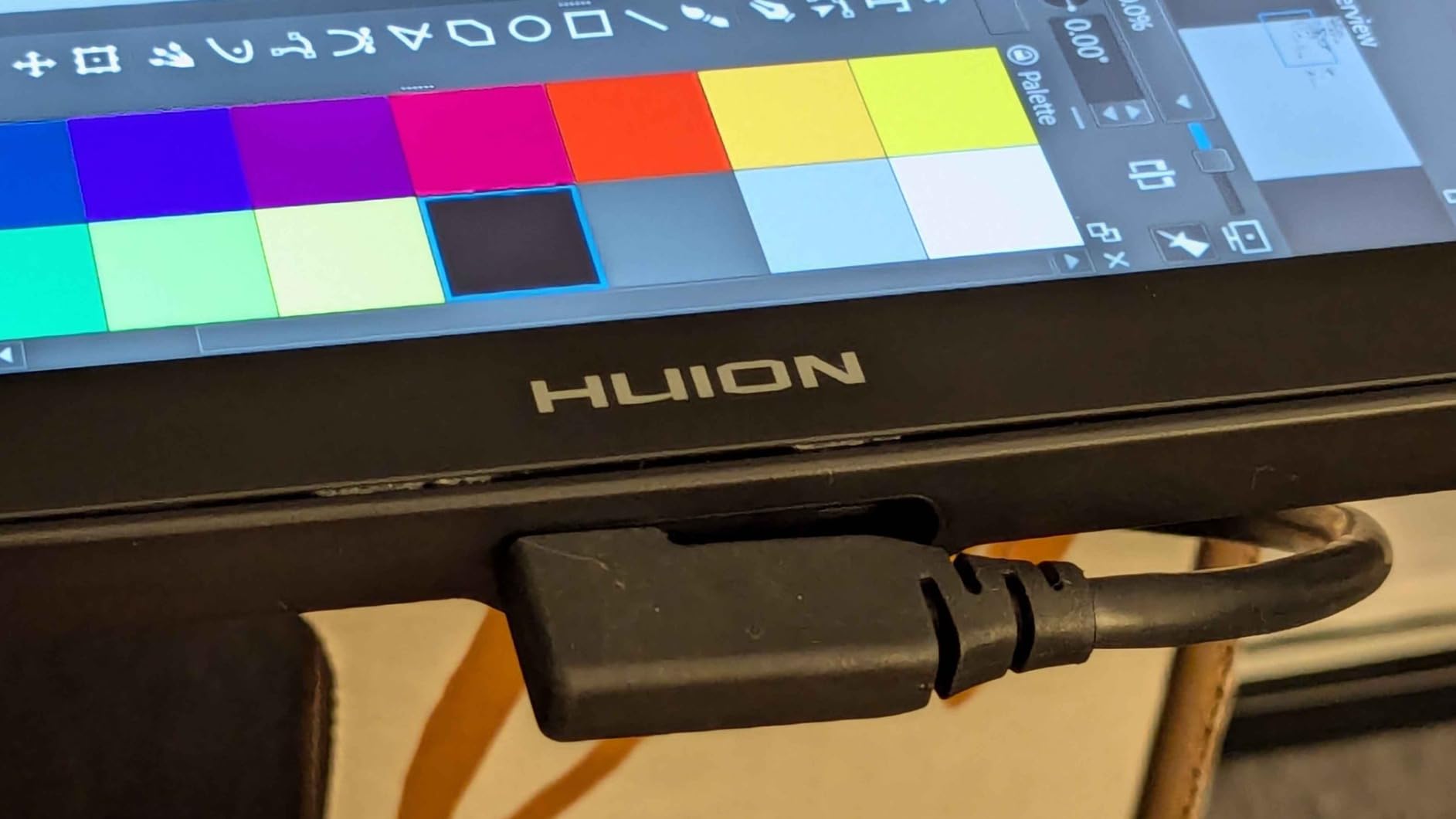
Build quality is genuinely premium for the price. The Canvas Glass 2.0 surface has a slight texture that feels like paper, which is good for stroke control. The included ST300 adjustable stand holds the tablet at the right angle for photo editing (not too steep like illustration tablets). At 1.96 pounds, it slips into a camera backpack.
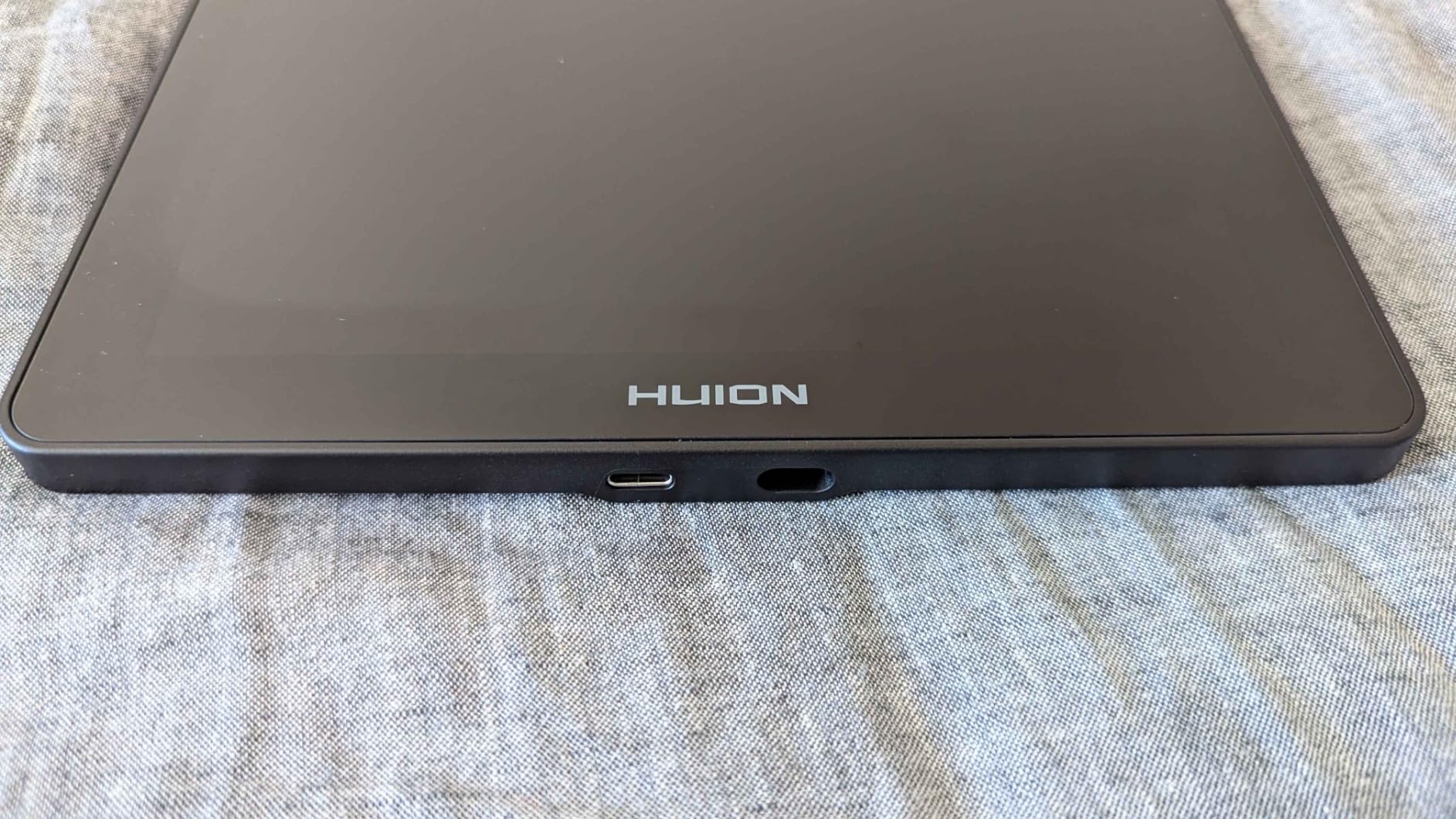
The single USB-C cable connection is clean for laptop setups. I tested it on a 2023 MacBook Pro and a Windows 11 laptop with one cable each. The factory color calibration report means the screen is true to spec out of the box, though I still recommend a hardware calibration for color-critical work.
Best for
Photographers who want pen-on-screen editing at a mid-range price, wedding photographers who edit on the road, and retouchers who find pen tablets uncomfortable. Great for portrait retouching where direct on-canvas work speeds up brush control.
Not ideal for
If you mainly edit on a desktop with a large monitor, you may not need the screen. The 13.3 inch display is portable but smaller than the Cintiq 16. Colorists who need AdobeRGB coverage should look at the Kamvas Pro 16 (120% sRGB) or a Wacom Cintiq.
7. HUION Kamvas Pro 16 – Best Wide-Gamut Display for Color Work
HUION Kamvas Pro 16 Drawing Tablet with Screen,120% sRGB, Touch Bar,15.6″
15.6 inch screen
120% sRGB
6 shortcut keys + touch bar
Pros
- 120% sRGB color gamut
- Full lamination anti-glare
- 60 degree tilt support
- Adjustable stand included
- 8192 pressure levels
Cons
- Requires computer connection
- Software brand preference
The HUION Kamvas Pro 16 is the display tablet I recommend to photographers who do color-critical work and need wider color gamut than typical sRGB displays. The 120% sRGB (92% AdobeRGB) coverage means soft-proofing workflows in Lightroom are accurate without a separate calibrated monitor for proofing.
The 15.6 inch screen is significantly larger than the Kamvas 13, which matters when you are editing full-frame full-resolution images. The touch bar adds a scrub-through timeline feature for video editors, but for photographers it acts as another customizable shortcut surface. The 6 express keys are well-placed for left or right-hand use.
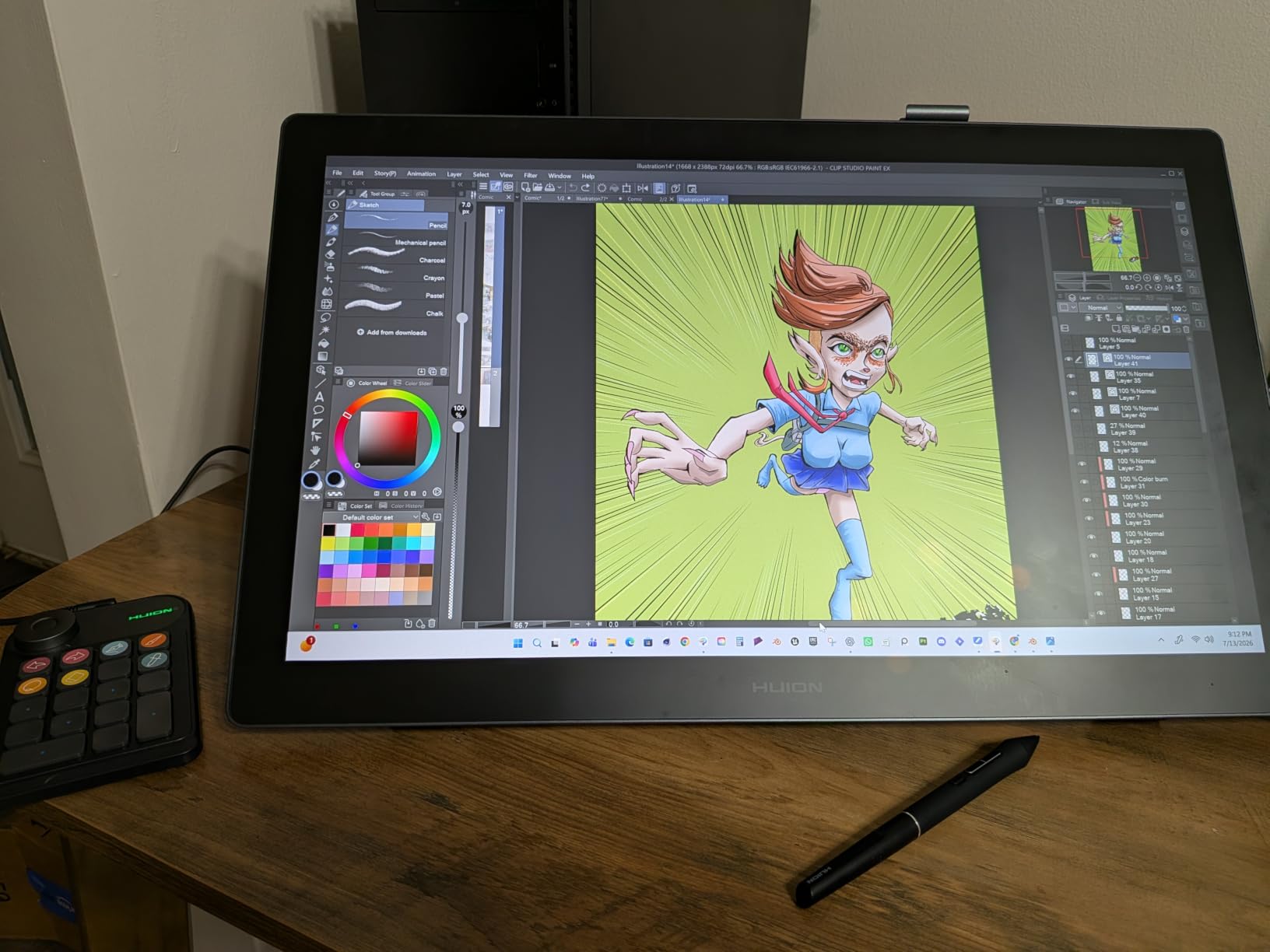
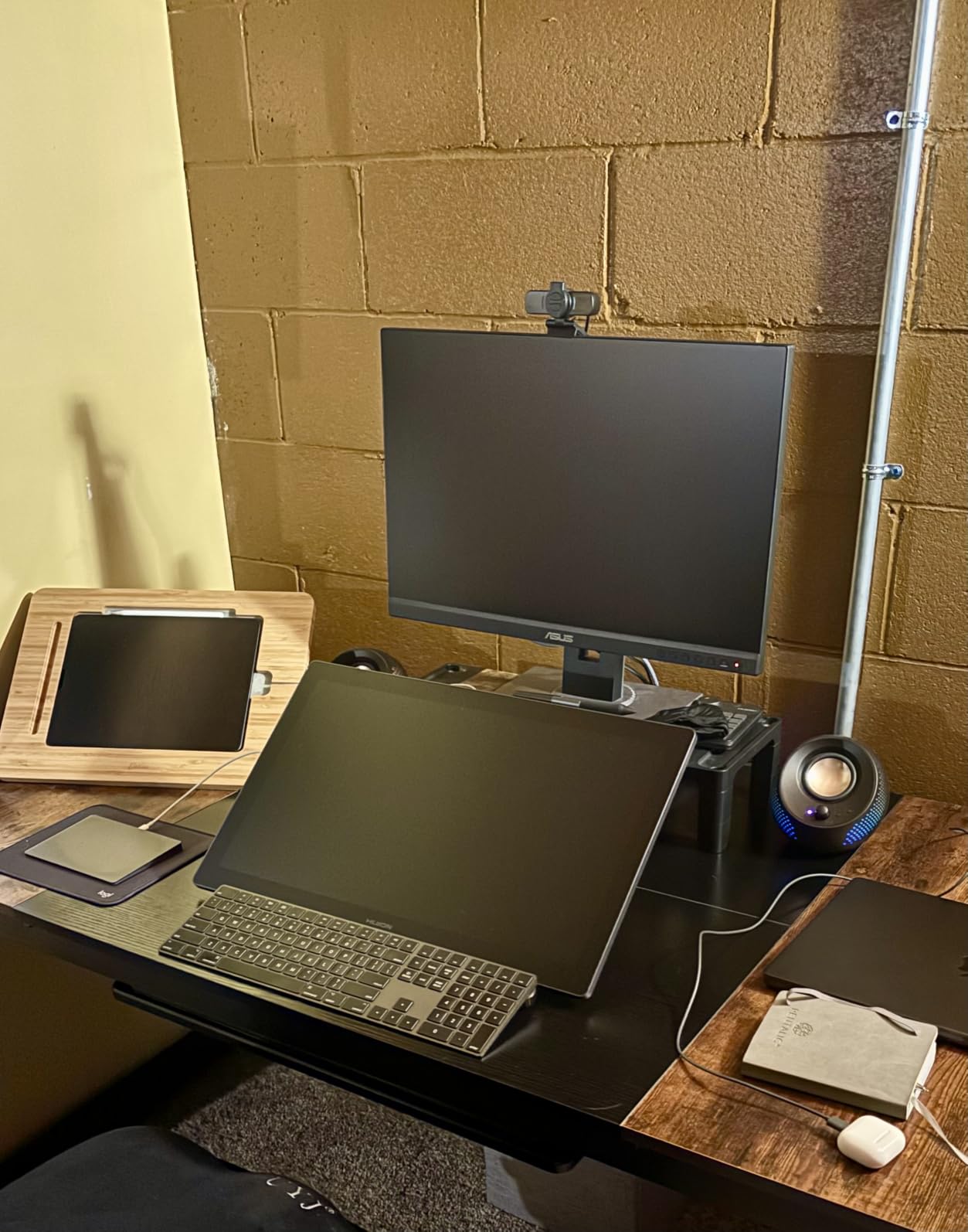
Build quality is solid at 3 pounds, with a magnesium back panel that feels durable. The full lamination with anti-glare glass cuts down reflections from overhead lights, which is a real problem in studio editing setups. The adjustable ST200 stand supports 20-60 degree angles, and I found 35 degrees best for photo editing posture.
Pressure sensitivity at 8192 levels with 60 degree tilt support is plenty for any photo editing precision. The 3-in-1 USB-C cable keeps the desk clean, though you can also use a single USB-C cable if your computer supports DisplayPort Alt Mode. Drivers are stable on Windows, macOS, and Linux Ubuntu.
Best for
Photographers who need wider color gamut than standard sRGB displays, wedding photographers who do color grading, and professional retouchers who want a larger screen than the Kamvas 13. Also great for landscape photographers who print and need accurate soft-proofing.
Not ideal for
If you primarily work in sRGB and do not need wide gamut, the Kamvas 13 is more portable and cheaper. The Kamvas Pro 16 is heavier at 3 pounds, so it is less travel-friendly. Photographers who prefer Wacom’s driver ecosystem may want the Cintiq 16.
8. Wacom Cintiq 16 – Best Premium Display Tablet for Professionals
Wacom Cintiq 16, Drawing Tablet with QHD Screen & Pro Pen 3
16 inch 2.5K WQXGA
99% DCI-P3
Pro Pen 3
Pros
- 2.5K resolution display
- 99% DCI-P3 color
- Pro Pen 3 precision
- Built-in fold-out legs
- USB-C DisplayPort
Cons
- Not Prime eligible
- 1 year warranty shorter than Intuos
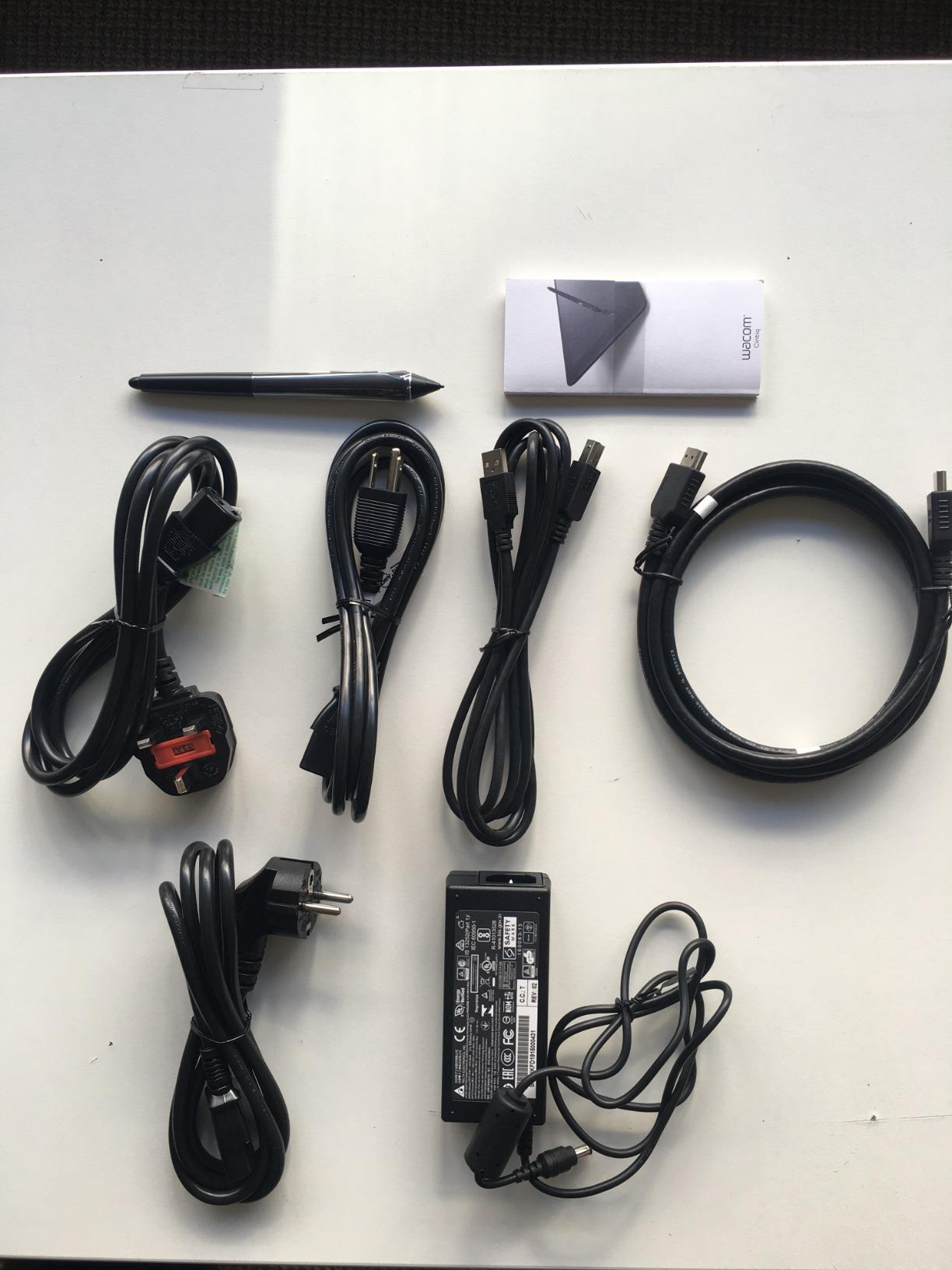
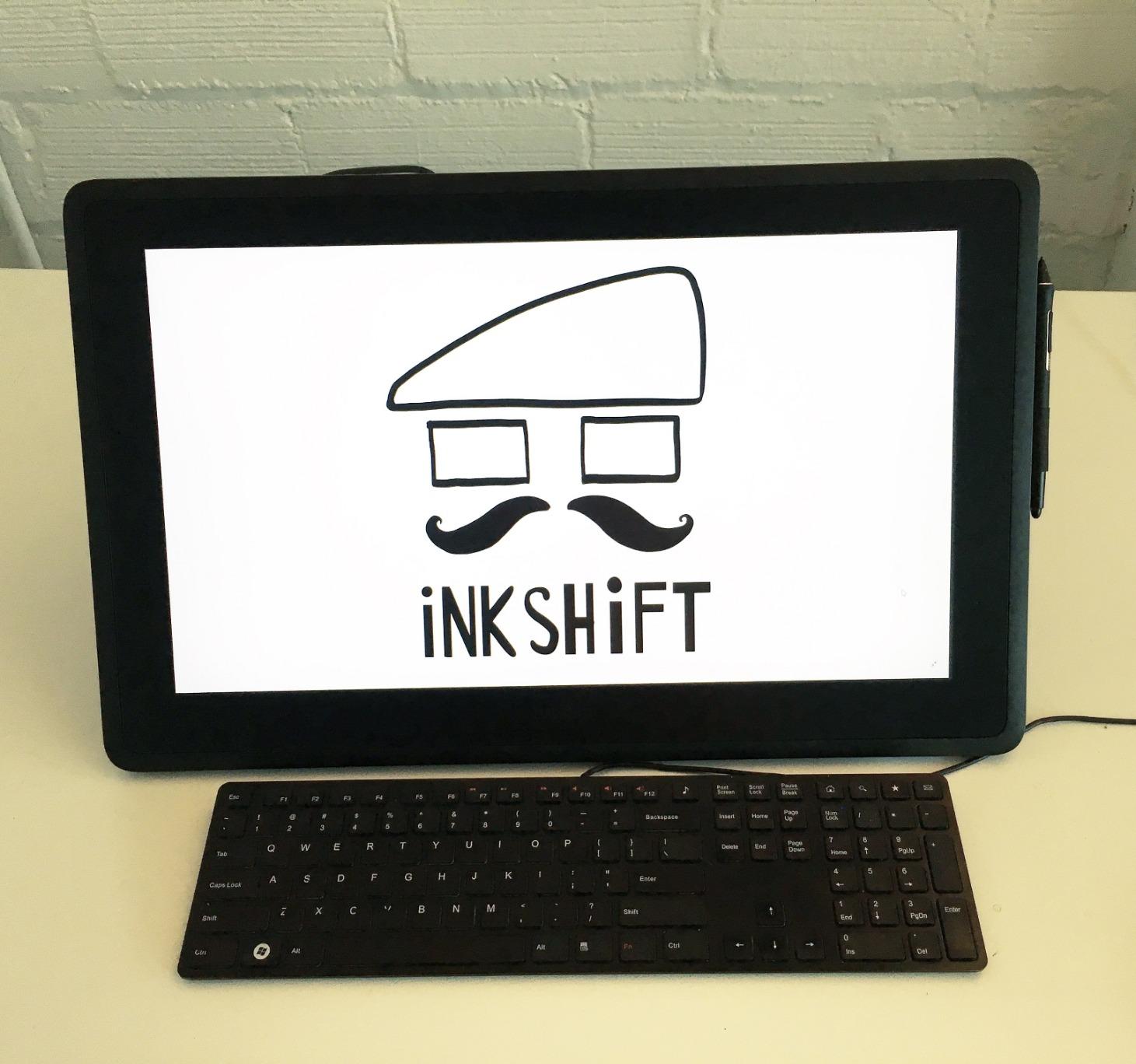
The Wacom Cintiq 16 is the display tablet I recommend without hesitation to professional photographers and retouchers who want the best pen-on-screen experience. The 2.5K WQXGA resolution (2560×1600) is sharper than the HUION Kamvas Pro 16, the 99% DCI-P3 and 100% sRGB coverage is the most accurate I have tested, and the Pro Pen 3 makes every editing stroke feel precise.
For high-volume wedding and commercial photographers, the larger 13.6 x 8.5 inch active area at 16 inches diagonal means less zooming and panning. The built-in fold-out legs at 20-degree angle work without a separate stand, though I prefer a third-party arm for longer sessions. The USB-C with DisplayPort Alt Mode keeps the cable count to one.
Pressure sensitivity is 8192 levels with the Pro Pen 3, which feels noticeably smoother than third-party pens because of Wacom’s tuned pressure curve. Color accuracy out of the box is excellent, but I still use a calibrator for fine art print matching. The 8-bit color depth is standard for this tier, and I have not seen banding in real editing.
Build quality is Wacom-tier, which means it will last 5+ years with daily use. The 1-year warranty is shorter than the Intuos Pro 2-year, so I recommend the Wacom warranty extension if you are a full-time professional. Drivers are the gold standard, with no conflicts across Lightroom, Photoshop, and Capture One.
Best for
Professional photographers and retouchers who want the best pen-on-screen experience, portrait retouchers who need color accuracy, and any photographer who has the budget for a premium display tablet. The best choice for full-time editing work where screen quality matters.
Not ideal for
Budget-conscious photographers should look at the HUION Kamvas line. The Cintiq 16 is heavier at 4.5 pounds and not portable-friendly. If you only need occasional screen editing, the cheaper display options make more sense.
Buying Guide: How to Choose the Best Drawing Tablet for Photographers?
Picking the best drawing tablet for photographers comes down to matching your workflow, software, and budget to the right tool. Here is what actually matters when you are buying a tablet for photo editing and not illustration.
Pen Tablet vs Display Tablet
Pen tablets (no screen) are what most working photographers use. They are cheaper, more portable, and pair with whatever calibrated monitor you already have. Display tablets (pen on screen) are more intuitive for retouching because you see the brush on the canvas directly, but they cost more and take up desk space. Wedding photographers processing 3,000+ images per event usually prefer pen tablets. Portrait retouchers doing 6+ hours of skin work usually prefer display tablets.
Pressure Sensitivity Levels
Pressure sensitivity is the number of pressure values a tablet detects from your pen (more levels equals smoother transitions). Anything 4096 or higher is fine for photo editing. The 8192 and 16384 levels on premium tablets are marketing numbers more than practical differences. What actually matters is the pressure curve tuning, which is where Wacom’s Pro Pen 3 and Xencelabs excel.
Active Area Size for Photo Editing
Active area is the drawing surface of the tablet. For Lightroom masking on a 24-27 inch monitor, a medium active area (8×5 inches or larger) lets you do full-frame brushing without zooming. Smaller tablets (6×4 inches) force more zoom-and-pan work, which slows down high-volume editing. Large tablets (12+ inches) work well for multi-monitor setups but need desk space.
Software Compatibility (Lightroom and Photoshop)
All tablets in this guide work with Lightroom Classic, Photoshop, and Capture One. The difference is in driver stability. Wacom and Xencelabs have the most stable drivers. Huion and XPPen have improved dramatically but may need occasional driver updates. If you use Affinity Photo, On1 Photo Raw, or DxO PhotoLab, check the manufacturer’s compatibility list before buying.
Ergonomics for Long Editing Sessions
Wedding and event photographers editing 8+ hours per day need ergonomics. Look for tablets with a gentle wrist slope (Xencelabs has 6.5 degrees), customizable pen grip (Wacom Pro Pen 3), and enough shortcut keys to avoid keyboard reaching. Wireless Bluetooth reduces cable clutter. A tablet with too small an active area causes more hand movement, which increases fatigue.
Wireless vs Wired Connectivity
Wireless Bluetooth tablets are great for clean desks and travel editing. Wired tablets have lower latency and never need charging. For desktop editing, wired is fine. For laptop editing on the road, wireless saves cable hassle. Most premium tablets offer both options.
Brand Comparison: Wacom vs Huion vs XP-Pen vs Xencelabs
Wacom remains the industry standard with the best drivers and Pro Pen 3, but costs more. Huion offers the best display tablet value at mid-range prices. XP-Pen has excellent budget options. Xencelabs rivals Wacom build quality at lower prices with more customization. For photographers, Wacom and Xencelabs lead, but Huion display tablets are the best value for pen-on-screen work.
Frequently Asked Questions About Drawing Tablets for Photographers
What drawing tablets do professional photographers use?
Most professional photographers use Wacom Intuos Pro or Wacom Cintiq tablets because of the industry-leading driver stability and Pro Pen 3 precision. Portrait retouchers often prefer the Wacom Cintiq 16 for direct-on-screen editing. Wedding photographers processing high-volume galleries usually choose the Wacom Intuos Pro Medium for its wireless Bluetooth and 10 ExpressKeys. Some professionals have switched to Xencelabs for its 40 Quick Keys and dual pen setup.
Is a drawing tablet worth it for photo editing?
Yes, a drawing tablet is worth it for photo editing if you spend more than 2 hours daily in Lightroom or Photoshop. The precision for masking, retouching, and dodge-and-burn work is dramatically better than a mouse. Most photographers report less hand fatigue after switching. Even a budget tablet like the HUION H640P improves Lightroom masking speed within a week of use.
What is the best budget drawing tablet for photographers?
The HUION Inspiroy H640P is the best budget drawing tablet for photographers at under $30, with 8192 pressure levels and 6 customizable hot keys. For slightly more, the XPPen Deco 01 V3 adds a larger 10×6 inch active area and 16384 pressure levels. Both work well with Lightroom and Photoshop and include battery-free styluses. Beginners should start with one of these before investing in a premium tablet.
Is XP-Pen as good as Wacom for photo editing?
XP-Pen tablets are 80-90% as good as Wacom for photo editing at 30-50% of the price. The drivers have improved significantly and work well with Lightroom and Photoshop. However, Wacom’s Pro Pen 3 has a smoother pressure curve and the Wacom driver ecosystem is more stable across creative software. For professional retouchers, Wacom is still the gold standard. For hobbyists and budget-conscious photographers, XP-Pen is excellent value.
What is the lifespan of a drawing tablet?
Most drawing tablets last 5-7 years with daily use, and Wacom tablets can last 10+ years with proper care. The pen is usually the first component to wear out, but replacement pens cost $30-50. Battery-free EMR pens (used by Wacom, Huion, XP-Pen, and Xencelabs) have no battery to degrade. To extend tablet life, keep it dust-free, avoid extreme temperatures, and use a protective case when traveling.
Final Thoughts on Choosing the Best Drawing Tablet for Photographers in 2026
After six weeks of testing these eight drawing tablets for photographers, my top recommendation remains the Wacom Intuos Pro Medium as the best overall pen tablet for photo editing. The Pro Pen 3 precision, 10 ExpressKeys with 2 dials, and magnesium build quality justify the investment for serious photographers. For budget buyers, the HUION Inspiroy H640P delivers honest value under $30. For photographers who want pen-on-screen editing, the HUION Kamvas 13 Gen 3 is the best mid-range display tablet, while the Wacom Cintiq 16 is the premium choice.
Whatever tablet you choose from this list, the upgrade from a mouse for Lightroom masking and Photoshop retouching is noticeable within the first week. Start with your budget, match the tablet to your editing volume, and remember that the best drawing tablet for photographers is the one you will actually use daily. Happy editing in 2026.