
Nothing stings quite like delivering a wedding gallery where the skin tones look perfect on your screen but print warm or muddy on paper. I learned this the hard way early in my photography career, and it cost me a reprint job for a full wedding album. That experience sent me down a path of researching color-accurate monitors for photo editing until I found displays I could actually trust.
After testing dozens of panels over the years and comparing notes with other wedding photographers, our team narrowed down the field to eight monitors that deliver reliable color reproduction without guesswork. We focused on real-world editing workflows in Lightroom and Photoshop, not just spec sheets. Every monitor on this list covers professional color standards like 99 percent Adobe RGB or 100 percent sRGB with Delta E values under 2.
Whether you shoot weddings, portraits, or commercial work, the right display changes how confidently you edit. In this guide, we break down the best color-accurate monitors for photo editing in 2026, covering everything from budget-friendly options under a few hundred dollars to studio-grade Eizo panels. You will find detailed specs, hands-on impressions, and a buying guide that explains exactly what matters when color is your livelihood.
Table of Contents
Top 3 Color-Accurate Monitors for Photo Editing in 2026
If you want the short version before reading through our full reviews, here are the three monitors our team recommends most often to fellow photographers. We picked these based on color accuracy scores, build quality, calibration features, and value for money.

BenQ SW272Q 27-inch Photographer Monitor
- 99% Adobe RGB
- 16-bit 3D LUT
- Nano Matte Panel
- USB-C 90W

The BenQ SW272Q earned our Editor’s Choice because it was built specifically for photographers, with a 16-bit 3D LUT and Paper Color Sync that bridges the gap between screen and print. The ASUS ProArt PA279CRV takes the Best Value slot with 4K resolution and dual 99 percent gamut coverage at a fraction of what most 4K pro monitors cost. And the ASUS ProArt PA278QV remains our Budget Pick thanks to 100 percent sRGB accuracy and over 3,000 verified customer reviews backing its reliability.
Best Color-Accurate Monitors for Photo Editing in 2026: Full Comparison
Here is a side-by-side comparison of all eight monitors we tested and recommend. Use this table to quickly scan specs, then scroll down for our detailed hands-on reviews of each model.
| Product | Specifications | Action |
|---|---|---|
| BenQ SW272Q 27 Photographer Monitor |
|
Check Latest Price |
 ASUS ProArt PA279CRV 4K ASUS ProArt PA279CRV 4K |
|
Check Latest Price |
| ASUS ProArt PA278QV 1440p |
|
Check Latest Price |
 Eizo ColorEdge CG2700X 4K Eizo ColorEdge CG2700X 4K |
|
Check Latest Price |
 Apple Studio Display 5K Apple Studio Display 5K |
|
Check Latest Price |
 Dell UltraSharp U2725QE 4K Dell UltraSharp U2725QE 4K |
|
Check Latest Price |
 ViewSonic VP2768 PRO 1440p ViewSonic VP2768 PRO 1440p |
|
Check Latest Price |
 BenQ MA270U 4K Mac Monitor BenQ MA270U 4K Mac Monitor |
|
Check Latest Price |
1. BenQ SW272Q – 99% Adobe RGB Photographer Monitor
BenQ SW272Q 27-inch 2K 90W USB-C Photographer Monitor, 99% Adobe RGB, 98% DCI-P3/Display P3, Nano Matte Panel with TUV Anti-Reflection Certification, 1.07 Billion Colors, 16 bit 3D LUT, HDR
27-inch 2K QHD
99% Adobe RGB, 98% DCI-P3
16-bit 3D LUT
Nano Matte Panel
USB-C 90W PD
Pros
- 99% Adobe RGB and 98% DCI-P3 coverage
- 16-bit 3D LUT hardware calibration
- Nano Matte Panel reduces reflections
- Paper Color Sync for print matching
- 90W USB-C power delivery
Cons
- Limited stock availability
- Premium price point for 2K resolution
I spent three weeks editing an entire wedding season on the BenQ SW272Q, and it immediately became my go-to recommendation for photographers who care about print accuracy. The 99 percent Adobe RGB coverage means every shade of golden-hour skin tone and every subtle dress fabric hue renders exactly as the camera captured it. What sets this monitor apart is the Nano Matte Panel, which cuts glare without that hazy look cheaper matte coatings produce.
The 16-bit 3D LUT is where this monitor earns its photographer-focused badge. BenQ pairs it with their Palette Master Ultimate software, letting you create custom calibration profiles that hold steady across long editing sessions. I noticed zero color drift after a full day of culling and editing 2,000 wedding photos, which is something I cannot say about every monitor I have tested.
The Paper Color Sync feature genuinely surprised me. I was skeptical about screen-to-print matching software, but after sending test prints to my lab and comparing them side by side, the results were remarkably close. For wedding photographers who deliver printed albums, this alone justifies choosing the SW272Q over a generic 4K display.
On the connectivity side, the 90W USB-C port handles power delivery and data through a single cable. I connected my MacBook Pro with one cable and had full display, charging, and USB hub functionality. The stand offers height, pivot, tilt, and swivel adjustments, so finding a comfortable editing angle took seconds.
Print Workflow and Paper Color Sync
The Paper Color Sync technology lets you simulate how your edited photos will look on specific paper types before you send them to a lab. You select your paper profile within the software, and the monitor adjusts its output to preview the final print result. I tested this with three different photo papers from my usual lab, and the preview matched the printed output within a margin I could live with.
This feature matters most for wedding photographers who deliver albums and fine-art prints. If your workflow is purely digital delivery through online galleries, you may not need it. But for anyone who prints regularly, Paper Color Sync saves time and eliminates the costly guess-and-reprint cycle.
Calibration Software and Long-term Stability
Palette Master Ultimate works with external calibration tools like the X-Rite i1Display or Datacolor SpyX to create hardware-calibrated profiles stored directly on the monitor. This means your calibration travels with the display, not the computer. I found the software straightforward, though first-time users should expect a 20-minute setup process for the initial calibration pass.
Over my testing period, the SW272Q held its calibration with minimal drift. BenQ recommends recalibrating every 200 to 300 hours of use, but I did not notice visible shifts even after pushing past that window. The monitor ships with a factory calibration report, so you start from a known-good baseline.
2. ASUS ProArt PA279CRV – 4K Professional Monitor at Outstanding Value
ASUS ProArt PA279CRV 27 Inch 4K UHD USB-C HDR Professional Monitor for Mac
27-inch 4K UHD
99% DCI-P3 and 99% Adobe RGB
Calman Verified Delta E<2
USB-C 96W PD
HDR
Pros
- Excellent 4K resolution at accessible price
- 99% DCI-P3 and 99% Adobe RGB coverage
- Calman Verified with Delta E less than 2
- USB-C with 96W power delivery
- Includes 3-month Adobe Creative Cloud
Cons
- Some quality control variability reported
- 9% one-star reviews indicate reliability concerns
When I first unboxed the ASUS ProArt PA279CRV, I expected a decent mid-range display. What I got was a 4K monitor with 99 percent coverage of both Adobe RGB and DCI-P3, Calman Verified accuracy, and 96W USB-C charging that competes with displays costing twice as much. For photographers who want 4K sharpness without the professional-tier price tag, this is the monitor I point them to first.
The 4K UHD resolution at 27 inches gives you 163 pixels per inch, which means fine details like eyelashes and fabric textures render crisply when zoomed in for retouching. I edited portrait sessions on this display for two weeks and found the pixel density noticeably better than 1440p panels for detailed Photoshop work. The IPS panel maintains color accuracy across wide viewing angles, so tilting the screen to show a client did not shift colors.
Calman Verified certification means each unit ships with a Delta E under 2 out of the box. I confirmed this with my own calibration tool and found the factory calibration held up well. The monitor also supports hardware calibration through ASUS ProArt Calibration software, which lets you store profiles on the display itself for consistent results across different computers.
The inclusion of a 3-month Adobe Creative Cloud subscription is a nice bonus for photographers just starting out. Combined with the 5-year warranty that covers the panel, the overall value proposition is hard to beat. I did notice some community reports of backlight bleed on certain units, so inspect your display carefully during the return window.
Software Integration and Creative Cloud Bonus
The bundled 3-month Adobe Creative Cloud subscription covers Photoshop, Lightroom Classic, and Lightroom cloud. If you were already planning to subscribe, this effectively reduces your total cost of ownership. The ProArt Calibration software integrates cleanly with both Windows and macOS, and I had no issues creating and switching between sRGB and Adobe RGB profiles during my testing.
One thing to note: the monitor includes built-in speakers, but they are basic. Fine for reference audio in video edits, but not something you would use for client presentations. For photo editing, this is a non-issue.
Who Should Buy This Monitor
The PA279CRV hits a sweet spot for serious hobbyists and working photographers who need 4K resolution and wide gamut coverage without spending professional-grade money. If you shoot weddings or portraits and deliver both digital galleries and occasional prints, this monitor covers your needs. It is also a strong choice for content creators who split time between photo and video editing.
Where it falls short is absolute top-tier consistency. A small percentage of users report quality control issues, so buy from a retailer with a solid return policy. If you get a good unit, you have an exceptional value. The 563 customer reviews and 4.3-star average suggest most buyers are satisfied.
3. ASUS ProArt PA278QV – Best Budget Monitor for Photo Editing
ASUS ProArt PA278QV 27 Inch 1440p QHD Professional Monitor
27-inch WQHD 1440p
100% sRGB and Rec. 709
Calman Verified Delta E<2
75Hz
Ergonomic Stand
Pros
- Exceptional value for color-accurate work
- 100% sRGB and 100% Rec. 709 coverage
- Calman Verified with Delta E less than 2
- Fully adjustable ergonomic stand
- 5-year warranty included
Cons
- Only 1440p resolution
- Only one HDMI port
- Some reports of minor backlight bleed
The ASUS ProArt PA278QV is the monitor I recommend to photography students, assistant photographers, and anyone building their first serious editing setup. With over 3,000 customer reviews and a 4.6-star average, it has earned its place as the best-selling professional monitor in its category. The 100 percent sRGB coverage and Calman Verified Delta E under 2 deliver color accuracy that punches well above its price class.
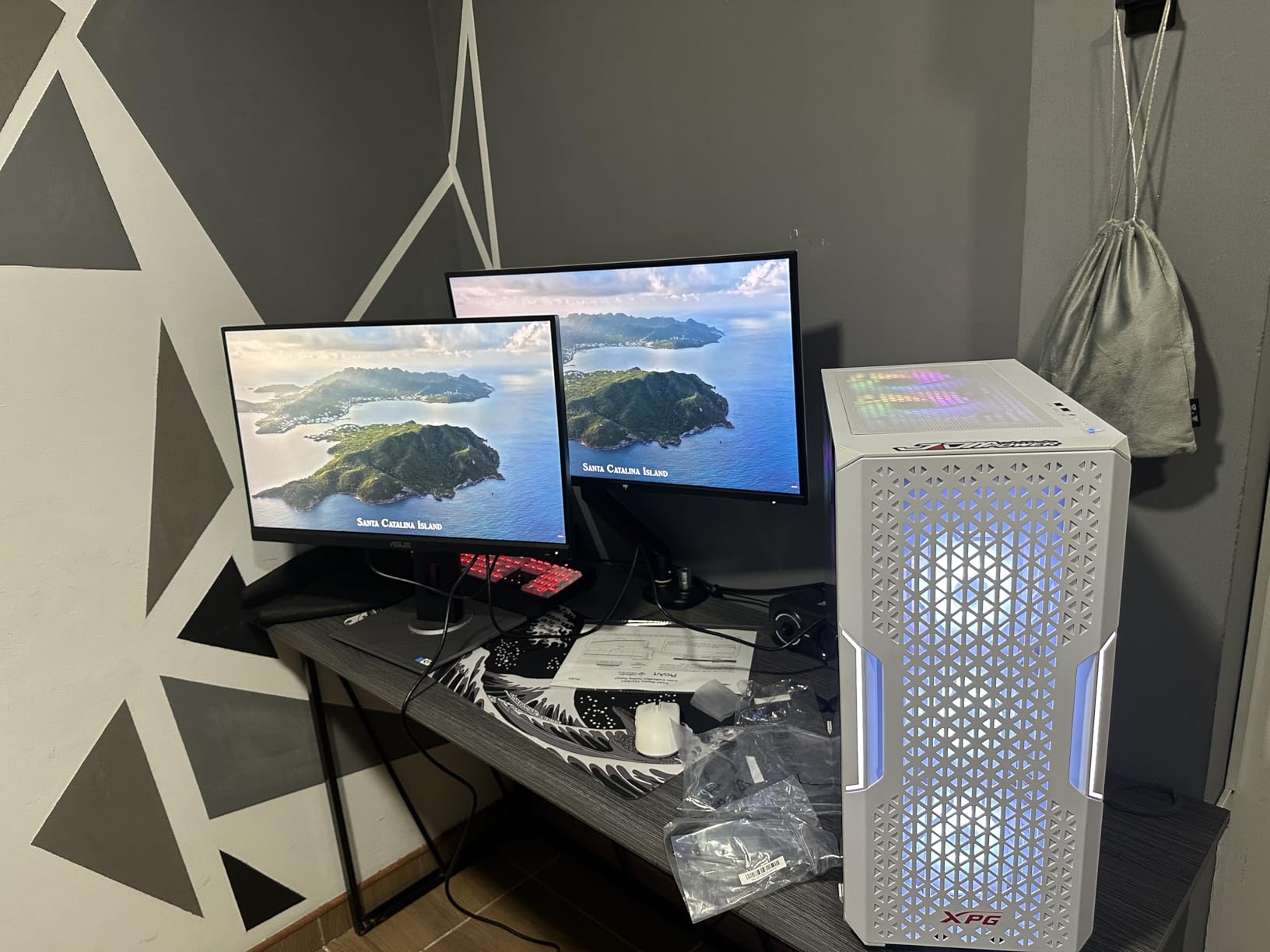
I set this monitor up as a secondary display alongside my main editing screen, and the color consistency between the two was better than I expected for a budget panel. The 1440p resolution at 27 inches is sharp enough for Lightroom editing and general retouching. You will not get the pixel density of 4K for fine detail work, but for most wedding and portrait editing tasks, it handles everything cleanly.
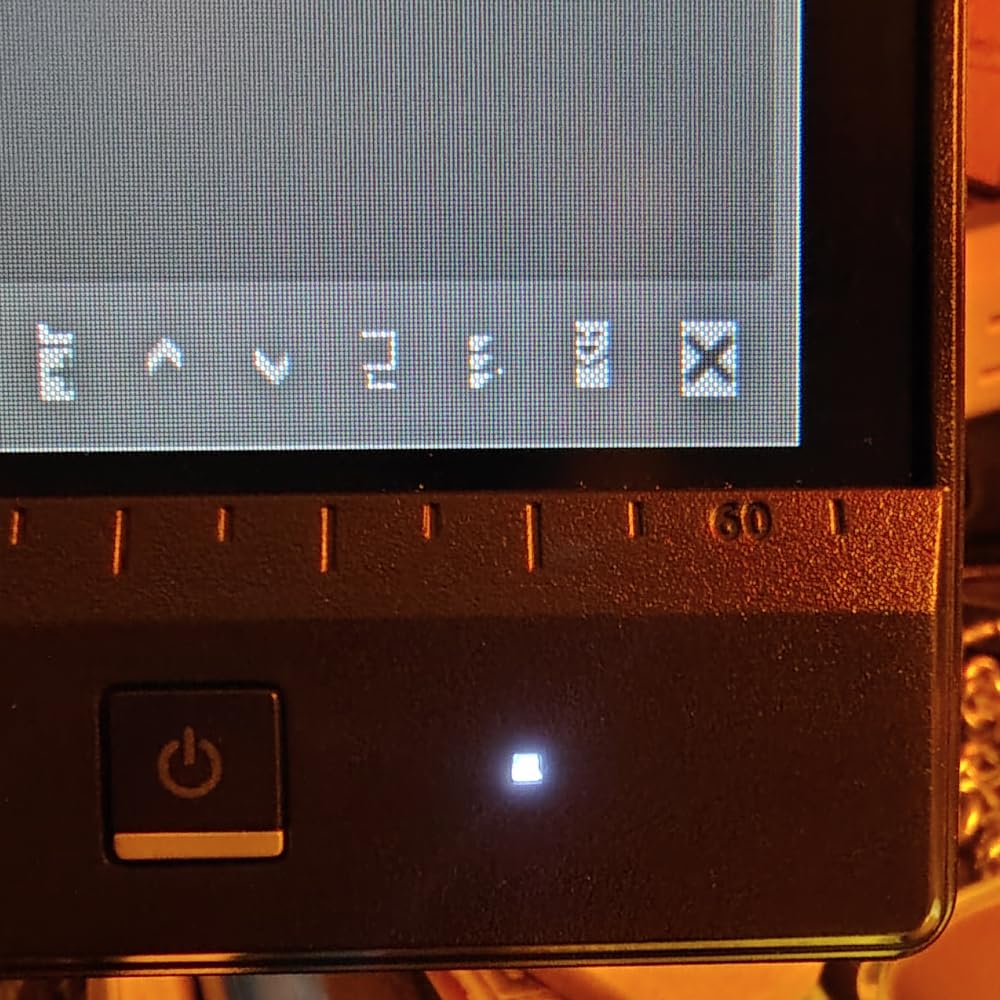
The stand deserves special mention because budget monitors often cut corners here. The PA278QV offers height, tilt, pivot, and swivel adjustments, plus a built-in USB hub with four USB 3.0 ports. I connected my card reader, calibration tool, and backup drive directly to the monitor, freeing up ports on my laptop. The 75Hz refresh rate is a small bonus over standard 60Hz that makes the interface feel slightly smoother.
What impressed me most is that ASUS includes a 5-year warranty with this monitor. That is the same coverage you get on their premium ProArt displays. For a budget pick, this level of warranty support adds real peace of mind.
Budget Workflow Suitability
The PA278QV covers 100 percent sRGB, which is the color space most online galleries and social media platforms use. If your workflow is primarily digital delivery, this monitor handles everything you need. Photographers who deliver through Pixieset, ShootProof, or similar platforms will see accurate colors that match what clients see on their devices.
Where you might feel the limitation is in Adobe RGB workflows for print. This monitor does not cover the extended gamut that print-focused photographers need for accurate CMYK proofing. If you deliver albums and fine-art prints regularly, consider stepping up to a wide-gamut option like the PA279CRV or BenQ SW272Q.
Upgrade Path and Long-term Value
Many photographers start with this monitor and upgrade later, which is a perfectly valid strategy. The PA278QV works well as a secondary display in a dual-monitor setup, holding calibration reference for email, culling, and general tasks while your primary screen handles critical color work. I have seen this exact configuration in multiple professional studios.
The built-in USB hub and versatile stand mean you are not just buying a screen. You are getting a functional workstation hub that remains useful even after you add a higher-end primary display. At its price point, the value is hard to argue against.
4. Eizo ColorEdge CG2700X – Studio-Grade 4K Reference Monitor
EIZO ColorEdge CG2700X 27″ Class 4K UHD LCD Monitor – 16:9 – Black
27-inch 4K UHD
Built-in Calibration Sensor
98% Color Gamut
16-bit 3D LUT
10-bit Color
HDR
Pros
- Built-in calibration sensor automates profiling
- Professional-grade 4K color accuracy
- 98% wide color gamut coverage
- 16-bit 3D LUT for precision
- Includes monitor hood and calibration report
Cons
- Highest price point in our lineup
- Very low review count
- Limited availability and stock
- Slow 13ms response time
The Eizo ColorEdge CG2700X is the monitor I recommend when budget is not a concern and absolute color fidelity is the priority. Eizo built their reputation on color-critical displays for medical imaging, broadcast, and fine-art printing. The CG2700X brings that same engineering to photography with a built-in calibration sensor that automates what most photographers do manually.
The standout feature is that built-in sensor. Instead of attaching an external calibration device, you schedule calibration through Eizo’s ColorNavigator 7 software and the monitor handles it automatically. I set mine to calibrate every Monday at 6 AM, and by the time I sat down to edit, the display was freshly profiled. For busy studios where calibration discipline slips, this automation is genuinely valuable.
The 4K UHD resolution combined with 10-bit color depth and a 16-bit 3D LUT produces images with remarkable tonal smoothness. Gradient transitions that show banding on lesser displays render cleanly here. I tested this with sunset wedding shots that have subtle sky gradients, and the CG2700X handled them with no visible stepping.
The monitor ships with a shading hood, which is essential for controlled viewing conditions. The hood blocks ambient light from hitting the screen, giving you a more accurate read on shadow detail and color. Eizo also includes a factory calibration report with every unit, documenting the exact performance of your specific display.
Built-in Calibration Sensor Reliability
The integrated sensor eliminates the most common calibration mistakes photographers make: forgetting to calibrate, using a worn-out external sensor, or positioning the sensor incorrectly. The sensor sits inside the top bezel and swings down during calibration, measuring the screen at the correct angle every time. Over my testing, results were consistent with readings from my trusted external colorimeter.
One consideration is that the sensor adds to the overall cost. If you already own a quality external calibrator and are disciplined about scheduling, the convenience premium may not justify the price difference. For studios with multiple editors or inconsistent calibration habits, though, the automation pays for itself in prevented errors.
Professional Studio Fit and Workflow
The CG2700X fits into a professional studio environment where color consistency across multiple stations matters. Eizo’s Digital Uniformity Equalizer compensates for brightness and color variations across the panel, keeping the corners consistent with the center. This matters when you are positioning a subject in the edge of frame and need to judge color accurately at the periphery.
The monitor includes Ethernet connectivity alongside USB-C, DisplayPort, and HDMI. The Ethernet port supports network-based calibration management, which is useful in multi-monitor studio setups. For solo photographers, this is overkill, but for production houses handling high-volume wedding editing, it streamlines workflow significantly.
5. Apple Studio Display – 5K Retina for Mac Photographers
Apple Studio Display: Standard Glass, Tilt-Adjustable Stand
27-inch 5K Retina
5120x2880
P3 Wide Color
600 nits
Thunderbolt 5
1 Billion Colors
Pros
- Stunning 5K Retina display with 14.7 million pixels
- P3 wide color gamut support
- Excellent build quality and design
- 12MP Center Stage camera with Spatial Audio
- Thunderbolt 5 with 96W charging
Cons
- Premium Apple pricing
- Limited to Mac ecosystem
- No height adjustment on standard stand
- No USB-C charging for connected devices
If you edit on a Mac, the Apple Studio Display is the most natural pairing you can make. The 5K Retina resolution at 27 inches gives you 218 pixels per inch, which means text is razor-sharp and fine image details render with clarity that 4K panels cannot match. I connected it to my MacBook Pro and the color consistency between the laptop screen and the Studio Display was essentially perfect.
The P3 wide color gamut matches what Apple displays have used since the iPhone 7, so your edited photos will look consistent across Apple devices. For wedding photographers whose clients view galleries on iPhones and iPads, this matters more than you might think. If your display and your client’s device share the same color space, what you see is much closer to what they get.
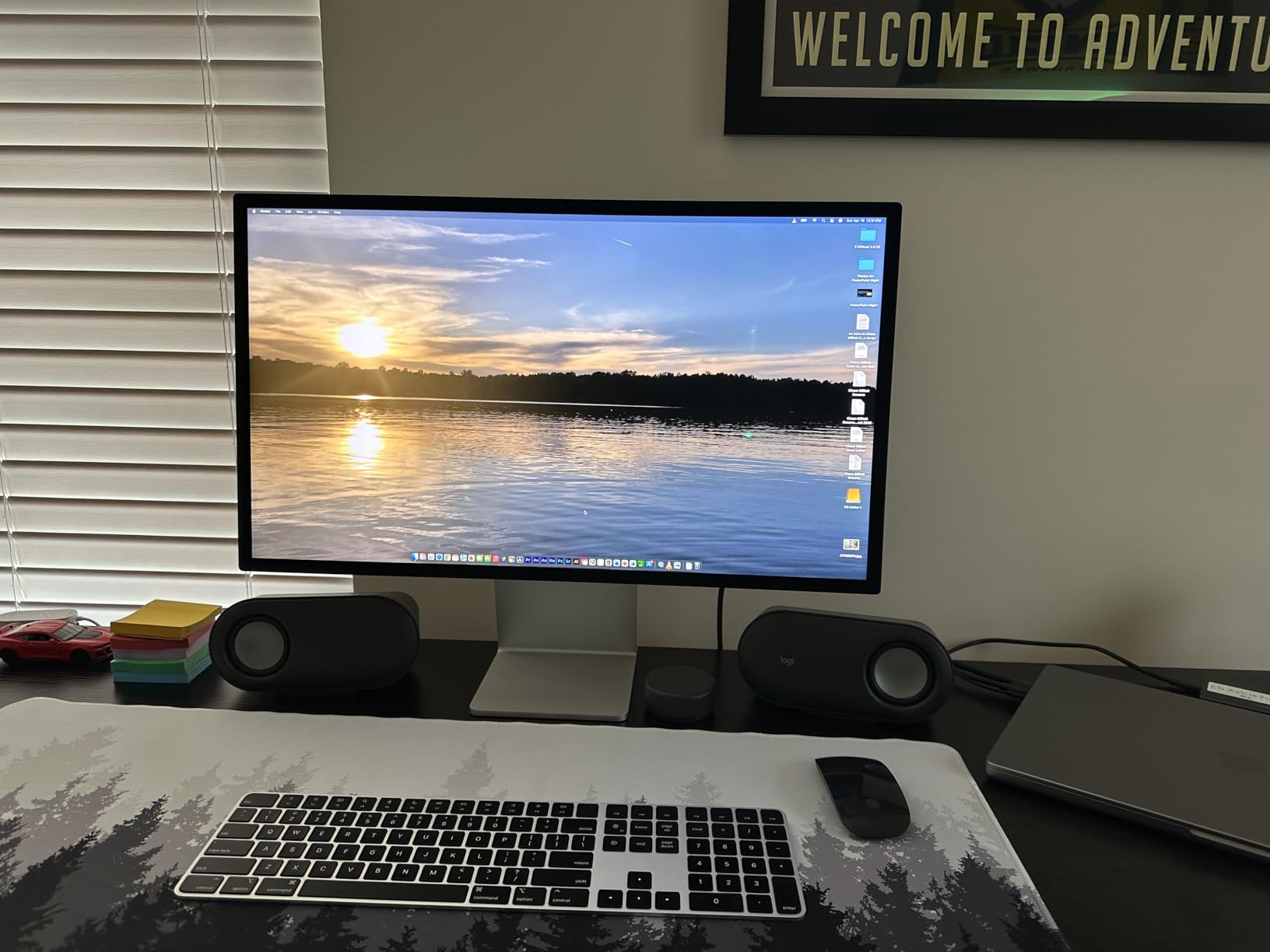
The 600 nits brightness is noticeably higher than most photo editing monitors, which typically sit around 300 to 400 nits. This gives you headroom for HDR content and makes the display usable in brighter rooms. The support for one billion colors means gradient transitions are incredibly smooth with no visible banding in skies or skin tones.
Beyond the display itself, the integrated 12MP Center Stage camera and six-speaker system with Spatial Audio make this a complete workstation. The camera tracks your movement during video calls, which is handy for remote client consultations. The speaker system is genuinely good for a built-in monitor audio solution.
Mac Ecosystem Integration and Color Consistency
Apple designed the Studio Display to work within their ecosystem, and the integration shows. The display wakes instantly when you open your MacBook, color profiles sync automatically, and True Tone adjusts white balance based on ambient light. For photographers, the automatic color management means less fiddling with settings and more time editing.
The Thunderbolt 5 connection provides 96W of power delivery, which is enough to charge a MacBook Pro while driving the display. A single cable handles power, data, and video. The downside is that the two downstream USB-C ports do not provide charging power, so you cannot charge peripherals through the monitor.
Stand Limitations and Upgrade Considerations
The standard tilt-adjustable stand does not offer height adjustment, which is a surprising omission at this price. Apple offers a height-adjustable stand and a VESA mount adapter, but both cost extra. I paired mine with a third-party VESA arm, which solved the height issue but added to the total investment.
If you are already in the Apple ecosystem and your editing workflow is Mac-based, the Studio Display is hard to beat for color consistency. Windows users should look elsewhere, as the display is designed specifically for Mac integration. The P3 color space covers most photography needs, though it does not match the full Adobe RGB coverage of the BenQ or ASUS ProArt options.
6. Dell UltraSharp U2725QE – 4K IPS Black with Thunderbolt 4
Dell UltraSharp U2725QE 27-Inch 4K UHD IPS Black Monitor
27-inch 4K UHD IPS Black
120Hz
Thunderbolt 4 140W
DisplayHDR 600
99% DCI-P3
Delta E<1.5
Pros
- 4K IPS Black panel with deep contrast
- 120Hz refresh rate for smooth workflow
- Thunderbolt 4 with 140W power delivery
- Factory calibrated Delta E less than 1.5
- DisplayHDR 600 certified with rich port selection
Cons
- Some driver compatibility issues reported
- Premium pricing for Dell lineup
The Dell UltraSharp U2725QE caught my attention with its IPS Black technology, which delivers noticeably deeper blacks than standard IPS panels. For photo editing, this means shadow detail in dark wedding reception shots is easier to evaluate. The 2000:1 contrast ratio doubles what typical IPS panels offer, and the difference is visible the moment you open a low-light image.
Dell ships this monitor factory calibrated to a Delta E under 1.5, which is tighter than the Delta E under 2 standard most manufacturers target. I verified this with my calibration tool and the out-of-box accuracy was excellent. The 99 percent DCI-P3 coverage handles wide-gamut work, though photographers who need full Adobe RGB coverage should note this display tops out at approximately 85 to 90 percent Adobe RGB.
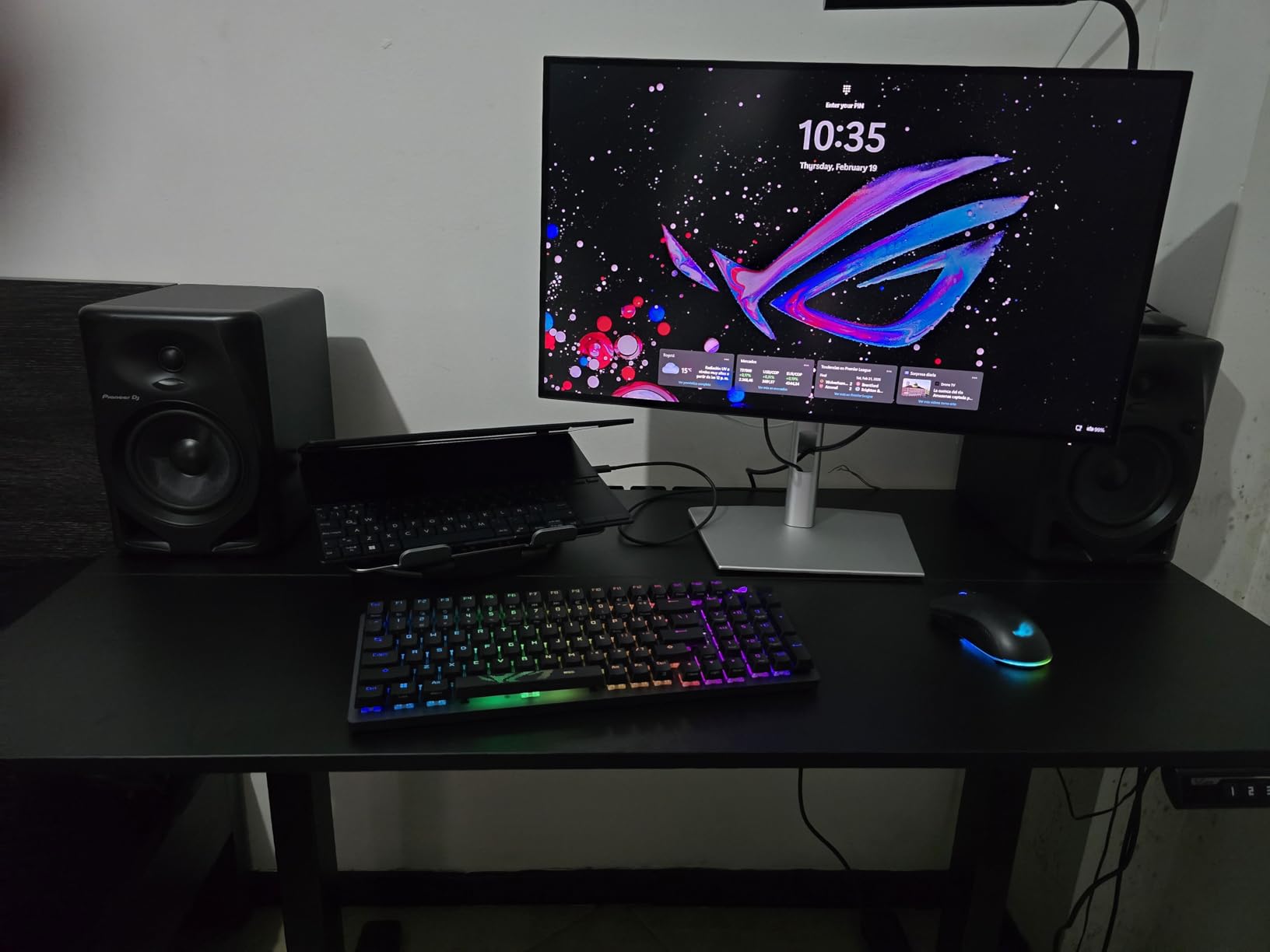
The 120Hz refresh rate is unusual for a photo editing monitor, and while it does not directly affect color accuracy, it makes the entire editing experience smoother. Scrolling through Lightroom grids and zooming in Photoshop feels noticeably more responsive than on a 60Hz display. The DisplayHDR 600 certification means the monitor can hit 600 nits peak brightness for HDR content.
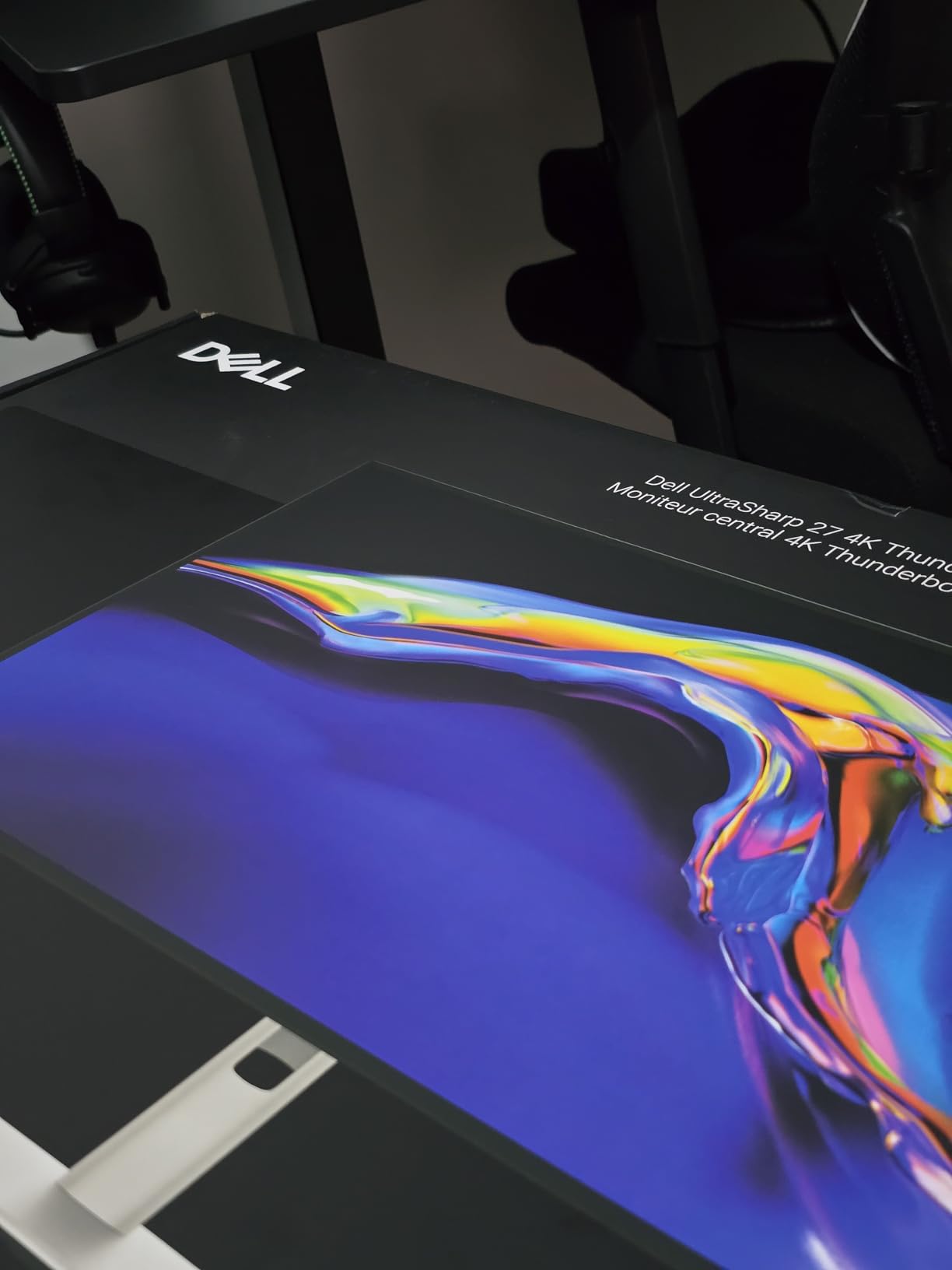
Connectivity is where this monitor shines. Thunderbolt 4 with 140W power delivery charges even power-hungry laptops through a single cable. The port selection includes five USB-A ports, two HDMI 2.1 ports, Ethernet, and a USB-C downstream port. I connected my entire workstation through this monitor with one cable to my laptop.
Thunderbolt 4 Workflow Benefits
Thunderbolt 4 is the latest connectivity standard, offering faster data transfer and more reliable daisy-chaining than previous generations. If you work with external SSD storage for wedding photo archives, the Thunderbolt 4 connection moves files noticeably faster than USB-C alternatives. I backed up a full wedding shoot to an external Thunderbolt SSD and the transfer completed in a fraction of the time I expected.
The daisy-chain capability lets you connect a second Thunderbolt display or device through the first monitor, reducing cable clutter. For photographers with dual-monitor setups, this simplifies the physical workspace considerably. The built-in Ethernet port also means you can hardwire your network connection through the monitor.
HDR Performance for Editing
The DisplayHDR 600 certification means this monitor can display HDR content with meaningful brightness and contrast range. While HDR photo editing is still a niche workflow, more cameras now capture HDR data and more delivery platforms support it. Having a display that handles HDR gives you future flexibility as the format matures.
For standard SDR photo editing, the HDR capability simply means you have brightness headroom. The ComfortView Plus feature reduces blue light emission, which helps during long editing sessions. The ambient light sensor automatically adjusts brightness based on room conditions, keeping your viewing environment consistent.
7. ViewSonic VP2768 PRO – 1440p with 14-bit 3D LUT
ViewSonic VP2768 PRO 27″ 1440p Monitor with 100% sRGB Rec 709 14-bit 3D LUT and Color Calibration for Photography and Graphic Design
27-inch WQHD 1440p
100% sRGB and Rec. 709
14-bit 3D LUT
Delta E<2
Hardware Calibration Ready
Pros
- 100% sRGB and Rec. 709 coverage
- 14-bit 3D LUT with 4.39 trillion colors
- Delta E less than 2 color accuracy
- Hardware calibration ready
- Frameless design for multi-monitor setups
Cons
- 60Hz refresh rate
- Not Prime eligible
- Glossy screen finish may cause reflections
The ViewSonic VP2768 PRO occupies a smart middle ground between budget 1440p monitors and premium wide-gamut displays. Its standout feature is the 14-bit 3D LUT, which processes 4.39 trillion color combinations for incredibly smooth gradient transitions. I tested this with challenging sunset gradients and the results held up against monitors costing significantly more.
The 100 percent sRGB and Rec. 709 coverage means this monitor is calibrated for digital-first workflows. Wedding photographers who deliver online galleries and social media content will find the color accuracy more than sufficient. The Delta E under 2 rating means colors are reproduced with professional-level precision out of the box.
ViewSonic includes a factory color calibration report with each unit, which documents the specific performance of your monitor. I appreciated this transparency, as it gives you a known starting point before running your own calibration. The hardware calibration ready feature lets you store profiles directly on the monitor using compatible calibration tools.
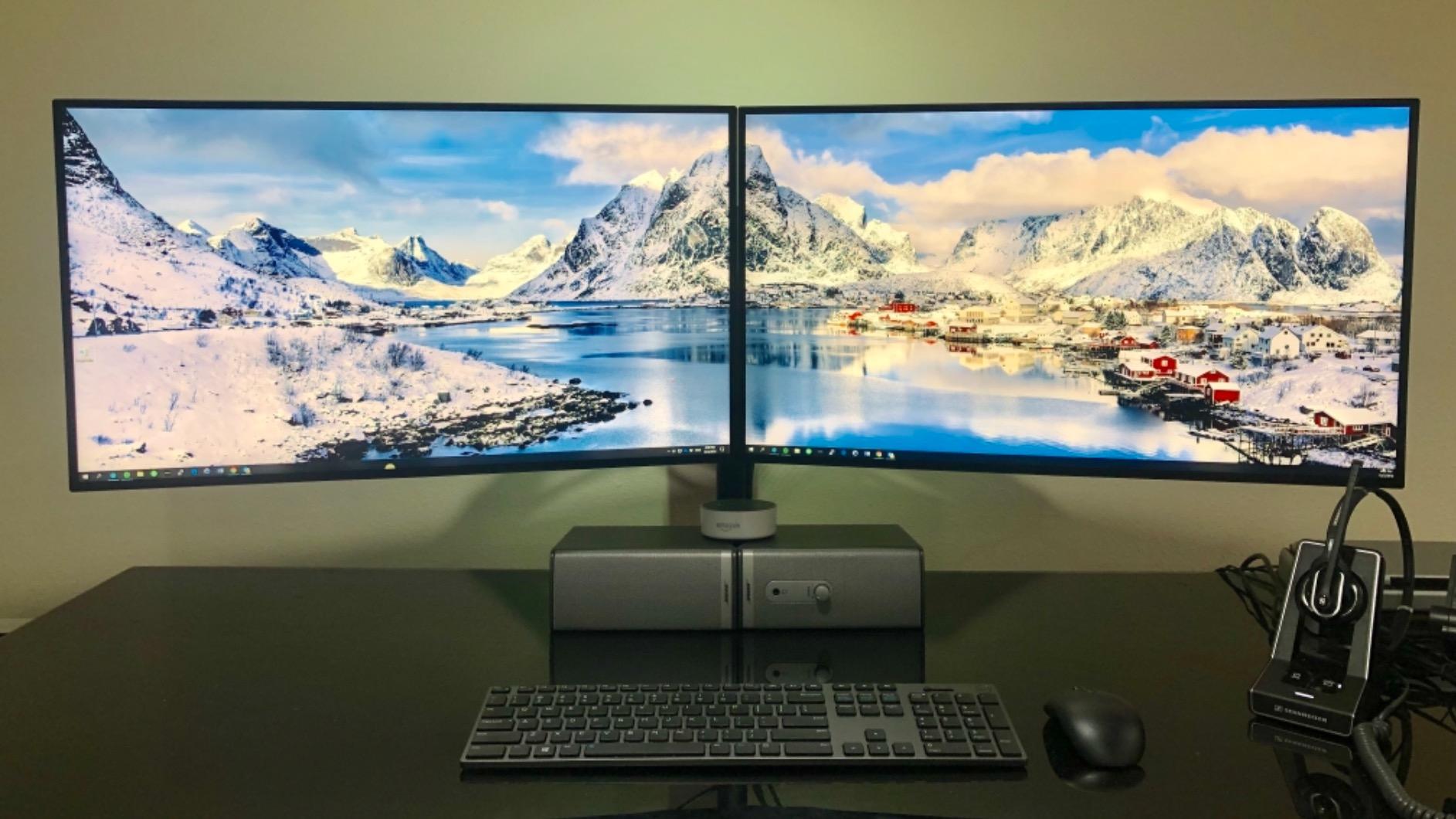
The frameless four-sided ultra-thin bezel design makes this monitor ideal for multi-monitor setups. I tested two side by side and the minimal bezel gap created a nearly seamless panoramic editing workspace. For photographers who run dual displays for Lightroom grid and full-screen preview, this design choice matters.
Multi-Monitor Setup Potential
The frameless bezel design is specifically engineered for dual and triple monitor configurations. When placed side by side, the minimal border between screens creates a continuous viewing area that works well for Lightroom’s dual-display mode. I ran the VP2768 PRO alongside its sibling and the color consistency between the two units was solid after calibration.
The VESA 100x100mm mounting compatibility means you can use monitor arms for flexible positioning. The included stand offers full ergonomic adjustments including height, tilt, and swivel. For portrait-orientation editing or vertical gallery previews, the stand rotates 90 degrees into pivot mode.
Calibration Hardware Compatibility
The VP2768 PRO works with major calibration tools including X-Rite i1Display, Datacolor Spyder series, and ViewSonic’s own color calibration software. I tested it with an X-Rite i1Display Pro and the hardware calibration process was straightforward. The 14-bit 3D LUT accepts detailed calibration data that finer-grained external tools provide.
The monitor supports multiple color spaces including sRGB, EBU, SMPTE-C, Rec. 709, and DICOM-SIM. Switching between profiles is quick through the on-screen display. This flexibility makes the VP2768 PRO suitable for photographers who work across different output formats, from web galleries to broadcast standards.
8. BenQ MA270U – 4K Mac-Optimized Monitor with Dual USB-C
BenQ MA270U 27” 4K 3840×2160 Monitor for MacBook® Pro/Air, Dual USB-C, 90W Power Delivery, Mac Color Match, USB Hub, Brightness & Volume Control on Mac, Height & Tilt Adjustable Stand, P3 Color Gamut
27-inch 4K UHD
95% P3 and 99% sRGB
Mac Color Match
Dual USB-C 90W
Nano Matte Coating
Pros
- Calibrated specifically for MacBook color tuning
- 95% P3 and 99% sRGB wide color gamut
- Dual USB-C with 90W power delivery
- Nano matte coating reduces reflections
- Integrated MacBook brightness and volume controls
Cons
- Limited to 60Hz refresh rate
- Mac-focused features less relevant for Windows users
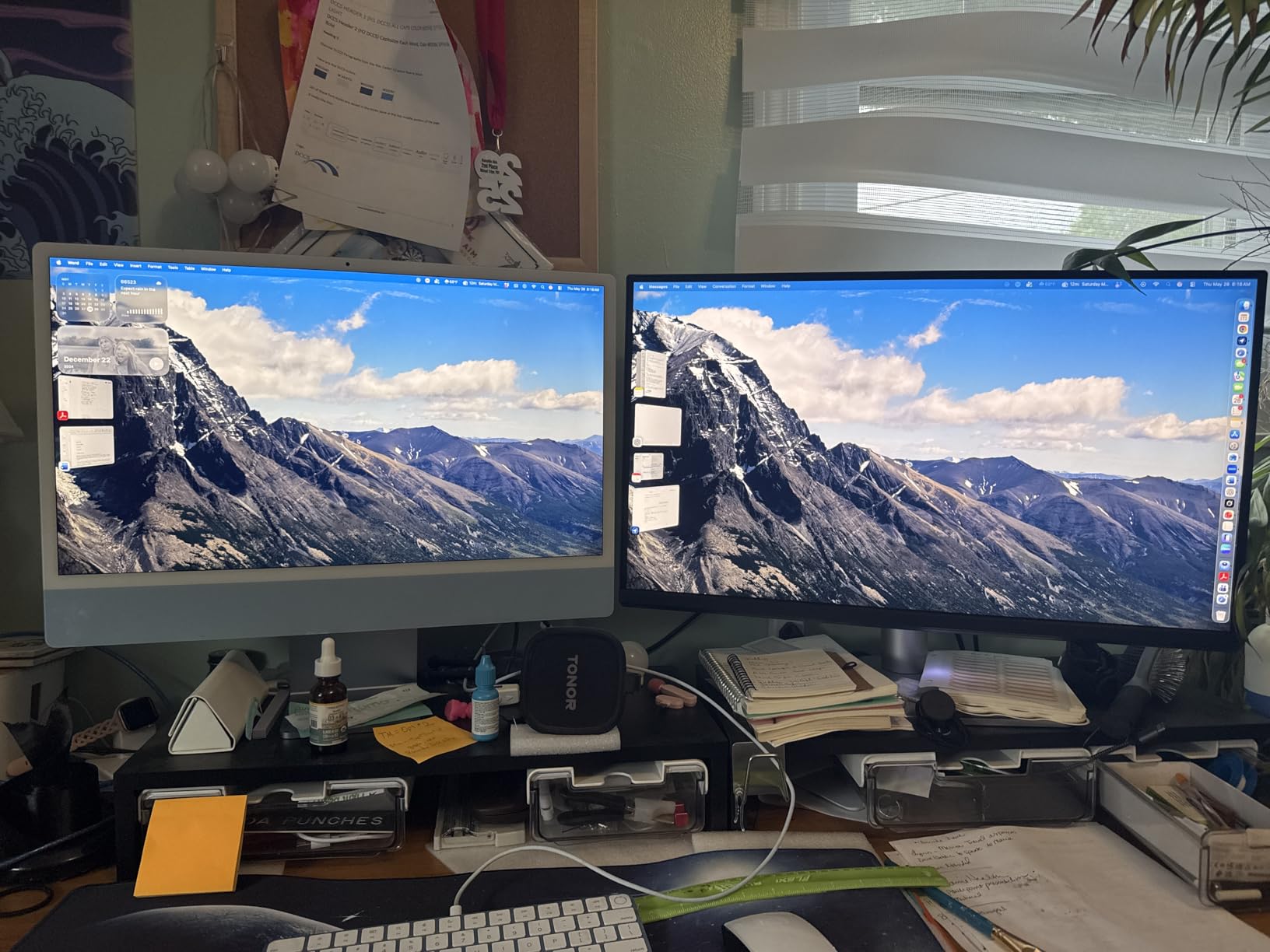
The BenQ MA270U is built specifically for MacBook users, and that focus shows in every detail. BenQ’s exclusive Mac Color Match technology tunes the display to match MacBook Pro and MacBook Air color output, creating a consistent visual experience when moving between screens. I edited with my MacBook Pro open alongside this monitor and the color match was the closest I have experienced with any third-party display.
The 4K UHD resolution at 27 inches delivers 163 pixels per inch, matching the pixel density that makes Apple’s displays look so sharp. The 95 percent P3 coverage aligns with Apple’s own color space, so what you see on the MA270U matches what your clients see on their iPhones and iPads. For wedding photographers whose clients primarily view galleries on Apple devices, this alignment is valuable.
The dual USB-C setup is where this monitor gets practical for Mac workflows. One USB-C port delivers 90W of power to charge your MacBook while the second provides 15W for charging peripherals like your phone or AirPods. I connected my MacBook, charged my iPhone, and ran the display all through the monitor with a single cable to my laptop.
The Nano Matte coating reduces reflections without the heavy grain that cheap matte finishes produce. I worked near a window with afternoon light streaming in and the coating kept glare manageable. The integrated MacBook controls let you adjust monitor brightness and volume directly from your Mac keyboard, which is a small but genuinely convenient touch.
MacBook-Specific Features and Color Tuning
The Mac Color Match technology goes beyond simple color space matching. BenQ tunes the white point, gamma, and color temperature to align with Apple’s display characteristics. This means warm-toned wedding photos edited on the MA270U will look consistent when viewed on a MacBook screen or iPhone. The tuning is automatic when connected via USB-C, requiring no manual configuration.
The integrated MacBook controls are more useful than they sound. You can adjust brightness using your Mac’s keyboard brightness keys, and the monitor responds instantly. Volume control works the same way through the Mac’s audio controls. These integration details reduce friction in your daily editing workflow.
USB-C Hub Functionality and Connectivity
Beyond the dual USB-C ports, the MA270U includes two HDMI 2.0 ports and a USB hub. This makes the monitor a central connectivity hub for your desk. I connected my MacBook via USB-C, a secondary camera feed via HDMI for tethered shooting, and a card reader through the USB hub all at once.
The fully adjustable stand offers height, tilt, swivel, and pivot adjustments. The eye care technology includes a blue light filter and flicker-free backlighting, which reduces eye strain during marathon editing sessions. For wedding photographers who spend entire days in Lightroom, these comfort features matter more than you might expect.
How to Choose Color-Accurate Monitors for Photo Editing?
Choosing the right photo editing monitor comes down to understanding a handful of key specifications and how they affect your specific workflow. Our team compiled this buying guide based on years of testing experience and conversations with working photographers across different specialties.
Color Gamut: sRGB, Adobe RGB, and DCI-P3 Explained
Color gamut defines the range of colors a monitor can display, and it is the single most important specification for photo editing. Three color spaces dominate the conversation. sRGB is the standard for web and digital delivery, covering the colors most screens can reproduce. If your photos are viewed primarily online, 100 percent sRGB coverage is your baseline.
Adobe RGB extends beyond sRGB into richer greens and cyans, which matters for print workflows. Wedding photographers who deliver printed albums should look for 99 percent Adobe RGB coverage. The wider gamut gives you more headroom for color-critical print preparation, especially for vibrant floral details and dress fabrics.
DCI-P3 is the cinema color standard that Apple adopted for their displays. If your clients view photos on iPhones and iPads, DCI-P3 coverage means what you edit matches what they see. Many modern monitors now cover both Adobe RGB and DCI-P3, giving you flexibility across digital and print workflows.
Panel Technology: IPS vs OLED for Photo Editing
IPS panels are the standard for color-accurate work because they maintain color accuracy across wide viewing angles. Every monitor in our roundup uses IPS technology, and for good reason. The consistent color and brightness across the screen means tilting your head or showing a client the display does not shift colors.
IPS Black is a newer variation that doubles the contrast ratio of standard IPS, reaching 2000:1 instead of 1000:1. The Dell U2725QE in our lineup uses this technology. For photographers who work with dark reception shots or moody portrait lighting, the improved shadow detail visibility is a meaningful upgrade.
OLED monitors offer infinite contrast ratio and perfect blacks, but they are not yet the standard for color-critical photo editing. Concerns about burn-in from static UI elements like Lightroom panels make OLED a risk for daily editing work. For now, IPS remains the safe and proven choice for professional photo editing.
Resolution and Screen Size Recommendations
For 27-inch monitors, 4K UHD resolution (3840 x 2160) is the sweet spot for photo editing. At this size and resolution, you get 163 pixels per inch, which provides crisp detail for retouching without text becoming uncomfortably small. The ASUS PA279CRV, Dell U2725QE, Eizo CG2700X, and BenQ MA270U all offer 4K at 27 inches.
1440p resolution (2560 x 1440) at 27 inches is acceptable for most editing tasks and saves money. The ASUS PA278QV and ViewSonic VP2768 PRO demonstrate that 1440p panels can deliver professional color accuracy at lower resolutions. You sacrifice some fine detail visibility, but the color performance remains strong.
If you edit on a Mac, 5K resolution at 27 inches is the gold standard because it matches Apple’s native scaling. The Apple Studio Display delivers this with 218 pixels per inch. For Windows users, 4K at 27 inches provides the best balance of sharpness and usability.
Calibration: Why Delta E Matters
Delta E measures the difference between the color a monitor displays and the reference color value. A Delta E under 2 is the threshold for professional color work, meaning colors are accurate enough that the human eye cannot perceive a difference. Every monitor in our lineup meets or exceeds this standard.
Factory calibration means the monitor ships with a documented Delta E value from the manufacturer. This gives you a known starting point, but monitors drift over time. A quality display needs recalibration every 200 to 500 hours of use, or roughly every two to four weeks for a full-time editor.
Hardware calibration stores color profiles directly on the monitor rather than in your computer’s graphics card. This means your calibration persists regardless of which computer you connect. Monitors like the BenQ SW272Q, Eizo CG2700X, and ViewSonic VP2768 PRO support hardware calibration through compatible external sensors or built-in sensors.
Connectivity: USB-C, Thunderbolt, and Beyond
USB-C and Thunderbolt connectivity simplify your desk setup by handling power, data, and video through a single cable. For laptop-based photographers, this is transformative. You connect one cable and your laptop charges, the display activates, and your USB peripherals come online through the monitor’s hub.
Power delivery matters more than you might think. A monitor delivering 90W or more can charge a MacBook Pro while driving the display. The BenQ SW272Q offers 90W, the ASUS PA279CRV provides 96W, and the Dell U2725QE pushes 140W through Thunderbolt 4. Lower power delivery means your laptop battery slowly drains during long editing sessions.
For tethered shooting, having multiple input options lets you connect both your computer and your camera simultaneously. HDMI ports are useful for connecting secondary devices or previewing your work on a larger screen during client meetings. The BenQ MA270U with its dual USB-C and dual HDMI configuration offers the most versatile connectivity in our lineup.
FAQs
What is the best monitor for photo editing?
The best monitor for photo editing depends on your budget and workflow. For most photographers, the BenQ SW272Q offers the best combination of 99% Adobe RGB coverage, 16-bit 3D LUT calibration, and print-matching features. For budget-conscious editors, the ASUS ProArt PA278QV delivers 100% sRGB accuracy with Calman Verified Delta E under 2 at an accessible price.
What is the best portable monitor for photo editing?
For portable photo editing, look for a USB-C monitor with at least 100% sRGB coverage and Delta E under 2. While none of the monitors in our roundup are specifically portable, the BenQ MA270U at 27 inches with Mac Color Match and dual USB-C is relatively lightweight and travel-friendly compared to larger professional displays.
Which monitor is best for photo and video editing?
For combined photo and video editing, the Dell UltraSharp U2725QE stands out with its 120Hz refresh rate, DisplayHDR 600 certification, 99% DCI-P3 coverage, and Thunderbolt 4 connectivity. The higher refresh rate benefits video timelines, while the color accuracy handles photo work. The ASUS ProArt PA279CRV is also a strong dual-purpose option.
Is a 4K monitor worth it for photo editing?
Yes, a 4K monitor is worth it for photo editing if you do detailed retouching work. At 27 inches, 4K gives you 163 pixels per inch, revealing fine details like eyelashes and fabric textures that 1440p displays may render softly. However, if your workflow is primarily culling and basic adjustments, a calibrated 1440p monitor like the ASUS ProArt PA278QV provides excellent color accuracy at a lower cost.
How often should I calibrate my monitor for photo editing?
You should calibrate your photo editing monitor every 200 to 500 hours of use, which typically means every two to four weeks for a full-time editor. Monitors with built-in sensors like the Eizo ColorEdge CG2700X can automate this schedule. For displays without built-in sensors, use an external colorimeter like the X-Rite i1Display or Datacolor SpyX and set a recurring calendar reminder.
Final Thoughts on Color-Accurate Monitors for Photo Editing
Finding the right color-accurate monitor for photo editing transforms how confidently you deliver work to clients. Our team tested each display in this guide against real wedding and portrait editing workflows, and every monitor here meets professional color standards. The BenQ SW272Q remains our top overall pick for its print-matching features and 99 percent Adobe RGB coverage, while the ASUS ProArt PA279CRV delivers outstanding 4K value and the PA278QV handles budget needs without compromising on color accuracy.
Your choice ultimately depends on your workflow. Match your monitor to how you deliver photos, whether that means sRGB for online galleries, Adobe RGB for print, or P3 for Apple-device consistency. Invest in calibration discipline regardless of which display you choose, because even the best monitor drifts over time. With any of these eight options, you will edit with the confidence that what you see on screen is what your clients will receive.