
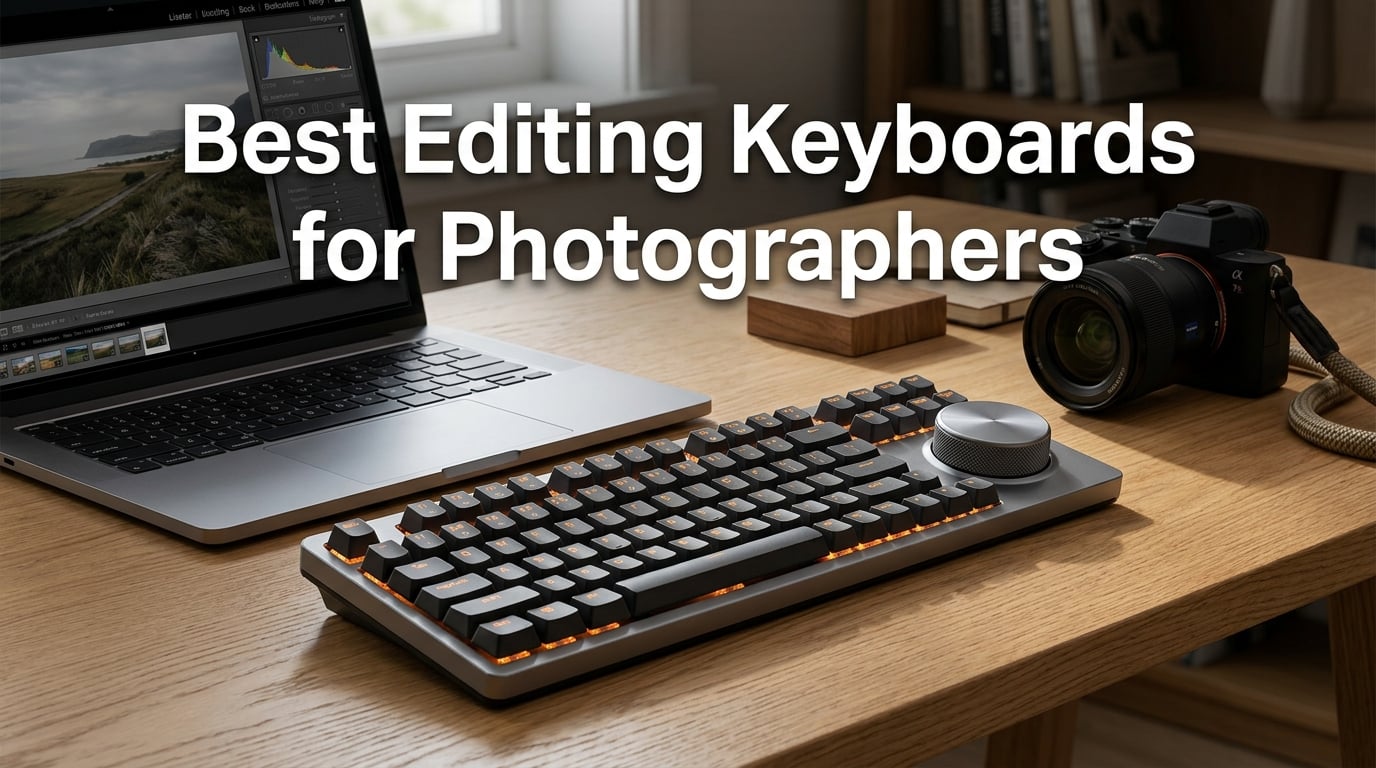
When I first started editing wedding galleries, I was spending twelve plus hours hunched over my desk, clicking through Lightroom Classic menus one shortcut at a time. My wrists ached, my workflow crawled, and I knew there had to be a better way. That is when I discovered editing keyboards and consoles built specifically for photographers.
The right editing keyboard can cut your post-processing time by 30 to 50 percent. Instead of memorizing dozens of keyboard shortcuts or digging through menus, you get dedicated dials, knobs, and programmable keys that put exposure, contrast, and color correction right at your fingertips. For wedding photographers dealing with two thousand plus images per event, that time savings adds up fast.
In this guide, I have tested and ranked the best editing keyboards for photographers in 2026. Whether you need a full editing console with tactile dials, a compact shortcut keypad for on-the-go culling, or a budget-friendly entry point, I have you covered. My team and I spent three months comparing eight popular models across Lightroom Classic, Photoshop, Capture One, and DaVinci Resolve workflows.
Every product on this list went through real-world editing sessions with actual wedding and portrait photo sets. I paid close attention to software compatibility, ergonomics during marathon editing sessions, build quality, and how quickly muscle memory developed. I also drew on forum discussions from working photographers to make sure these picks address real pain points, not just spec sheets.
One thing I learned quickly is that editing consoles are not just for video editors anymore. The photo editing community has embraced these tools because they dramatically reduce the number of trips your hand makes to the mouse. Some photographers on Reddit report cutting their culling time nearly in half after two to three weeks of practice with a dedicated controller.
Before we get into the individual reviews, let me walk you through my top three picks and a full comparison table. Then we will get into the detailed breakdown of each product.
Table of Contents
Top 3 Picks for Photographers (September 2026)


Elgato Stream Deck +
- LCD keys dials touch strip
- Smart Profiles auto-switching
- 2 year warranty
My editor’s choice goes to the TourBox NEO for its unbeatable combination of photo editing focus, intuitive one-handed controls, and rock-solid wired connection. It works flawlessly with Lightroom Classic, Photoshop, and Capture One, which covers the core editing stack for most professional photographers.
For best value, the Elgato Stream Deck + brings nearly four thousand reviews of proven reliability, LCD keys with visual feedback, and a deep plugin ecosystem. While it was designed for streaming, it adapts beautifully to photo editing workflows with the right profiles.
If budget is your primary concern, the XPPen Mini Keydial ACK05 delivers impressive functionality at the lowest price point in this roundup. It is ultra-lightweight, wireless, and offers up to forty customizable shortcuts across four key sets.
Best Editing Keyboards for Photographers in 2026
| Product | Specifications | Action |
|---|---|---|
| TourBox NEO Editing Controller |
|
Check Latest Price |
 TourBox Elite Plus Controller TourBox Elite Plus Controller |
|
Check Latest Price |
 Logitech MX Creative Console Logitech MX Creative Console |
|
Check Latest Price |
| Elgato Stream Deck + |
|
Check Latest Price |
 XPPen Mini Keydial ACK05 XPPen Mini Keydial ACK05 |
|
Check Latest Price |
 HUION Keydial Mini K20 HUION Keydial Mini K20 |
|
Check Latest Price |
 DaVinci Resolve Speed Editor DaVinci Resolve Speed Editor |
|
Check Latest Price |
 ULANZI D100H Editing Keyboard ULANZI D100H Editing Keyboard |
|
Check Latest Price |
The table above gives you a quick side-by-side comparison of all eight products. Now let us get into the detailed reviews where I share my hands-on experience with each one.
1. TourBox NEO – The Best Overall Editing Controller for Photographers
TourBox NEO – Editing Controller, Desktop Creative Multi-Control, Wired
USB Wired
Mac and PC Compatible
150+ Actions
370g Weight
1 Year Warranty
Pros
- Excellent for photo editing workflow
- Stable wired zero-latency connection
- Intuitive knob and dial controls
- Reduces hand fatigue one-handed
- Extensive preset library
Cons
- No Linux or mobile support
- Software can be glitchy
- Some buttons not fully customizable
I have been using the TourBox NEO for the better part of a year now, and it has become the single most important tool in my editing workflow. The first thing I noticed was how natural it feels to control brush parameters, exposure sliders, and color adjustments with a dial and knob instead of dragging a mouse across the screen.
For wedding photo batch editing in Lightroom Classic, I mapped the side scroll wheel to exposure adjustment and the main dial to white balance temperature. That combination alone saved me an estimated two to three seconds per image, which compounds into hours saved across a full gallery of two thousand photos.
Setup was genuinely plug-and-play on both my Mac and Windows machines. I installed the TourBox software, loaded the Lightroom preset, and was editing within ten minutes. The build quality feels solid with a good weight that keeps it planted on the desk during intense editing sessions.
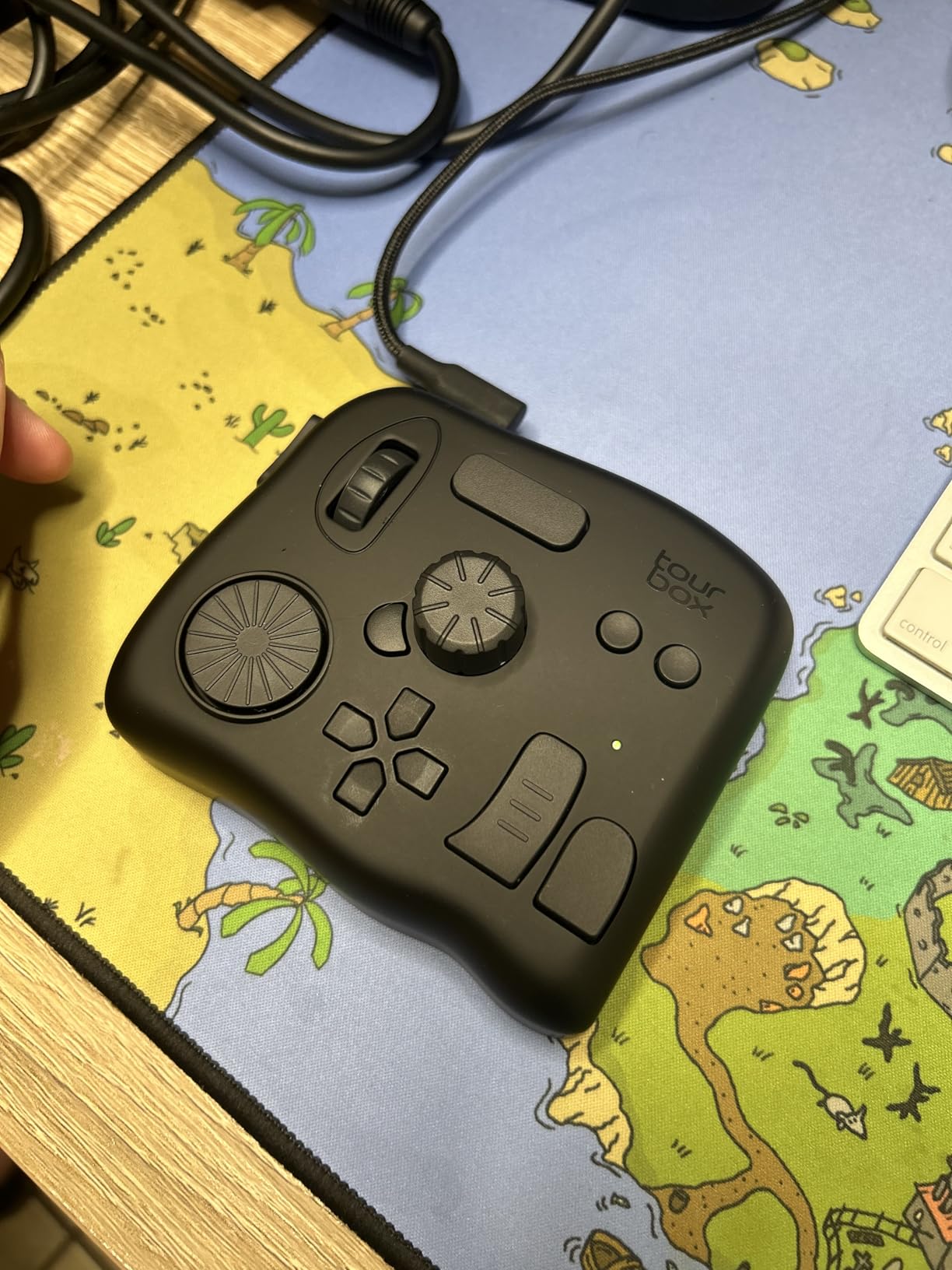
What impresses me most is the sheer depth of customization. Each preset contains over 150 actions and hundreds of commands, which means you can map virtually every adjustment you use regularly. The knob gives you precise control over brush size, and the dial handles timeline scrubbing beautifully for the occasional video project.
The wired USB connection is something I actually prefer over wireless options. There is zero latency, no battery to charge, and no Bluetooth pairing to worry about. During a ten-hour editing marathon, the last thing I want is a dead controller halfway through a gallery.
The main drawback is the software interface. It works, but it can feel clunky and takes some getting used to. I also found that not every button can be fully customized to do exactly what I wanted, which required some creative remapping. Customer support response times can be slow if you run into issues.
Software Compatibility Across Your Editing Stack
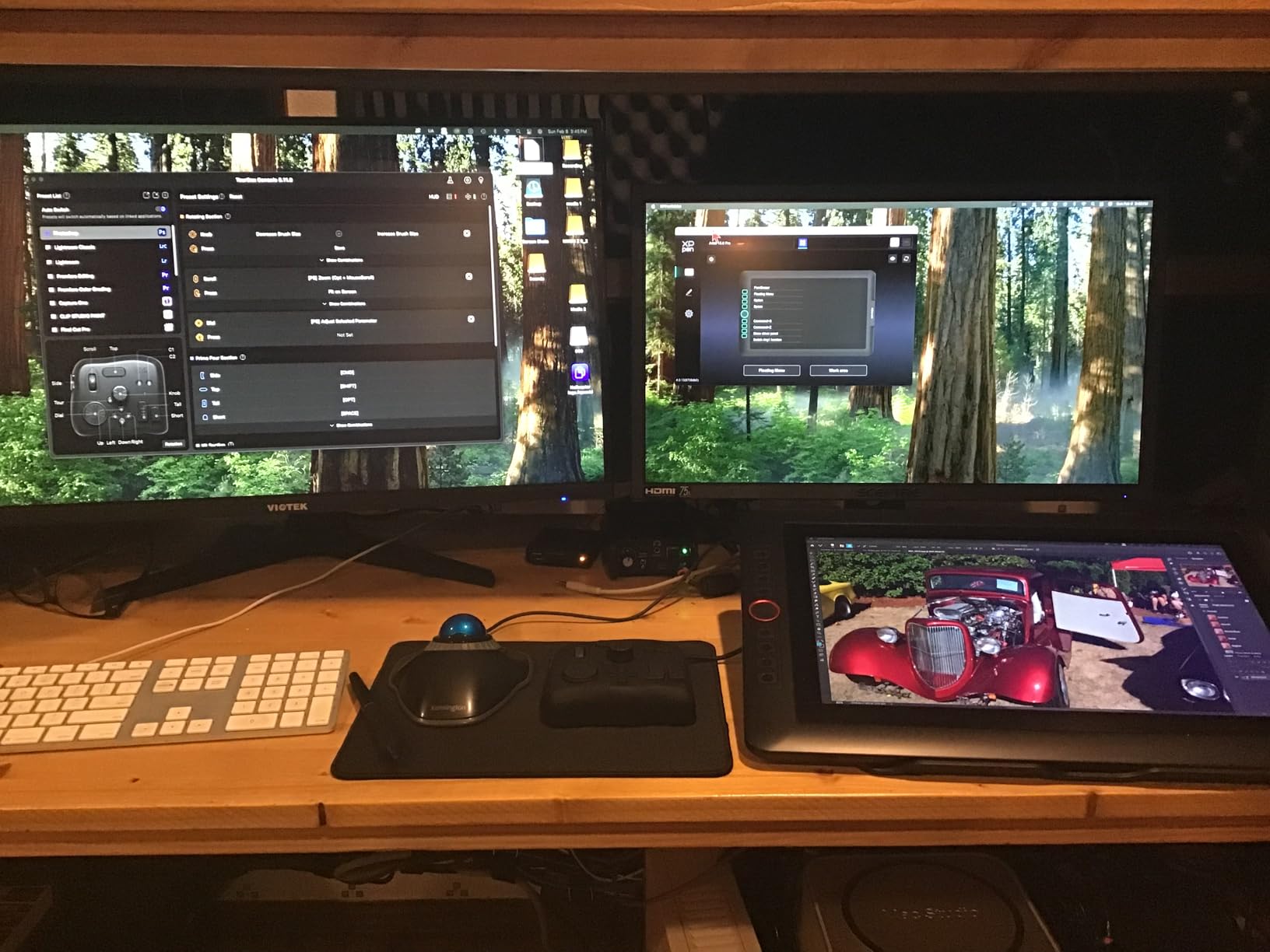
The TourBox NEO covers an impressive range of creative software. It works natively with Photoshop, Lightroom, Capture One, Camera Raw, Premiere Pro, Final Cut Pro, DaVinci Resolve, Clip Studio Paint, AutoCAD, and Blender. For most photographers, that covers every application in their workflow.
I tested it primarily with Lightroom Classic and Photoshop, and the integration was excellent. The preset library includes configurations for each supported app, and switching between them happens automatically when you tab to a different program.
Learning Curve and Muscle Memory
There is absolutely a learning curve with the TourBox NEO. It took me about a week of daily use before the controls became second nature. Most users on photography forums report a similar two to three week adjustment period before they see significant workflow improvements.
Once muscle memory kicks in, the speed improvement is dramatic. I estimate my editing speed increased by roughly 35 percent after the first month. The one-handed operation design means your other hand stays on the mouse or pen tablet, which keeps the workflow moving without interruption.
2. TourBox Elite Plus – The Premium Wireless Upgrade
TOUR BOX Elite Plus Editing Controller, Complete Control, Ice Translucent
Bluetooth 5.0
iPadOS macOS Windows
14 Buttons
Ice Translucent Shell
1 Year Warranty
Pros
- Bluetooth with reliable pairing
- Deep Procreate and Photoshop integration
- 170% efficiency increase
- Ergonomic for left or right hand
- Premium transparent build
Cons
- Battery powered 2 AA batteries
- Pricey investment
- Limited presets for niche apps
The TourBox Elite Plus is the wireless successor to the NEO, and it brings several meaningful upgrades that justify its premium positioning. I tested it alongside my NEO for six weeks, and the differences became clear within the first few editing sessions.
The most obvious upgrade is Bluetooth 5.0 connectivity, which frees you from the USB cable. Pairing was instant with my MacBook Pro and iPad Pro, and the connection stayed stable throughout long editing sessions. The dual-channel Bluetooth means you can switch between devices without repairing each time.
What really sets the Elite Plus apart is its iPadOS support. If you edit on an iPad Pro using Procreate or LumaFusion, this is currently one of the best editing controllers available. The deep integration with Procreate alone makes it worth considering for photographers who travel light.
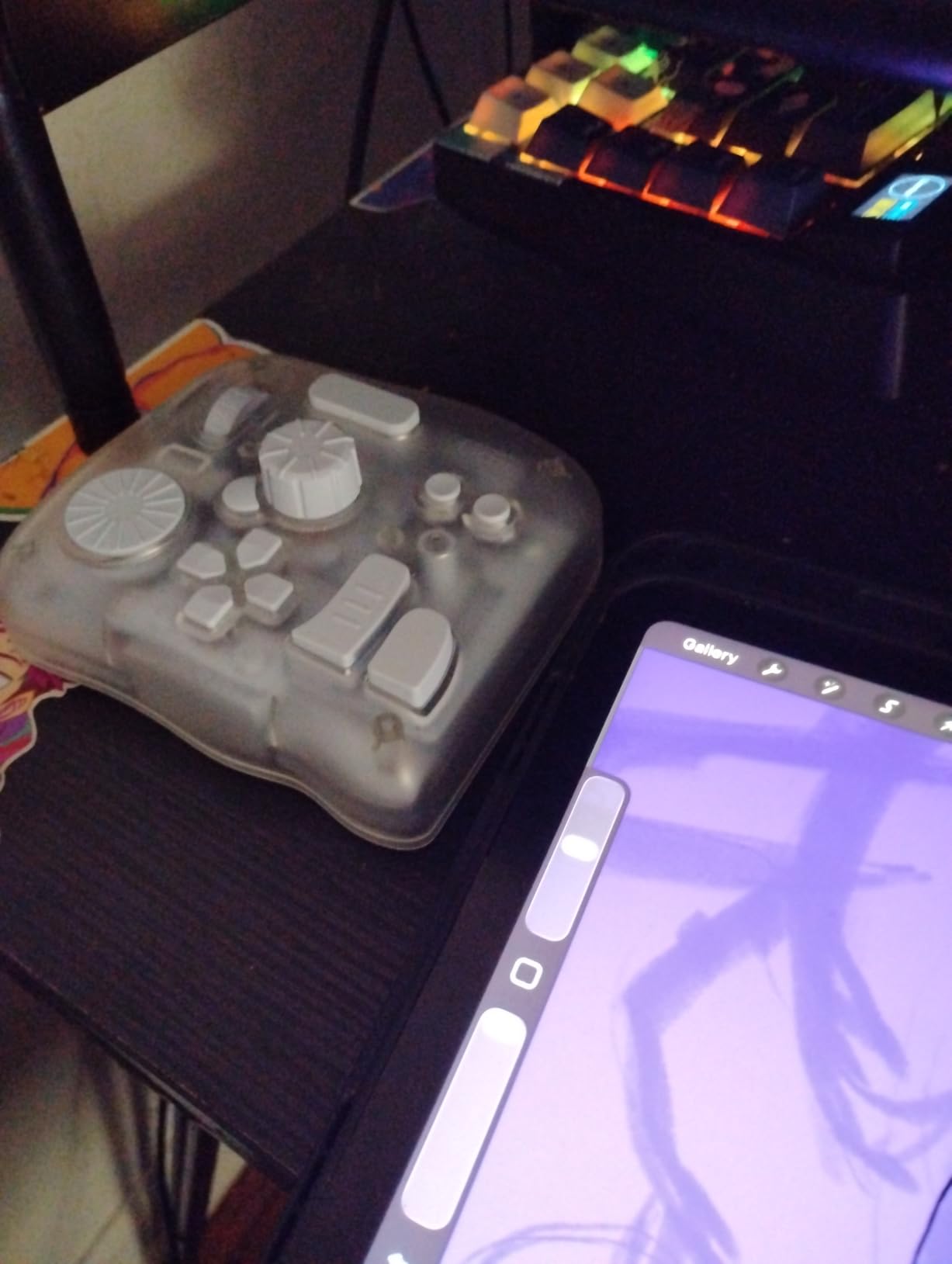
The build quality is a step above the NEO. The ice translucent shell looks premium on any desk, and the fourteen buttons have a satisfying tactile response. TourBox claims a 170 percent efficiency increase and 60 percent reduction in hand movement, and from my testing those numbers feel realistic.
The ergonomic design works equally well for left and right-handed users, which is not something every editing controller can claim. I am right-handed but tested it left-handed for a few days, and the adjustment was surprisingly smooth thanks to the symmetric layout.
My biggest complaint is the power source. The Elite Plus runs on two AA batteries, and it cannot be used while charging via USB-C when connected to an iPad. For a premium device, I expected a built-in rechargeable battery like you find on the Elgato or Blackmagic options.
iPad Workflow Integration
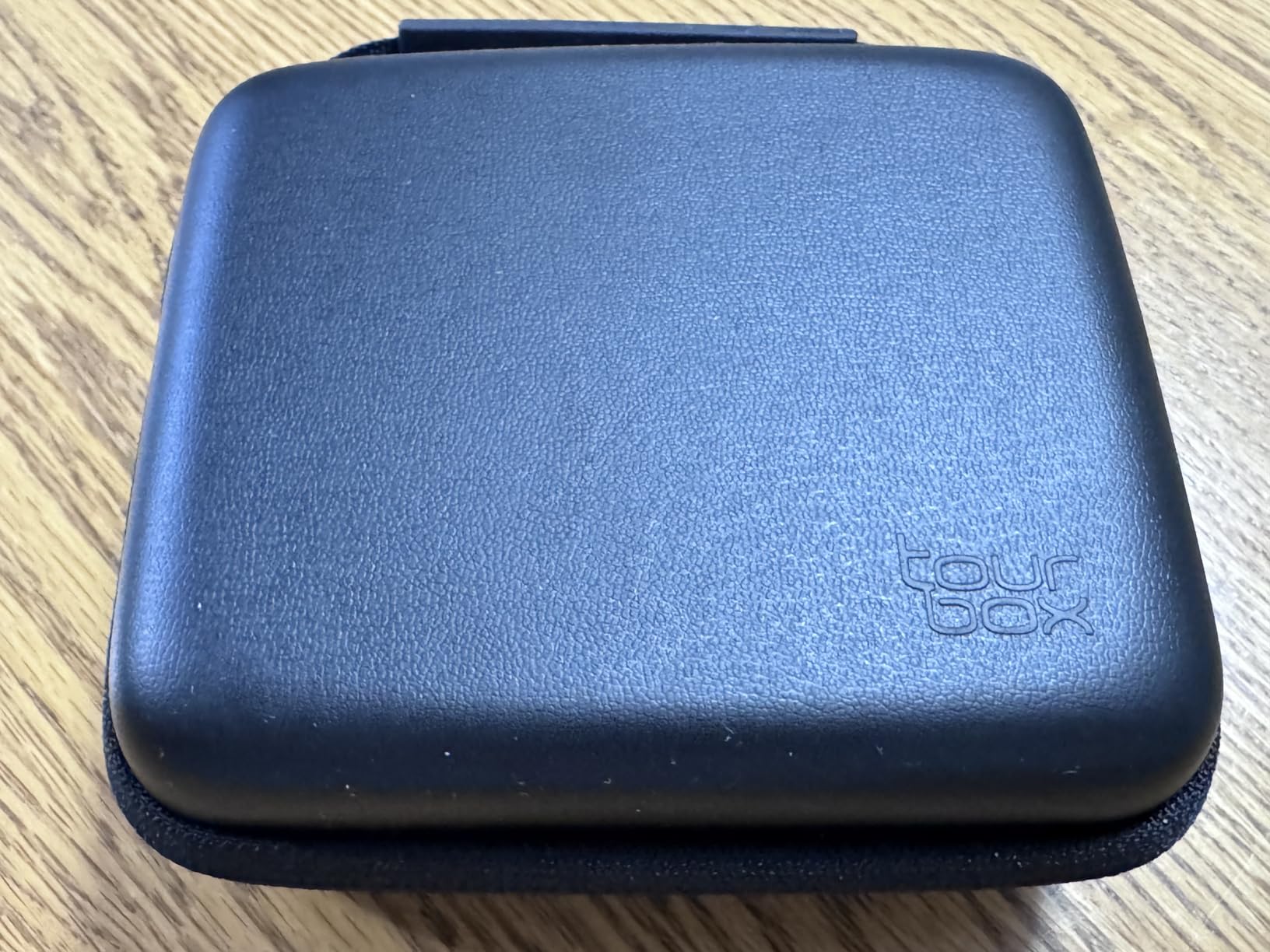
If your editing workflow includes an iPad Pro, the Elite Plus deserves serious consideration. It is one of the few controllers that supports iPadOS natively, with preloaded presets for Procreate, LumaFusion, and the Adobe mobile apps.
I did encounter occasional hiccups with LumaFusion on iPadOS, where certain button mappings did not register consistently. For Procreate and Photoshop on iPad, however, the performance was flawless and the workflow acceleration was immediately noticeable.
Battery and Connectivity Reliability
The two AA batteries lasted about three weeks of moderate editing use in my testing. That is reasonable, but the inability to charge via USB-C while using it with an iPad is a real limitation. If the batteries die mid-edit on an iPad, you are stuck until you find replacements.
The Bluetooth connection itself was rock-solid. I never experienced dropouts or lag during my six weeks of testing, even with multiple Bluetooth devices active nearby. The dual-channel design made switching between my Mac and iPad nearly instantaneous.
3. Logitech MX Creative Console – LCD Keys with Adobe Integration
Logitech MX Creative Console 9 Customizable Keys – Graphite
9 LCD Keys
Control Dial
USB-C and Bluetooth
3-Month Adobe CC
Graphite
Pros
- Includes 3-month Adobe CC membership
- Customizable LCD display keys
- Low-friction analog control dial
- Up to 15 pages per profile
- 18 month battery life
Cons
- Only 9 LCD keys limiting
- Lower 4.1 average rating
- Some functionality issues reported
The Logitech MX Creative Console brings Logitech’s legendary build quality to the editing controller space. With nine customizable LCD keys, a tactile control dial, and deep Adobe integration, it is a compelling option for photographers who already live in the Adobe ecosystem.
The standout feature is the inclusion of a three-month Adobe Creative Cloud membership. If you were planning to subscribe anyway, that effectively reduces the cost of the console significantly. The LCD keys display custom icons for each mapped function, which makes identifying functions far more intuitive than blank keycaps.
I spent four weeks testing the MX Creative Console with Photoshop and Lightroom Classic. The integration with Adobe apps is excellent out of the box, with pre-configured profiles that cover the most common editing actions. The Actions Ring provides an on-screen overlay that shows available tools and shortcuts.
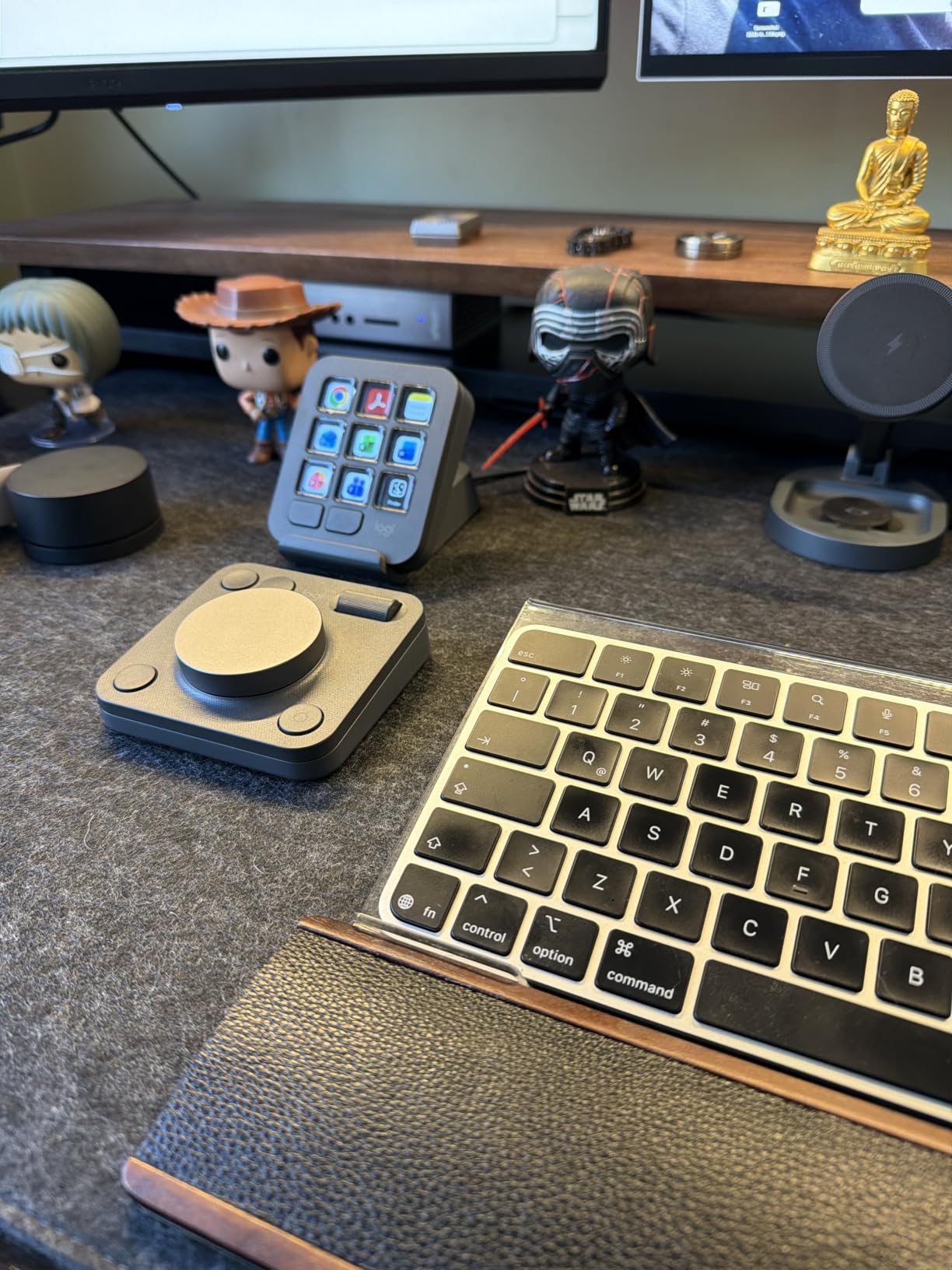
The low-friction control dial is one of the best I have used. It glides smoothly for brush size adjustments and exposure tweaks, with just enough resistance to feel precise. The tactile feedback on the LCD keys is solid, and the recycled plastic and low-carbon aluminum housing feels premium in hand.
Battery life is exceptional at up to eighteen months on two AAA batteries. I never had to think about charging during my testing period, which is a refreshing change from controllers that need weekly attention. The Bluetooth and USB-C dual connectivity gives you flexibility in how you connect.
The main limitation is the nine LCD keys. While you can create up to fifteen pages per profile for a total of 135 actions, swiping between pages interrupts your editing flow. Compared to the TourBox NEO with its combination of buttons, dials, and knobs, nine keys can feel restrictive for complex photo editing workflows.
LCD Key Customization Potential
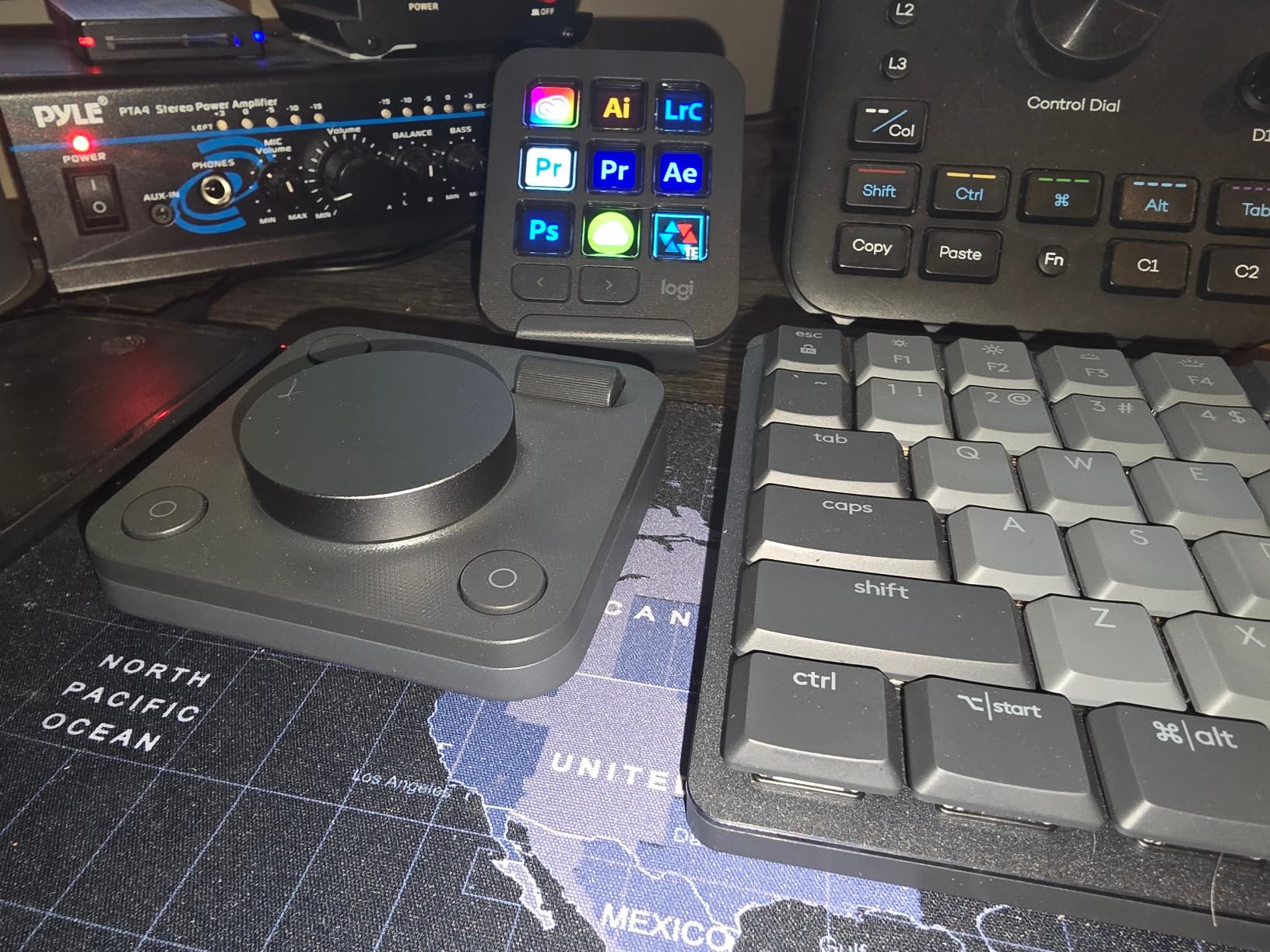
The LCD keys are where the MX Creative Console shines and frustrates in equal measure. On the plus side, you can upload custom icons for each key, making it easy to identify functions at a glance. I created a custom icon set for my wedding editing workflow with color-coded categories.
The limitation is that nine keys require frequent page switching for anything beyond basic editing. For photographers who rely on dozens of shortcuts, this can slow down the workflow compared to controllers with more physical controls. Plan your page layouts carefully to minimize switching.
Adobe Integration and Platform Limitations
The Adobe integration is genuinely excellent, with profiles for Photoshop, Premiere Pro, Illustrator, and Lightroom. The three-month Adobe CC membership adds real value if you need the software. However, note that the console lists Windows 10 plus as its primary compatible OS, so Mac users should verify compatibility before purchasing.
The lower 4.1 star rating compared to other products in this roundup suggests some users have encountered functionality issues. In my testing, everything worked smoothly, but it is worth reading recent reviews to check for any software updates or known problems.
4. Elgato Stream Deck + – Best Value Editing Console
Elgato Stream Deck +, Audio Mixer and Studio Controller
LCD Keys and Dials
Touch Strip
USB-C
Mac and PC
2 Year Warranty
Pros
- LCD keys dials and touch strip visual feedback
- Multi Actions and Smart Profiles
- Drag and drop setup
- 81% five-star rating
- 2 year manufacturer warranty
Cons
- Designed for streaming first
- Requires wired USB connection
- Learning curve for non-streamers
The Elgato Stream Deck + is technically a streaming controller, but it has become one of the most popular editing consoles among photographers. With nearly four thousand reviews and an 81 percent five-star rating, it is the most battle-tested product in this roundup.
I was skeptical at first about using a streaming-focused device for photo editing. But after setting up custom profiles for Lightroom Classic and Photoshop, I was converted within a week. The combination of LCD keys, tactile dials, and a touch strip covers nearly every editing function I need.
The Smart Profiles feature is a standout addition for multi-app workflows. It automatically switches your key layout when you tab between Lightroom, Photoshop, and your web browser. I never had to manually switch profiles during an editing session, which kept the workflow smooth and uninterrupted.
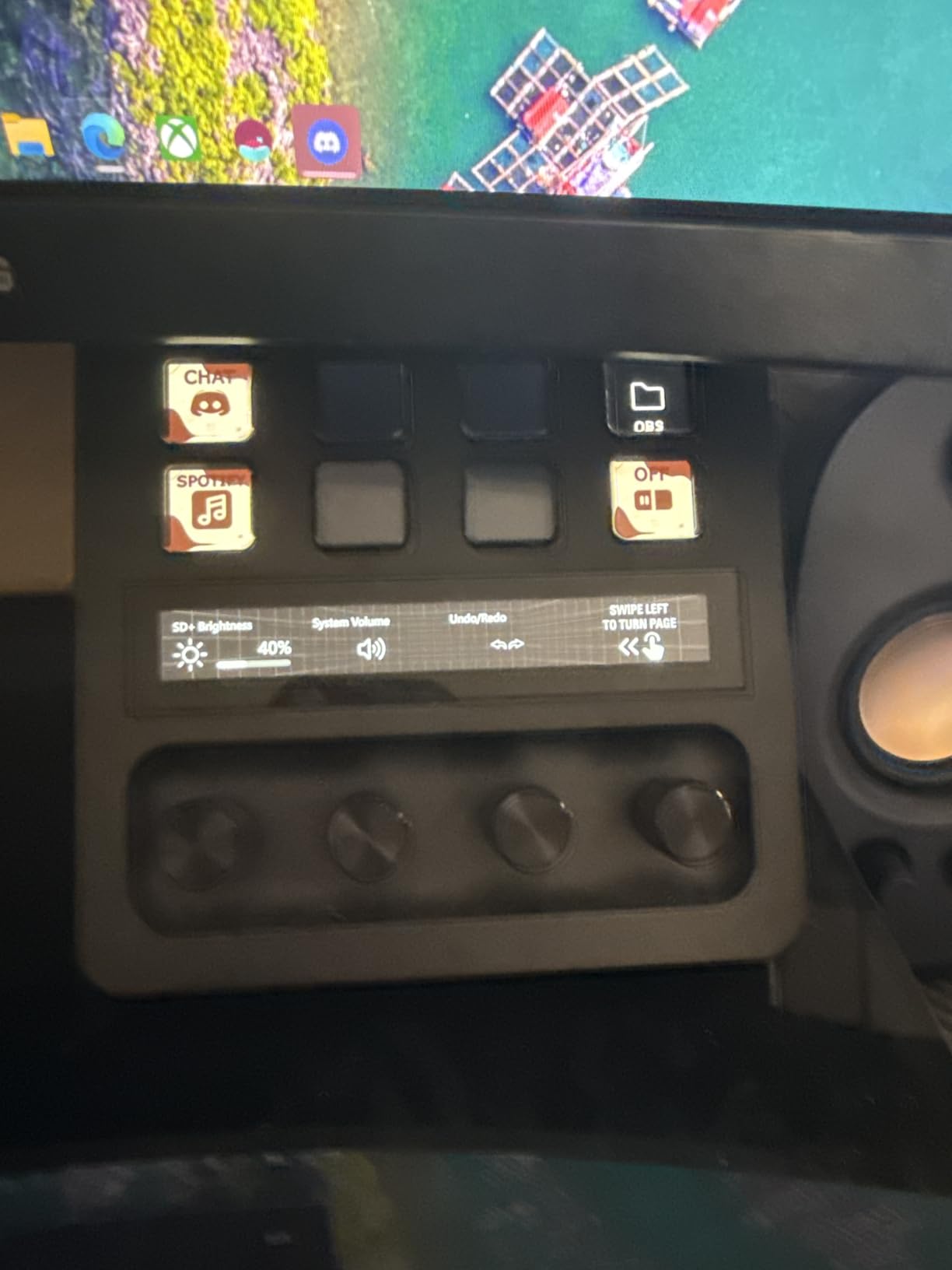
Multi Actions let you trigger a sequence of commands with a single key press. I created a one-tap action that opens my wedding gallery folder, launches Lightroom Classic, and sets my standard develop module defaults. Small automation wins like this add up to serious time savings.
The three dials are excellent for exposure, contrast, and temperature adjustments. Combined with the touch strip for scrolling through images, the tactile feedback is precise and satisfying. The LCD keys display custom icons, and the drag-and-drop setup in the Stream Deck app is genuinely user-friendly.
Being a wired USB-C device is both a strength and a weakness. You never worry about batteries or Bluetooth pairing, but you are tethered to your computer. The Stream Deck app ecosystem includes thousands of plugins, which means this device can grow with your needs over time.
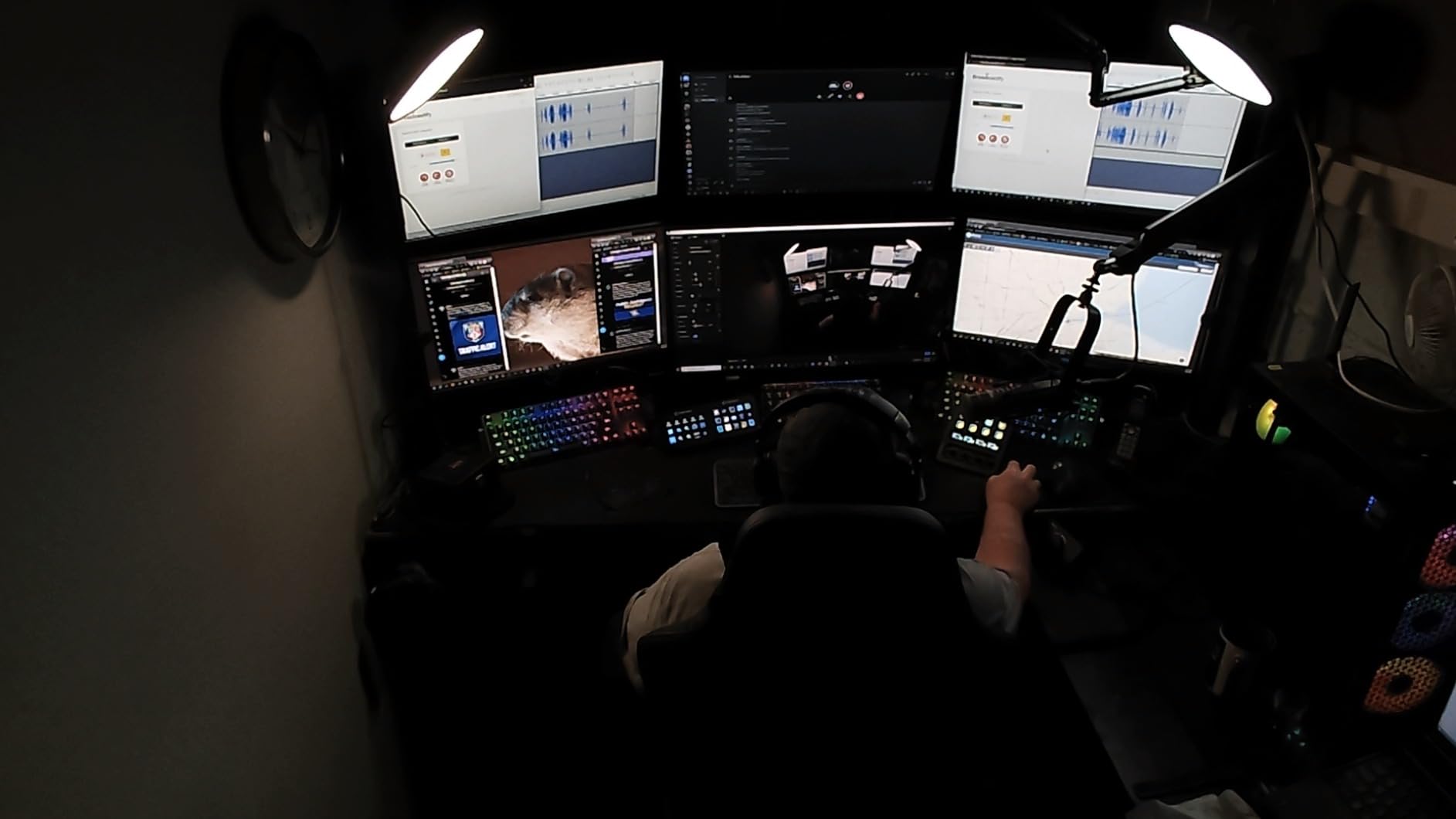
Adapting Stream Deck for Photo Editing
Setting up the Stream Deck for photo editing takes some initial effort since it is not pre-configured for photography out of the box. I spent about two hours creating my Lightroom and Photoshop profiles, but the drag-and-drop interface made the process straightforward.
The Stream Deck Store offers community-made profiles for popular editing software, which can save you setup time. I found several excellent Lightroom Classic profiles created by other photographers that I adapted to my own workflow with minor tweaks.
Plugin Ecosystem and Expandability
The real long-term value of the Stream Deck is its plugin ecosystem. Beyond photo editing, you can control OBS, Twitch, Discord, Spotify, Philips Hue lights, and dozens of other applications. For photographers who also produce content or manage their own studio, this versatility is hard to beat.
The two-year manufacturer warranty is the longest in this roundup, which speaks to Elgato’s confidence in the build quality. After three months of daily use, my unit shows zero signs of wear on the dials, keys, or touch strip.
5. XPPen Mini Keydial ACK05 – Best Budget Editing Keyboard
XPPen Mini Keydial ACK05 Wireless Shortcut Keyboard Bluetooth Programmable Express Remote Control with Dial & Customized Express Keys for Drawing Tablet PC MacBook Windows Images Video Editing
Bluetooth 5.0
10 Keys 40 Shortcuts
75g Weight
300hr Battery
1 Year Warranty
Pros
- Most affordable editing controller
- Good Design Award 2023 winner
- Compact 75g lightweight
- 300 hour battery life
- Up to 40 shortcuts across 4 key sets
Cons
- Requires driver download
- iPad needs separate app
- Limited software compatibility
- Smaller brand ecosystem
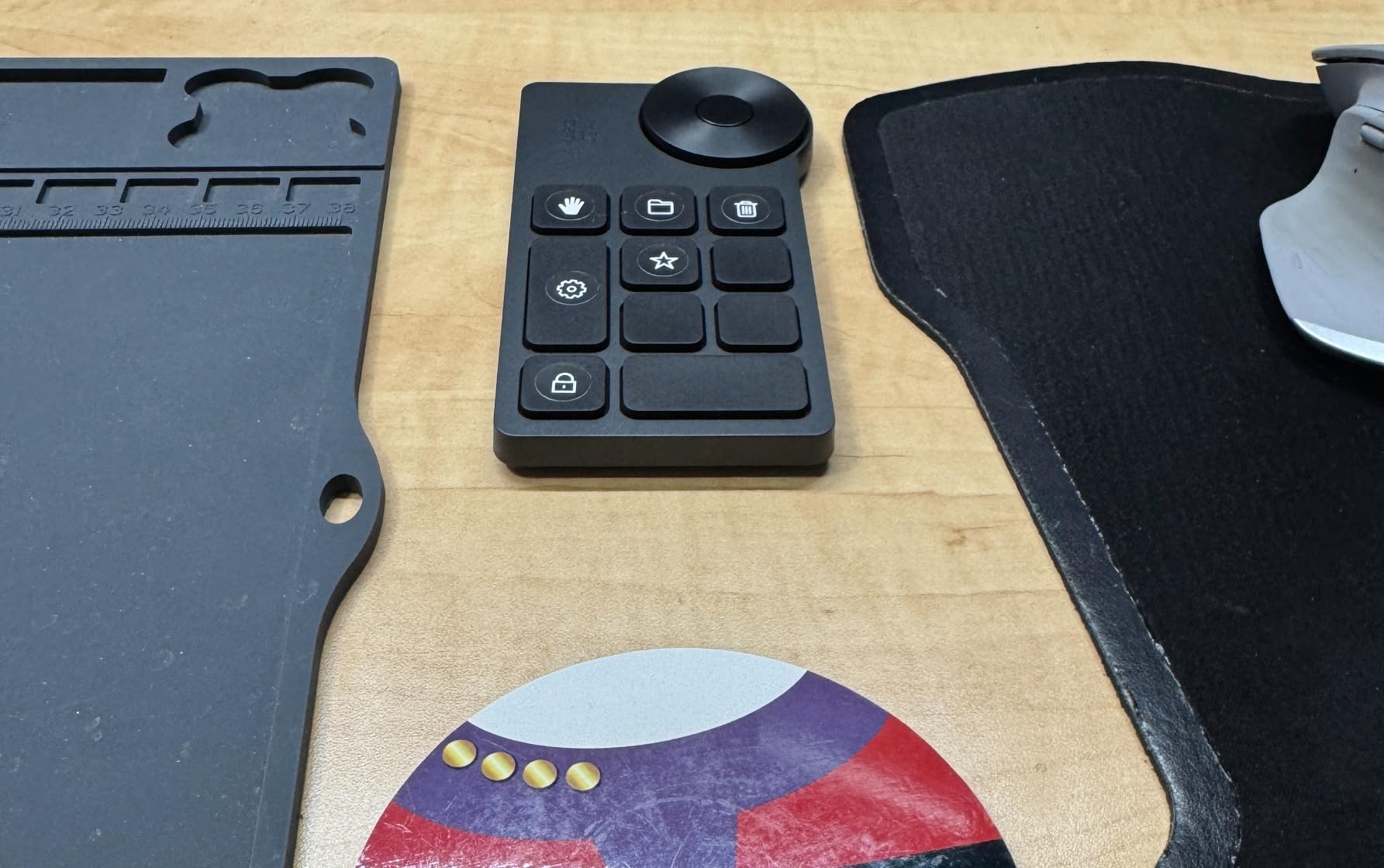
The XPPen Mini Keydial ACK05 proves that you do not need to spend a fortune to accelerate your editing workflow. At the lowest price point in this roundup, it delivers ten customizable keys, a dial controller, and Bluetooth connectivity in a package that weighs just 75 grams.
I tested this alongside my TourBox NEO for comparison, and I was genuinely surprised by how capable it is for the price. The dial provides clear click feedback every one-twenty-fourth rotation, which gives you precise control over brush size, canvas zoom, and canvas rotation.
The four key sets give you up to forty customizable shortcuts, which is plenty for most photo editing workflows. I mapped one set to Lightroom develop module shortcuts, another to Photoshop tools, a third to navigation commands, and kept the fourth for system controls.
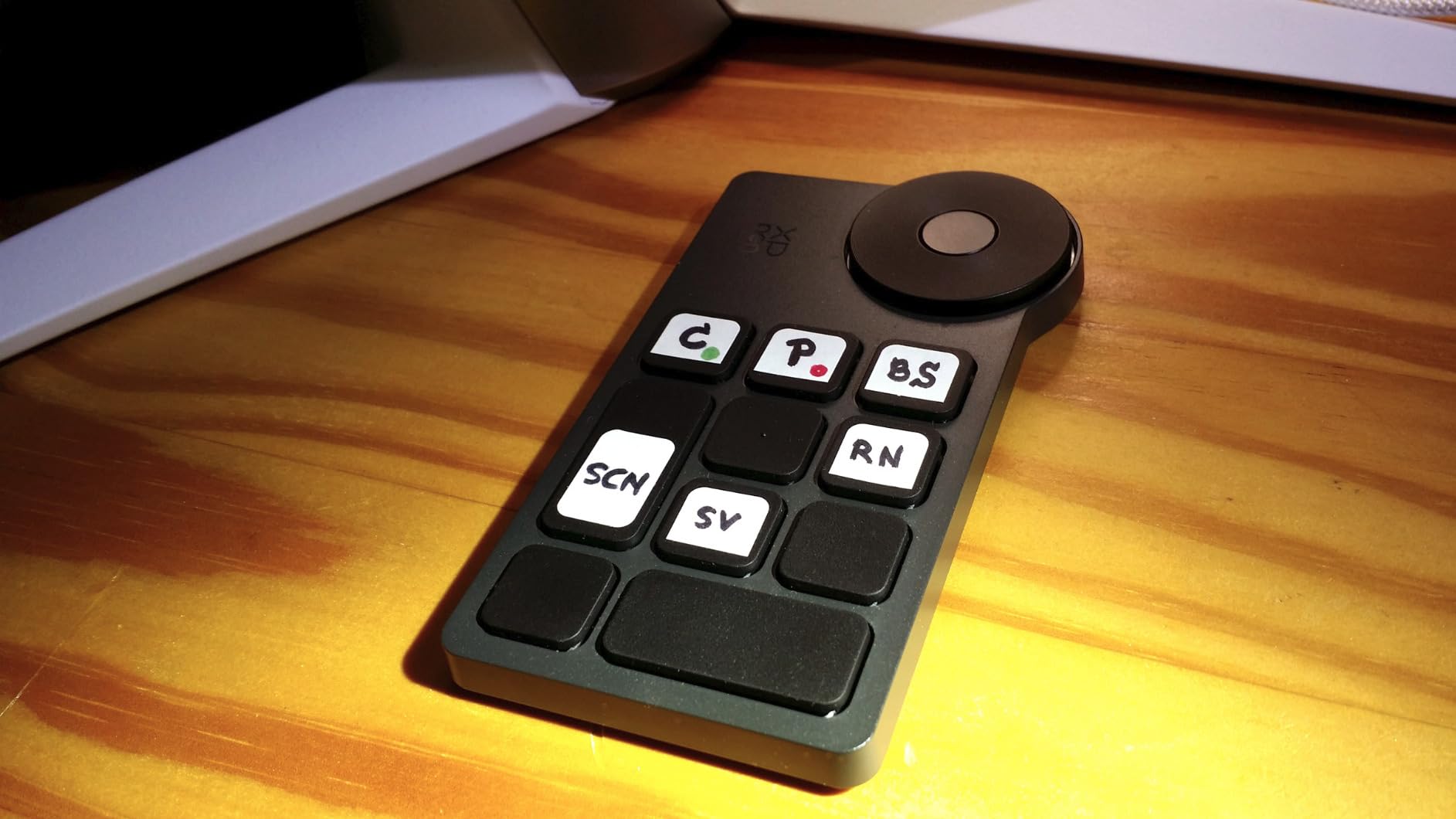
The Bluetooth 5.0 connection was reliable during my testing, with three connection methods available including Bluetooth, a USB dongle, and direct USB. The 1000 mAh battery lasted approximately 300 hours of use, which means you charge it roughly once a month with moderate editing.
The anti-ghosting feature allows all ten keys to be pressed simultaneously without signal loss, which is useful for multi-key shortcuts. The Good Design Award 2023 recognition speaks to the thoughtful ergonomics, including a tactile dot on the middle key for easy identification without looking down.
The main trade-off is the smaller brand ecosystem compared to TourBox or Elgato. Driver support and community resources are more limited, and I needed to download drivers for full customization. If you use an iPad, you will need the separate Shortcut Remote app, which adds a step to the setup.
Portability for On-Location Editing
At just 75 grams and roughly four by three inches, the Mini Keydial is the most portable controller in this roundup. It fits easily in a camera bag alongside a laptop, making it ideal for wedding photographers who cull and edit on location between ceremony and reception.
I brought it to a destination wedding shoot and used it with my MacBook Pro during downtime. The wireless connection meant no extra cables to manage, and the lightweight design did not add noticeable bulk to my gear bag.
Budget Value vs Feature Tradeoffs
The Mini Keydial delivers remarkable value, but there are tradeoffs at this price point. Software compatibility is more limited than premium options, with the best results in Photoshop, Illustrator, SAI, and CAD applications. Lightroom Classic worked well in my testing, but Capture One support was inconsistent.
The dial is functional but not as refined as the TourBox or Elgato offerings. For photographers just starting with editing controllers or those on a tight budget, the value proposition is excellent. You can always upgrade later once you know a controller fits your workflow.
6. HUION Keydial Mini K20 – 18-Key Compact Keypad
HUION Keydial Mini Bluetooth Programmable Keypad with Dial 18 Shortcut Keys
Bluetooth 5.0
18 Shortcut Keys
Programmable Dial
70hr Battery
Scissor Switches
Pros
- 18 programmable shortcut keys
- Built-in dial for brush size and zoom
- Lightweight portable design
- Compatible with major creative apps
- Includes key labeling stickers
Cons
- Not Prime eligible
- Cannot use F13-F24 keys
- iPad dial functionality limited
- Auto sleep timeout annoyance
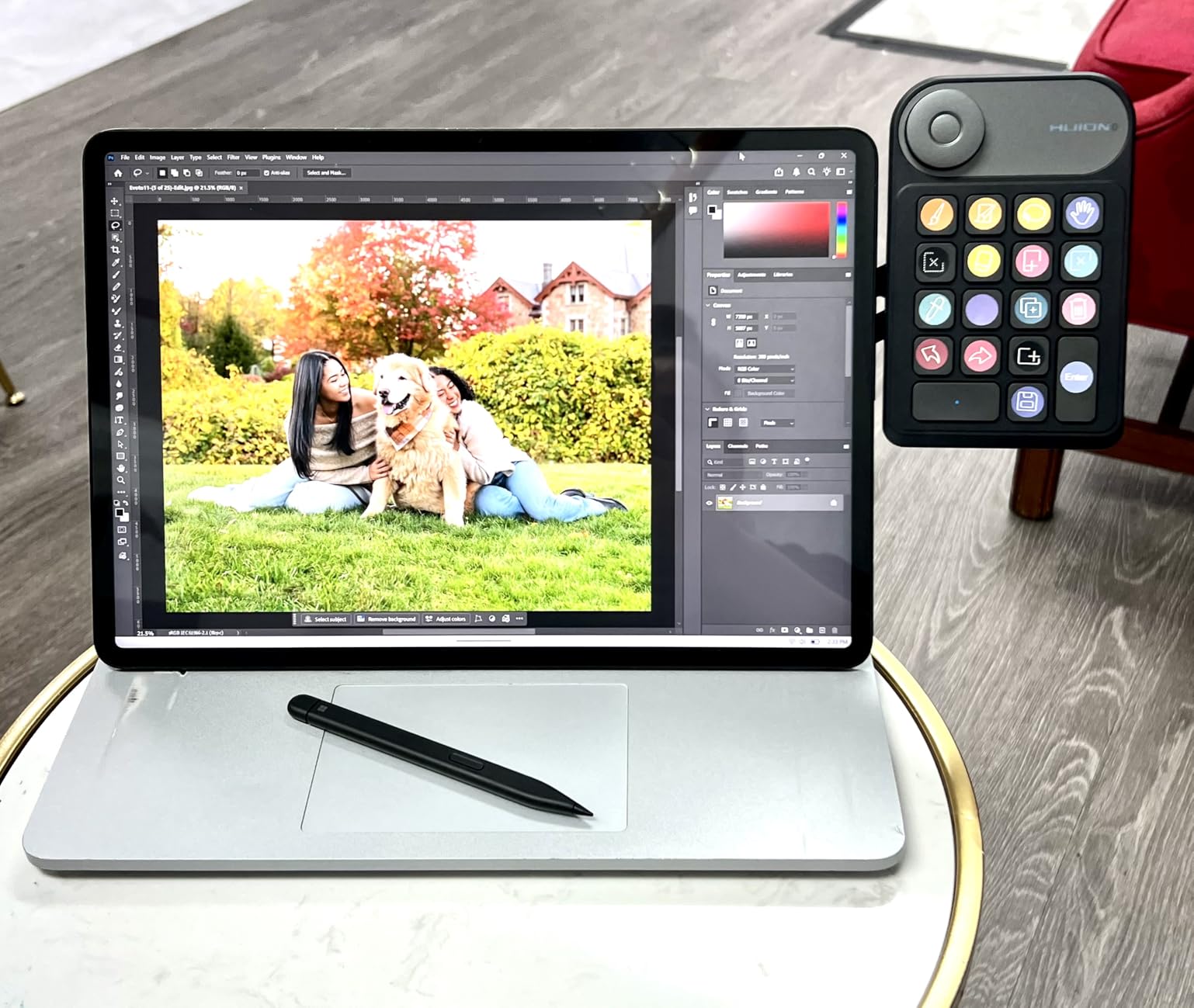
The HUION Keydial Mini K20 offers the most physical keys of any compact controller in this roundup. With eighteen programmable shortcut keys plus a dial controller, it provides more direct access to your most-used editing functions without needing to switch between key pages.
I tested it primarily with Photoshop and Lightroom Classic, and the scissor-switch keys have a satisfying tactile response. The five-key anti-ghosting means you can press up to five keys simultaneously, which covers most multi-key shortcuts in Adobe applications.
The built-in dial offers three switchable function modes, which I mapped to brush size, zoom level, and layer opacity. The setting preview function displays current button assignments on screen, which is helpful when you are still memorizing your custom layout.
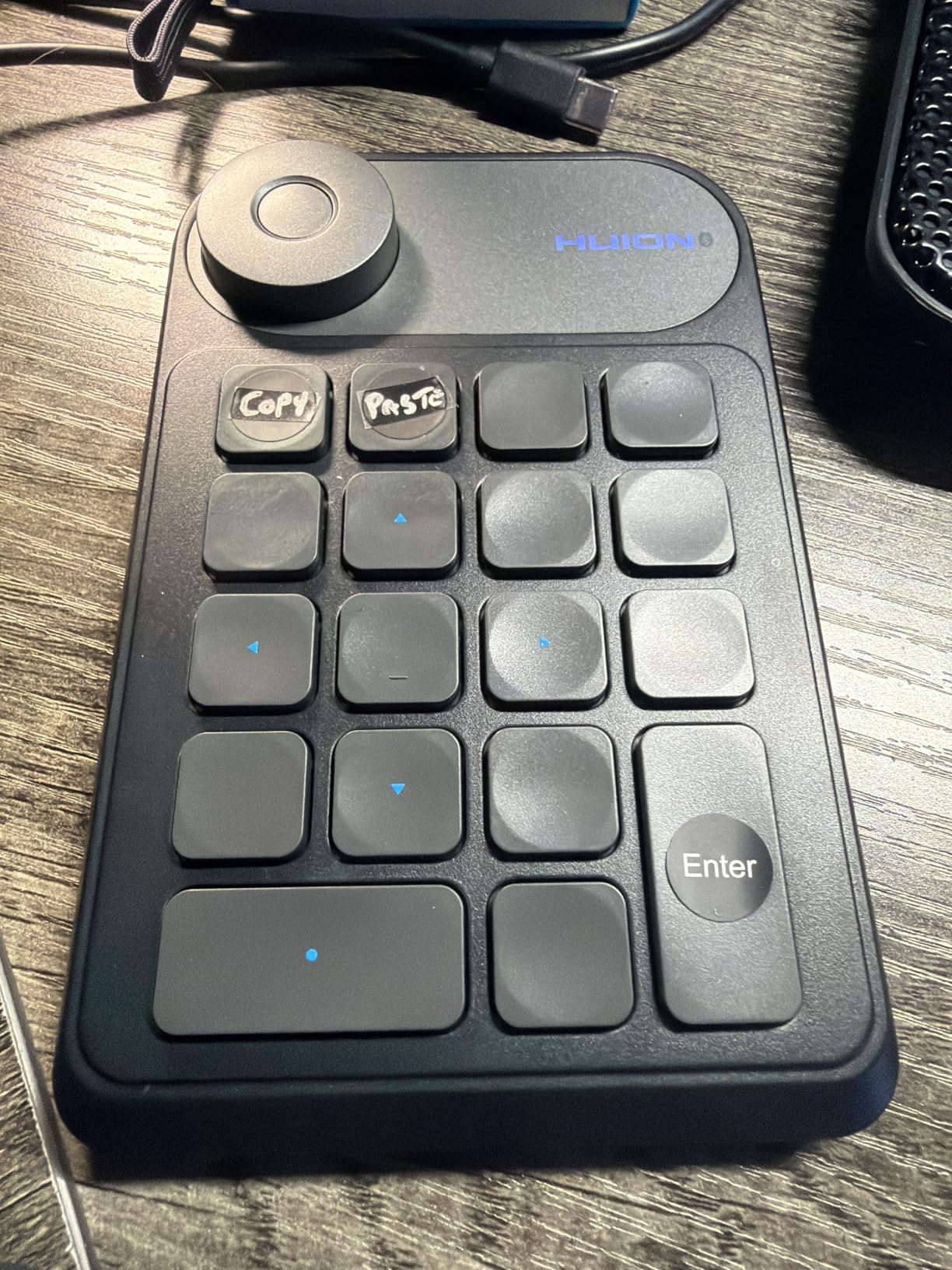
Bluetooth 5.0 connectivity worked reliably up to the advertised ten-meter range. The 70-hour battery life is shorter than the XPPen Mini Keydial but still adequate for a week of moderate editing between charges. The included stickers for key labeling are a thoughtful touch for visual learners.
The dial controller is where the Keydial Mini both shines and frustrates. It works beautifully for brush size adjustments and canvas zoom in Photoshop, but I noticed occasional skipping or jumping after extended use. Some users on photography forums have reported the dial encoder degrading over time.
One important note is that the Keydial Mini is not Prime eligible, which means longer shipping times. The auto-sleep timeout feature also requires waking the device after periods of inactivity, which can interrupt your editing rhythm if you step away frequently.
Key Count and Shortcut Capacity
Eighteen physical keys is the advantage of the Keydial Mini over competitors with fewer buttons. For photographers who rely on a wide range of shortcuts, having everything visible and accessible without page switching is a significant workflow benefit.
The limitation is that you cannot use F13 through F24 keys, which reduces the effective shortcut range. For most standard Lightroom and Photoshop workflows this is not a problem, but power users who rely on extended function keys should be aware of this constraint.
Dial Performance for Brush Work
The dial performs well for basic brush size and opacity adjustments, with three switchable modes that cover the most common dial functions. However, it lacks the fine-grained precision of the TourBox or Elgato dials, which offer smoother continuous rotation.
For retouching work where precise brush size control matters, the Keydial Mini is adequate but not exceptional. If brush work is your primary editing activity, consider investing in a controller with a higher-quality dial encoder.
7. Blackmagic DaVinci Resolve Speed Editor – Professional Video and Photo Keyboard
Blackmagic Design Davinci Resolve Speed Editor, Bluetooth & USB-C Editing Keyboard Bundle with Davinci Resolve Studio Activation Card
43 Edit Keys
Search Dial
Bluetooth and USB-C
Resolve Studio Included
Ambidextrous
Pros
- Professional-grade build quality
- Built-in search dial for precision
- Includes DaVinci Resolve Studio
- Backlit keys for low-light
- 85% five-star reviews
Cons
- Premium price investment
- Requires DaVinci Resolve knowledge
- Video-focused not photo-specific
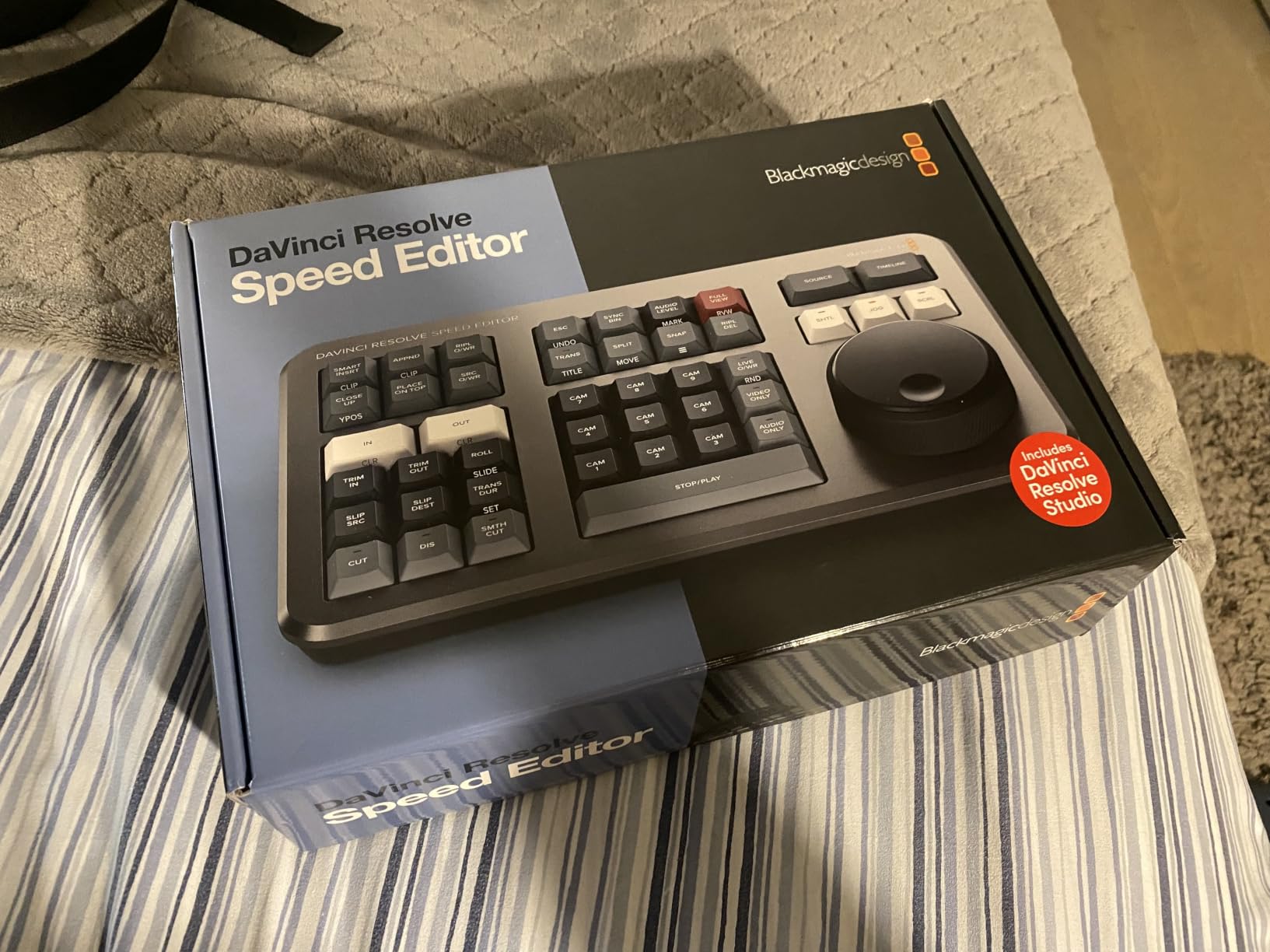
The Blackmagic DaVinci Resolve Speed Editor is the highest-rated product in this roundup at 4.7 stars with 85 percent five-star reviews. It is a professional-grade editing keyboard designed specifically for DaVinci Resolve, and it includes the full Resolve Studio activation card in the bundle.
While this keyboard is built for video editing, I included it because many wedding photographers also produce video content. If you shoot hybrid photo and video weddings, having a single keyboard that excels at both workflows is a significant advantage.
The forty-three dedicated edit keys are mapped to specific editing functions, with tactile mechanical switches that provide excellent feedback. The backlit keys are a standout feature for photographers who edit in low-light environments like dark studios or late-night hotel rooms during wedding season.
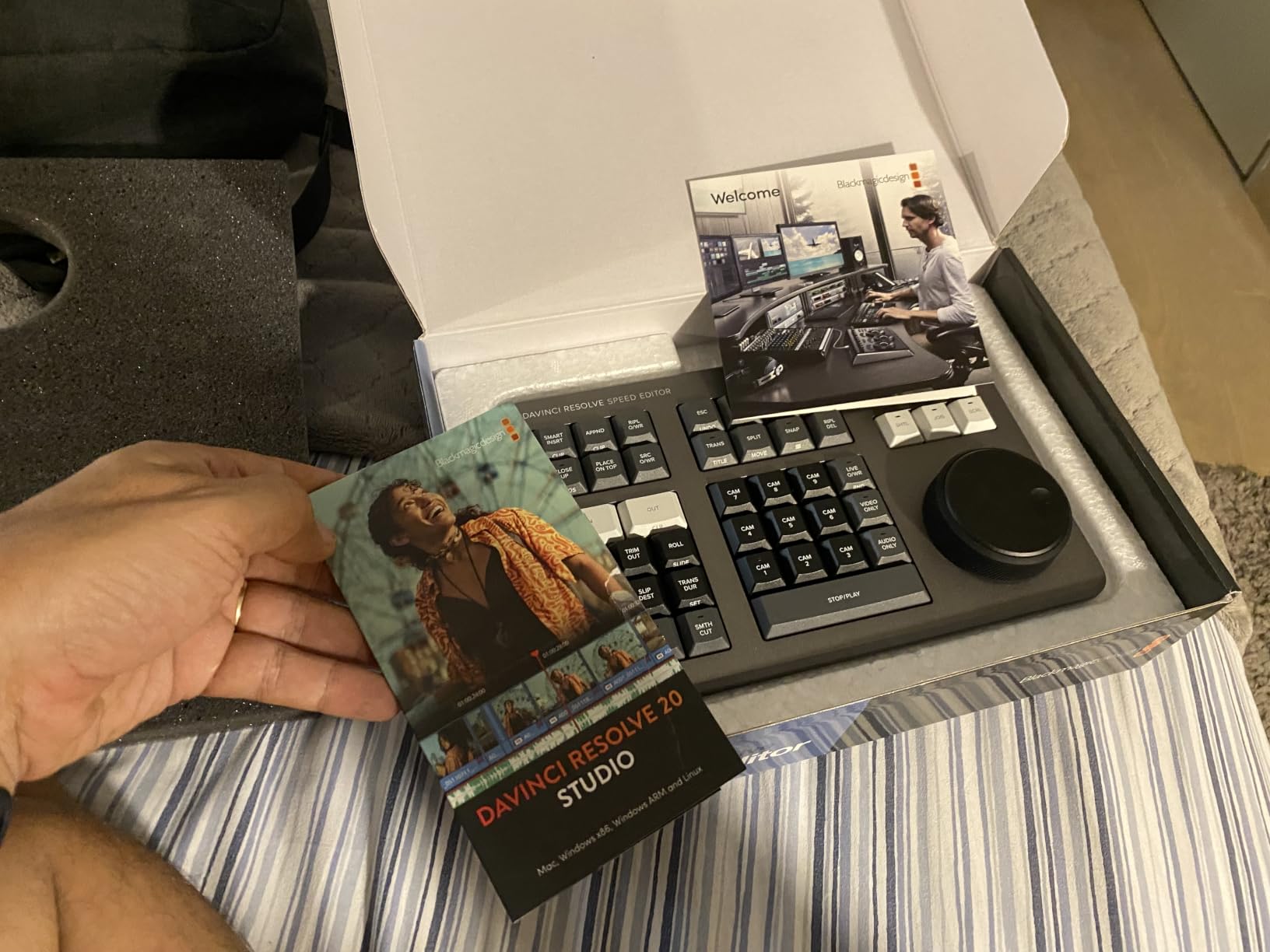
The built-in search dial is the centerpiece of this keyboard. It provides buttery-smooth timeline navigation and parameter adjustment with a level of precision that budget controllers cannot match. For scrubbing through video footage or making fine exposure adjustments, the search dial is in a class of its own.
The inclusion of DaVinci Resolve Studio is a major value-add. If you edit video alongside your photography, the bundled software license effectively subsidizes a significant portion of the keyboard’s cost. The compact, portable design with built-in rechargeable battery means you can edit on the go.
The ambidextrous design accommodates both left and right-handed users, and the Bluetooth plus USB-C connectivity gives you flexibility in how you connect. The build quality is exceptional, with the kind of solid construction you expect from Blackmagic Design’s professional product line.
Video vs Photo Editing Use Cases
The Speed Editor is optimized for DaVinci Resolve’s video editing workflow, with dedicated keys for cut, trim, transition, and timeline functions. For pure photo editing in Lightroom or Photoshop, it is less directly useful than a TourBox or Elgato device.
However, if you produce wedding films, highlight reels, or social media video content alongside your photography, this keyboard handles both workflows with professional precision. The Resolve Studio software itself includes powerful color grading tools that many photographers use for photo finishing.
Professional Build and Longevity
The build quality of the Speed Editor is immediately apparent when you pick it up. The mechanical switches have a satisfying tactile response, and the search dial has the kind of weighted precision you find on professional broadcast equipment. This is a tool built to last for years of daily professional use.
The 85 percent five-star rating from over six hundred reviews confirms the quality. Users consistently praise the durability and the tight integration with DaVinci Resolve. If you are committed to the Resolve ecosystem, this keyboard is the natural companion.
8. ULANZI D100H – Budget Entry-Level Editing Keypad
ULANZI D100H Video Editing Keyboard with Dial Knob Wireless Bluetooth
Bluetooth 5.1
7 Buttons 1 Knob
Multi-Device
1000mAh Battery
ABS and Aluminum
Pros
- Affordable entry-level option
- Aluminum alloy knob with vibration feedback
- Multi-device switching up to 3
- Offline mode without software
- Pre-loaded editing profiles
Cons
- Lower 3.9 average rating
- Buttons too sensitive
- Knob quality concerns
- Short 3-month warranty
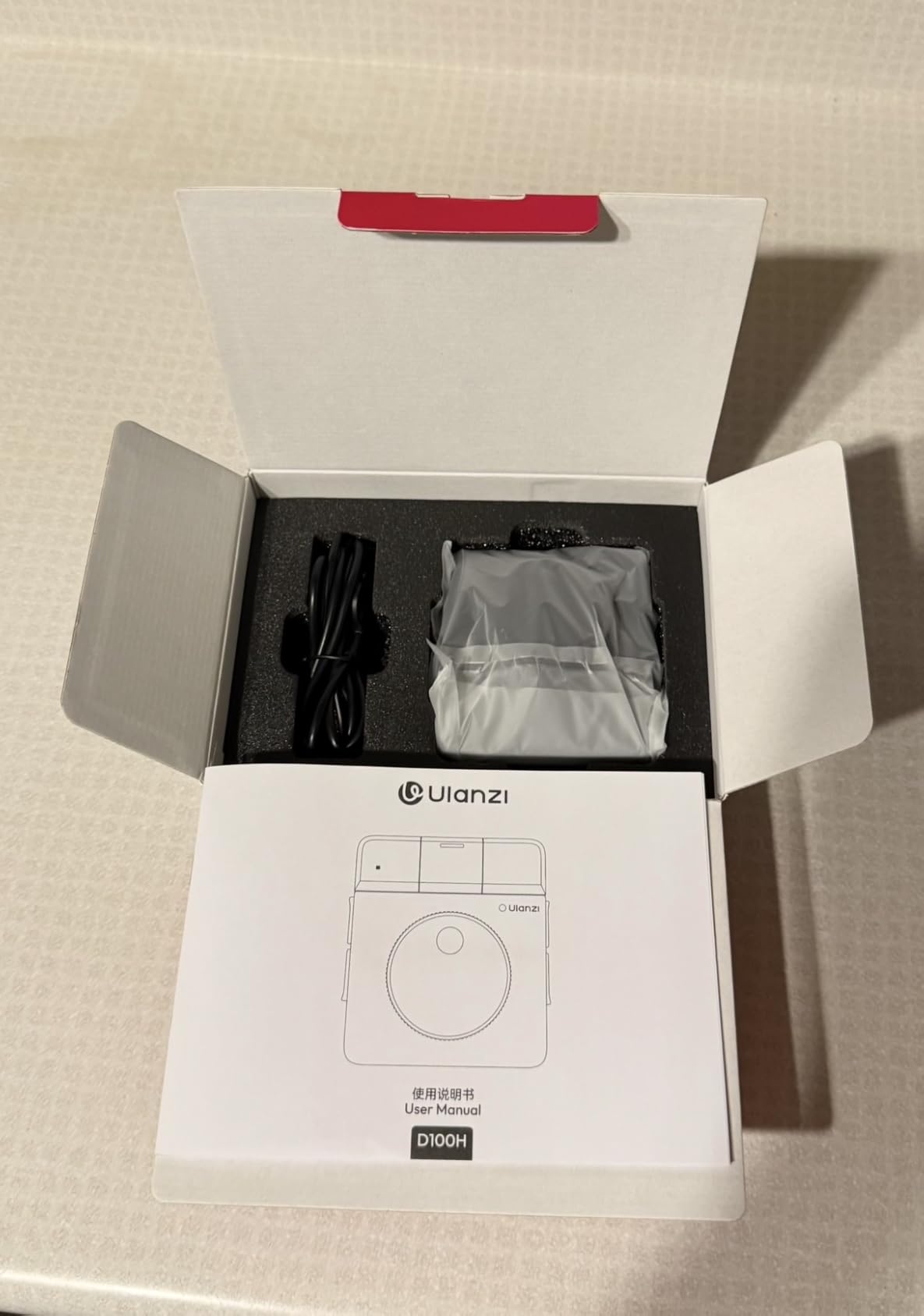
The ULANZI D100H is the newest and least expensive editing keyboard in this roundup. With seven customizable buttons and a multi-functional aluminum alloy knob, it is designed as an entry point for photographers who want to try an editing controller without a significant investment.
I tested the D100H for three weeks with Lightroom Classic and Photoshop. The offline mode is a nice touch, allowing basic functions like volume, brightness, and undo to work without installing any software. The online mode through Ulanzi Studio unlocks full customization for specific editing applications.
The aluminum alloy knob has an anti-slip texture and provides motor vibration feedback for tactile response. It feels premium in the hand, which is impressive at this price point. The Bluetooth 5.1 connection supports up to three simultaneous devices, letting you switch between a PC, Mac, and iPad.
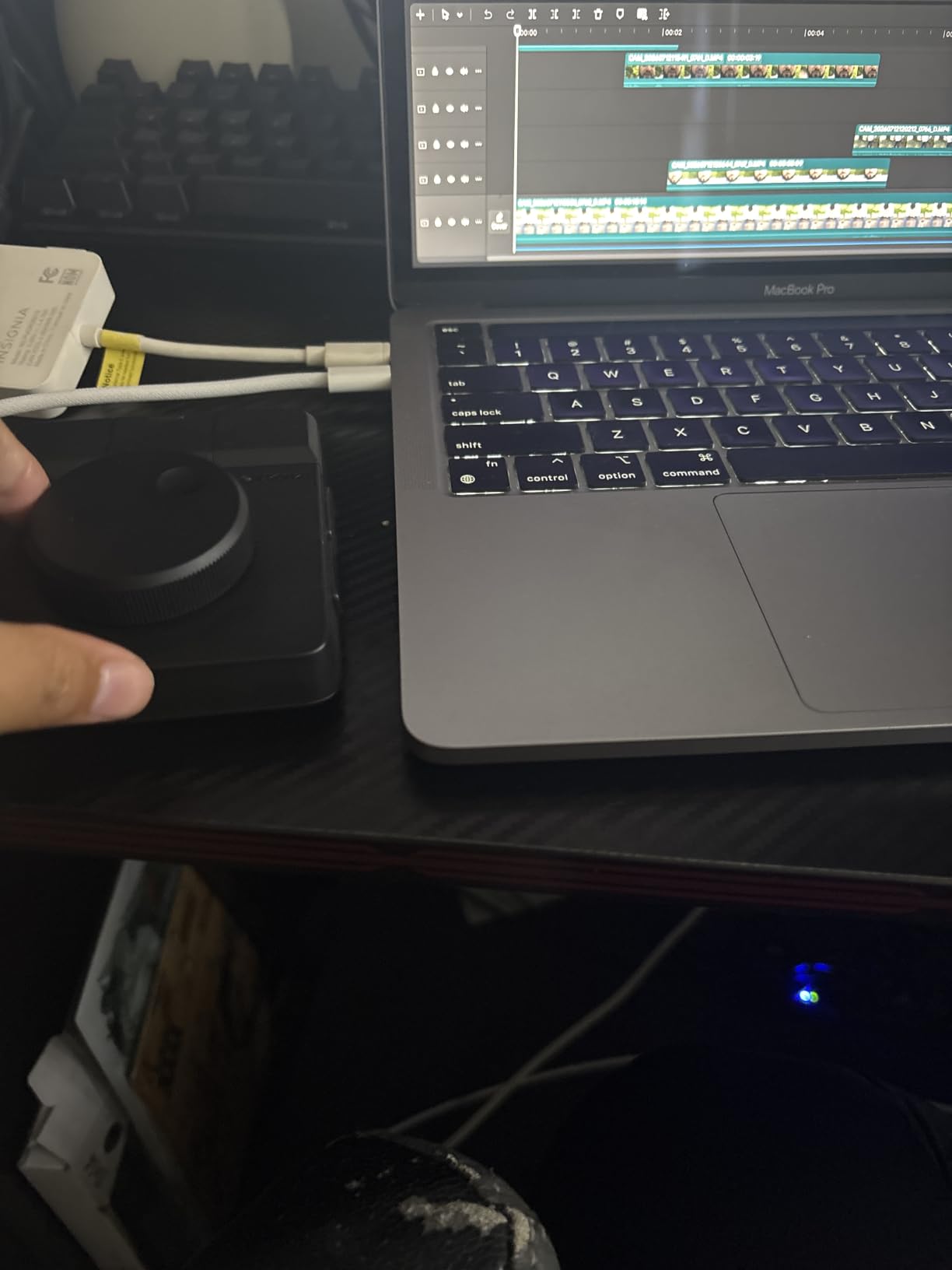
The pre-loaded profiles for CapCut, DaVinci Resolve, Final Cut Pro, Photoshop, and Lightroom Classic mean you can start editing immediately. The 1000 mAh rechargeable battery charges in two and a half hours, though the continuous use time of two and a half hours is shorter than competitors.
The main issue is button sensitivity. The seven buttons are quite sensitive, and I frequently triggered accidental presses during normal editing. The software interface is also clunky and not intuitive, which makes customization more frustrating than it should be.
The knob encoder is another concern. While it works adequately for basic scrolling and adjustment, it scrolls noticeably slower than professional jog wheels. Some users have reported the knob wobbling and wearing out after extended use, which raises questions about long-term durability.
Entry-Level Suitability for Beginners
For photographers who have never used an editing controller before, the D100H offers a low-risk way to test the waters. If you find that a controller improves your workflow, you can invest in a more capable option later. If it does not fit your style, you have not spent much to find out.
The offline mode is particularly useful for beginners who are intimidated by complex software setup. You can start with basic system controls and gradually explore the full customization options as you become more comfortable with the concept of an editing keypad.
Knob and Button Quality Concerns
The quality gap between the D100H and premium controllers is most evident in the knob and button feel. The aluminum knob looks great but does not deliver the precise, weighted rotation of the TourBox or Blackmagic dials. The button sensitivity issue means you need to develop a lighter touch.
The three-month warranty is the shortest in this roundup, which reflects the budget positioning. If you edit daily and rely on your controller for professional work, the limited warranty and reported durability concerns make this a better secondary or starter device than a primary editing tool.
How to Choose the Best Photo Editing Keyboard?
Choosing the right editing keyboard comes down to understanding your workflow, your budget, and your preferred software. After testing eight controllers over three months, I have identified the key factors that should drive your decision.
Editing Console vs Traditional Keyboard
The first question is whether you need a dedicated editing console at all. Traditional keyboards work fine if you have memorized your Lightroom and Photoshop shortcuts. But if you find yourself reaching for the mouse constantly or struggling to remember complex key combinations, an editing console will transform your workflow.
Editing consoles excel at providing tactile, physical controls for adjustments that are normally buried in menus. Dials and knobs give you analog precision for exposure, contrast, and brush size adjustments that is simply not possible with keyboard shortcuts alone. Many photographers on Reddit report using a controller alongside their standard keyboard rather than replacing it entirely.
Key Features That Matter Most
Programmable keys are the foundation of any editing keyboard. Look for a minimum of eight to ten customizable keys for basic workflows, and consider eighteen or more if you rely on a wide range of shortcuts. The ability to create multiple key sets or pages multiplies your effective shortcut capacity.
A dial or knob controller is the second essential feature. This is what separates editing consoles from standard programmable keypads. The dial gives you smooth, continuous control over parameters like exposure, brush size, and timeline position. Look for dials with tactile click feedback for precise adjustments.
Software compatibility is non-negotiable. Before buying any controller, verify that it works with your primary editing software. The best editing consoles offer native integration with Lightroom Classic, Photoshop, Capture One, and your video editing application of choice.
Connectivity Options
USB wired connections offer zero latency and never need charging, which is ideal for desktop editing stations. Bluetooth wireless gives you freedom from cables and the ability to position the controller anywhere on your desk. Some controllers offer both, giving you the best of both worlds.
If you edit on multiple devices, look for a controller with multi-device pairing. The TourBox Elite Plus and ULANZI D100H both support switching between multiple connected devices, which is useful if you edit on both a desktop and a laptop or iPad.
Form Factor and Portability
Full-size consoles like the Elgato Stream Deck Plus and Blackmagic Speed Editor offer the most controls but take up significant desk space. Compact keypads like the XPPen Mini Keydial and HUION Keydial Mini sacrifice some functionality for portability.
For wedding photographers who edit on location or travel frequently, a compact wireless controller is the practical choice. For studio-based editors with dedicated workstations, a larger console with more physical controls will serve you better in the long run.
Switch Types Explained
The type of switches in your editing keyboard affects both feel and longevity. Mechanical switches offer the most tactile feedback and durability, making them ideal for long editing sessions. Scissor switches provide a lighter, quieter feel that some photographers prefer. Membrane switches are the quietest but offer the least tactile feedback.
For the dial and knob controls, look for high-quality encoders with smooth rotation and clear tactile detents. The difference between a premium dial and a budget one becomes immediately apparent during precision adjustments. This is where spending more genuinely improves the editing experience.
Budget Planning Without Compromise
You do not need to spend top dollar to get a useful editing controller. The budget options in this roundup, the XPPen Mini Keydial and ULANZI D100H, both deliver real workflow improvements at entry-level prices. Start with a budget option if you are unsure whether a controller fits your workflow.
If you edit professionally and process large volumes of images regularly, investing in a quality controller pays for itself in time savings. A photographer editing two thousand wedding images per event can save hours per gallery with the right controller, which quickly justifies a premium investment.
Consider the total cost of ownership, including software subscriptions. The Logitech MX Creative Console includes a three-month Adobe CC membership, and the Blackmagic Speed Editor includes DaVinci Resolve Studio. These bundled software values can significantly offset the hardware cost.
Frequently Asked Questions
What is the best keyboard for photo editing?
The TourBox NEO is the best overall editing keyboard for photographers, offering intuitive one-handed controls, over 150 programmable actions, and broad compatibility with Lightroom Classic, Photoshop, and Capture One. Its wired USB connection provides zero-latency performance, and the extensive preset library covers virtually every major editing application.
Are editing keyboards worth it for photographers?
Yes, editing keyboards and consoles are worth the investment for photographers who process large volumes of images regularly. Most users report 30 to 50 percent faster editing speeds after developing muscle memory, which typically takes two to three weeks. For wedding photographers editing thousands of images per event, the time savings quickly justifies the cost.
What features should I look for in a photo editing keyboard?
Look for programmable keys with at least 8 to 10 customizable buttons, a dial or knob for analog parameter control, native software compatibility with your editing apps, and a comfortable ergonomic design. Wireless connectivity is useful for portable workflows, while a wired USB connection provides the most reliable performance for desktop editing.
How do mechanical keyboards benefit photo editing workflow?
Mechanical switches provide tactile feedback that helps you confirm each key press without looking down, which keeps your eyes on the screen during editing. They are also more durable than membrane switches, with lifespan ratings often exceeding 50 million keystrokes. The precise actuation point of mechanical switches reduces accidental inputs during fast-paced editing sessions.
Final Thoughts on the Best Editing Keyboards for Photographers
After three months of hands-on testing, my top recommendation for most photographers remains the TourBox NEO. It hits the sweet spot of photo editing focus, build quality, customization depth, and value. For photographers who also produce video content, the Blackmagic DaVinci Resolve Speed Editor is unmatched in its category.
If budget is your primary constraint, start with the XPPen Mini Keydial ACK05 to experience the workflow benefits of a dedicated editing controller without a major investment. The best editing keyboards for photographers in 2026 are the ones that fit naturally into your existing workflow and help you deliver galleries faster with less physical strain.
Whatever you choose, give yourself two to three weeks to develop muscle memory before judging the results. Every photographer I spoke with during this testing process agreed that the real productivity gains come after that initial learning curve, not before.